

Roll Limitless Drums


This method uses Passthrough, which means you don’t have to bind anything else. You may have to change the “Universal Choice” option to use it in other games or on other consoles.
-
Go to [Roll Limitless’ Firmware website] and download the [Rock Band Drums firmware].

-
Put the Roll Limitless Adapter in firmware updating mode.
If you’re on a regular Roll Limitless, press and hold the rectangular button on the top of the adapter, near the micro USB port, while plugging it into a computer.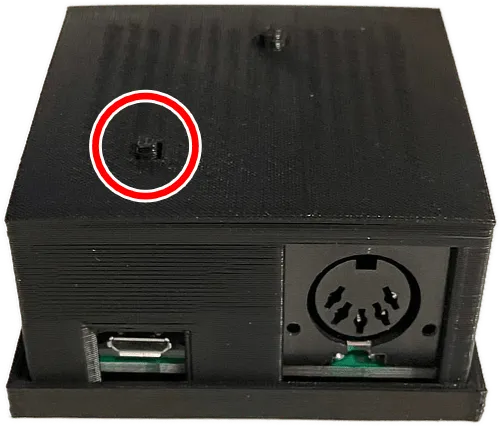
If you’re on a Roll Limitless Mini, press and hold the white
BOOTSELbutton while plugging it into a computer.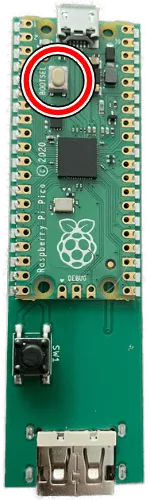
-
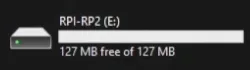
While still holding the button, plug it into your computer. If done successfully, the Roll Limitless will show up as a removable drive.
-

Place the firmware file on the Roll Limitless device while it’s in firmware updating mode (showing up as a removable drive).
Remove it when it’s done.
-
Reconnect your Roll Limitess and set it into firmware mode.
If you’re on a regular Roll Limitless, plug it back into your computer while holding down the round Start button.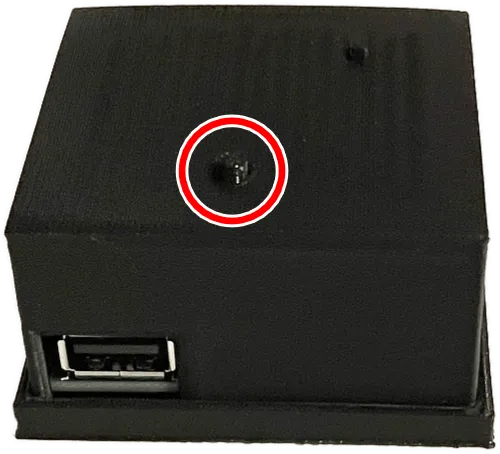
If you’re on a Roll Limitless Mini, plug it back into your computer while holding the black
SW1button.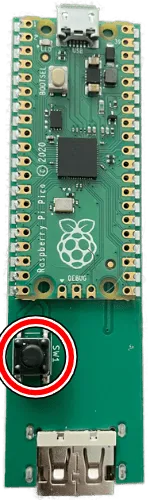
-
Go to [Roll Limitless’ settings] website in a compatible browser and select your Roll Limitless under
Choose Device. -
Click on
General.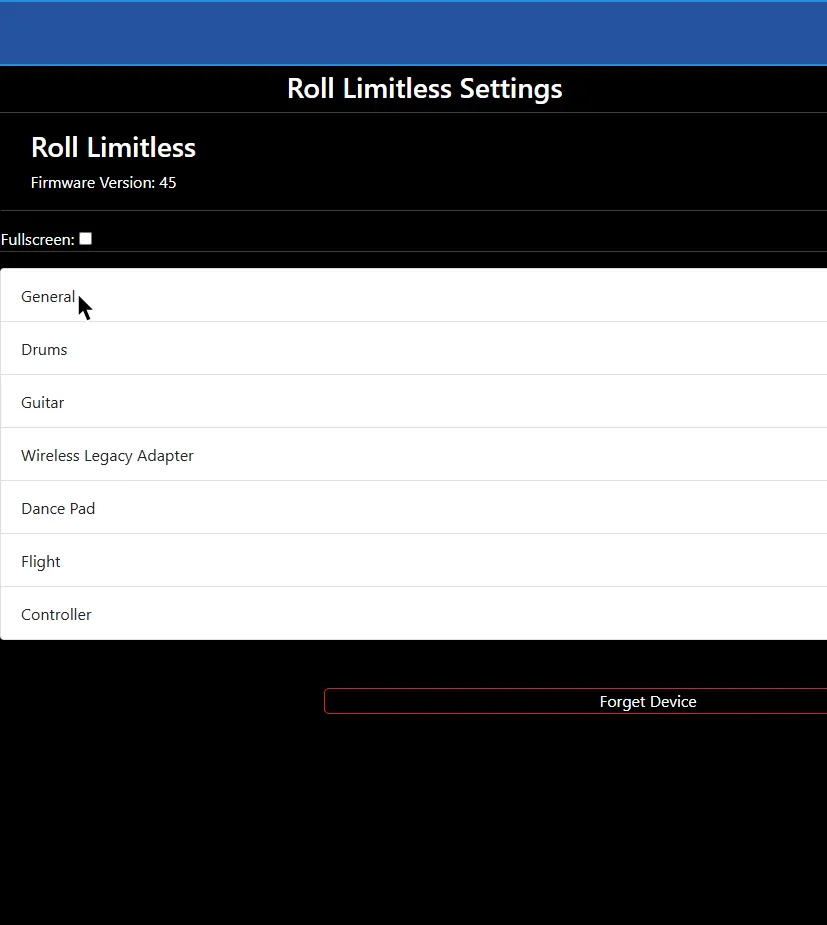
-
Change
Universal ChoicetoPS3.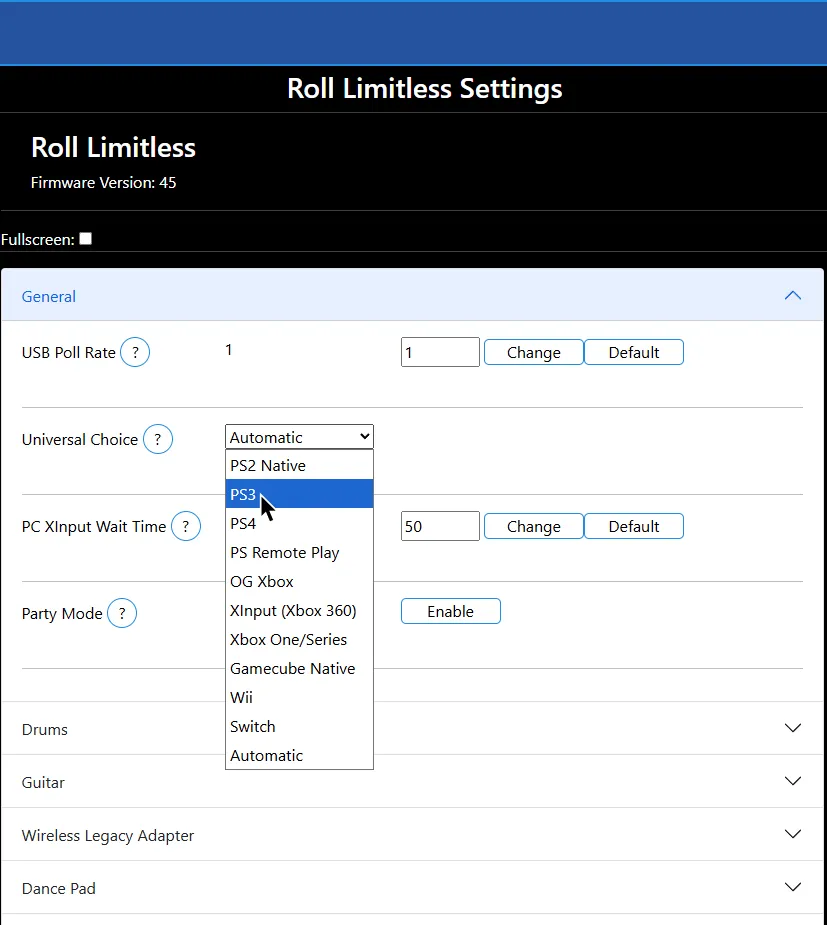
-
Disconnect the Roll Limitless from the computer then plug it back in.
-
Now, [go to Zadig’s website] and download the latest version, then open it up.
-
Click on
OptionsthenList All Devices.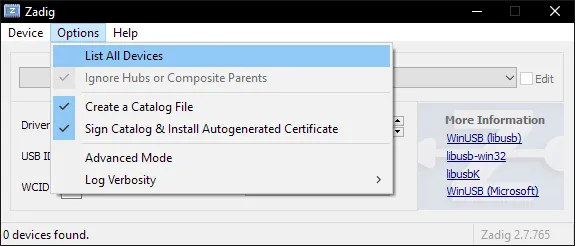
-
You should now see devices listed. Switch it to your Roll Limitless.
In this example, it’s the Pro Guitar (Harmonix RB3 Mustang Guitar for PlayStation® 3).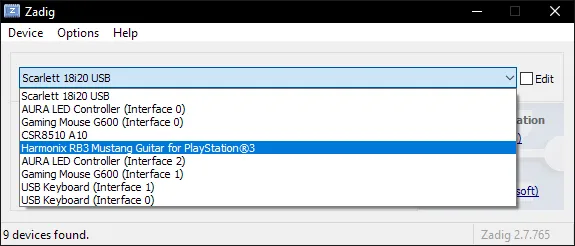
-
After selecting the right device, you should see the option to replace the driver.
MAKE SURE YOU ARE REPLACING THE DRIVER ONLY FOR THE ROLL LIMITLESS!!
ClickReplace Driver.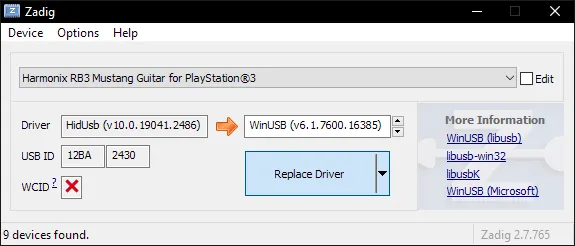
-
A warning will appear. Again, make sure you have selected your Roll Limitless. After you have made sure, click
Yes.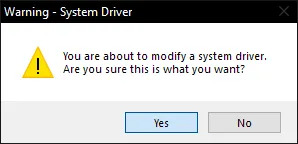
-
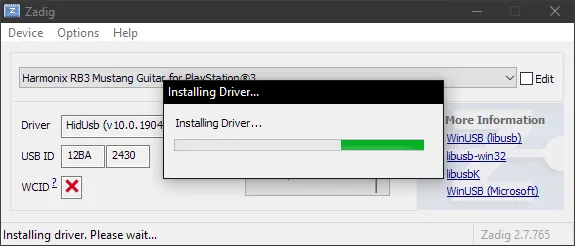
It will then install the driver. As the program says, it may take a few minutes.
-
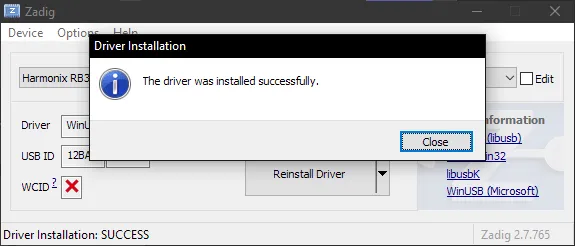
If everything goes well, you will get this message:
-
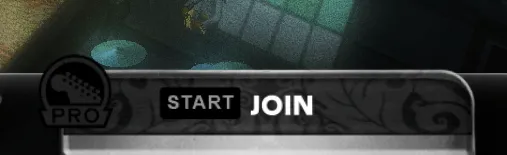
Close Zadig and, with the Roll Limitless still connected, open up RPCS3 and open Rock Band 3. Turn your controller on and you should see it automatically assign a player number.
You will see the instrument ready to join in Rock Band 3, .
From this point, you can just connect your Roll Limitless whenever you want without having to repeat this setup process!
Uninstalling
Applying a Zadig driver on a device will make it only work on applications with passthrough. Thankfully, reverting this is very easy.-
Open the Start menu and search for
Device Manager. Open it.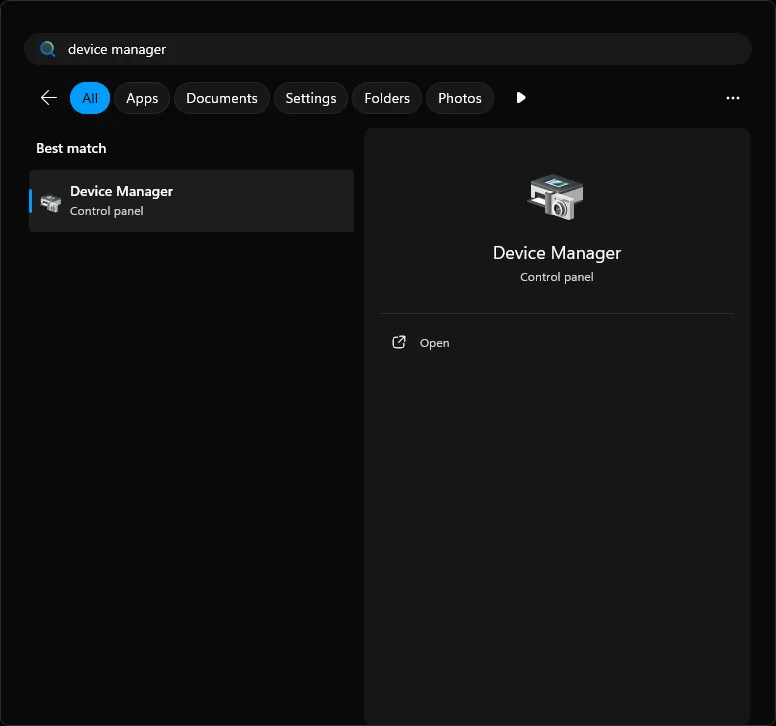
-
Scroll down until you find the
Universal Serial Bus devicescategory.
Expand it and right click the instrument you applied the Zadig driver on and then selectUninstall device.
In this example, it’s the Pro Guitar (Harmonix RB3 Mustang Guitar for PlayStation® 3).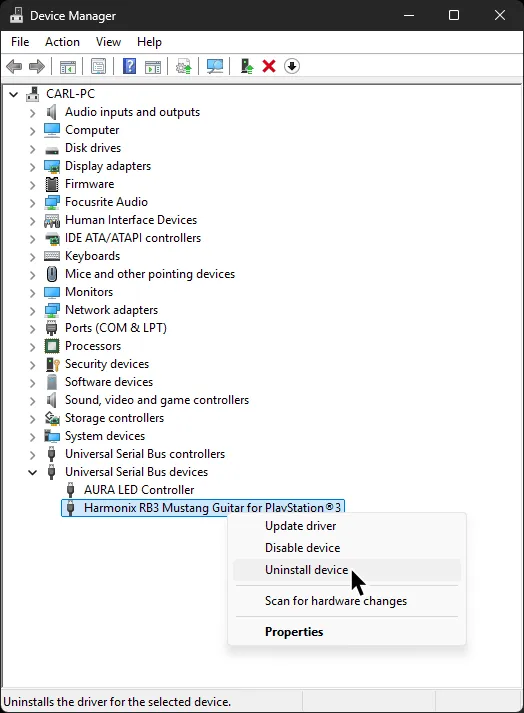
-
In the next window that pops up, make sure to tick
Attempt to remove the driver for this device. -
After that, click
Uninstalland that’s it!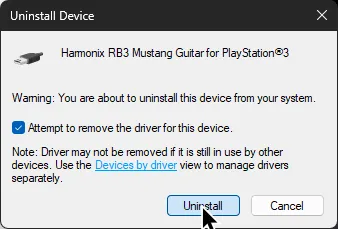
When you disconnect then reconnect the device, it will revert back to the original driver.
This method uses XInput, which is more compatible with other rhythm games, but it requires manually mapping (or using a profile) before being able to play.
How do I map my drums?
Click on thePads icon at the top of RPCS3.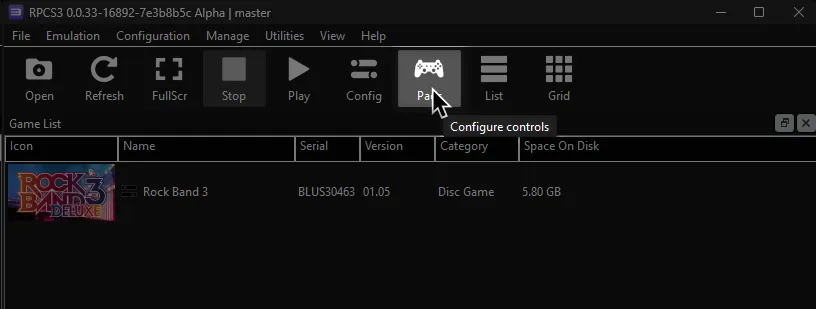
It’s suggested to create a new configuration by clicking Add Configuration at the top right of the Pads window.
This is so you can change configuration profiles in case you want to play other games.
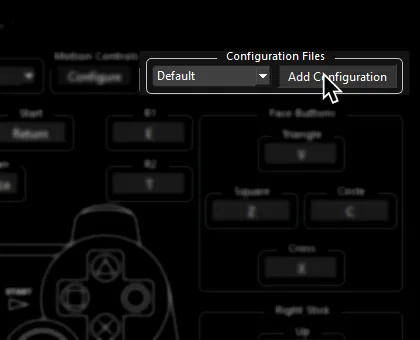
Follow the instructions and/or match the assignments below.
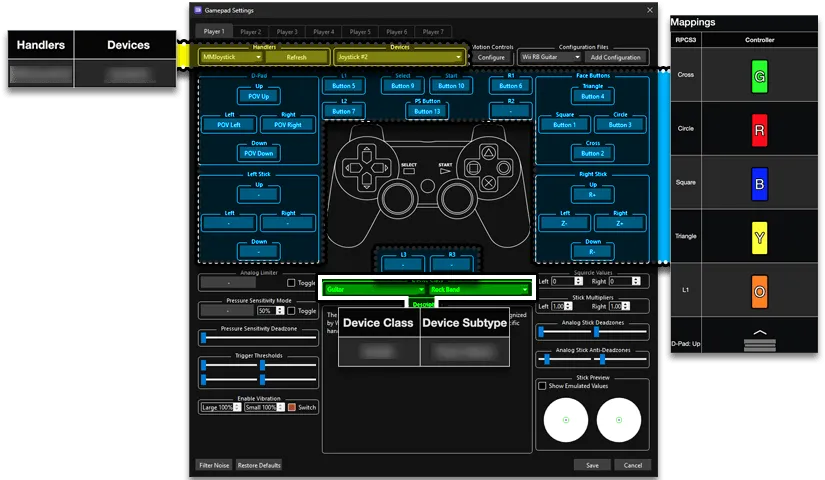
- Velocity sensitivity doesn’t seem to work.
-
Go to [Roll Limitless’ Firmware website] and download the [Rock Band Drums firmware].
-
Put the Roll Limitless Adapter in firmware updating mode.
If you’re on a regular Roll Limitless, press and hold the rectangular button on the top of the adapter, near the micro USB port, while plugging it into a computer.
If you’re on a Roll Limitless Mini, press and hold the white
BOOTSELbutton while plugging it into a computer.
-
While still holding the button, plug it into your computer. If done successfully, the Roll Limitless will show up as a removable drive.
-
Place the firmware file on the Roll Limitless device while it’s in firmware updating mode (showing up as a removable drive).
Remove it when it’s done.
-
Reconnect your Roll Limitess and set it into firmware mode.
If you’re on a regular Roll Limitless, plug it back into your computer while holding down the round Start button.
If you’re on a Roll Limitless Mini, plug it back into your computer while holding the black
SW1button.
-
Go to [Roll Limitless’ settings] website in a compatible browser and select your Roll Limitless under
Choose Device. -
Click on
General.
-
Change
Universal ChoicetoXInput (Xbox 360).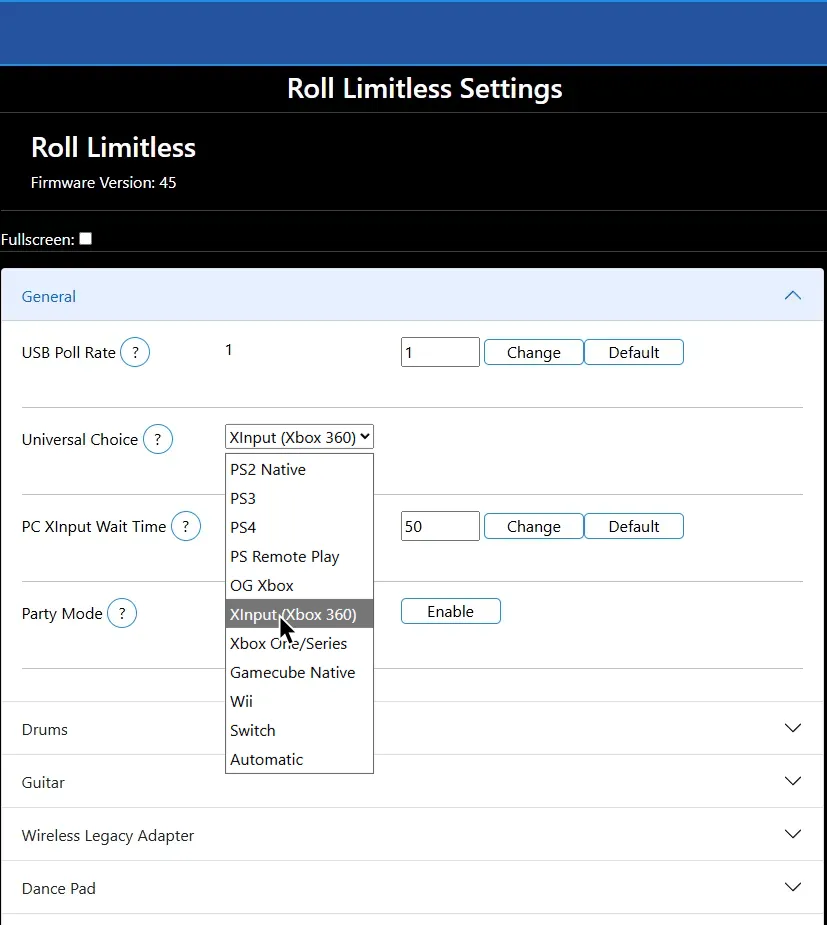
-
You can now map your Roll Limitless adapter in RPCS3.
Pad Information
Section titled “Pad Information”| Handlers | Devices |
|---|---|
| XInput | XInput Pad |
| Device Class | Device Subtype |
|---|---|
| Drums | Rock Band Pro |
Mapping
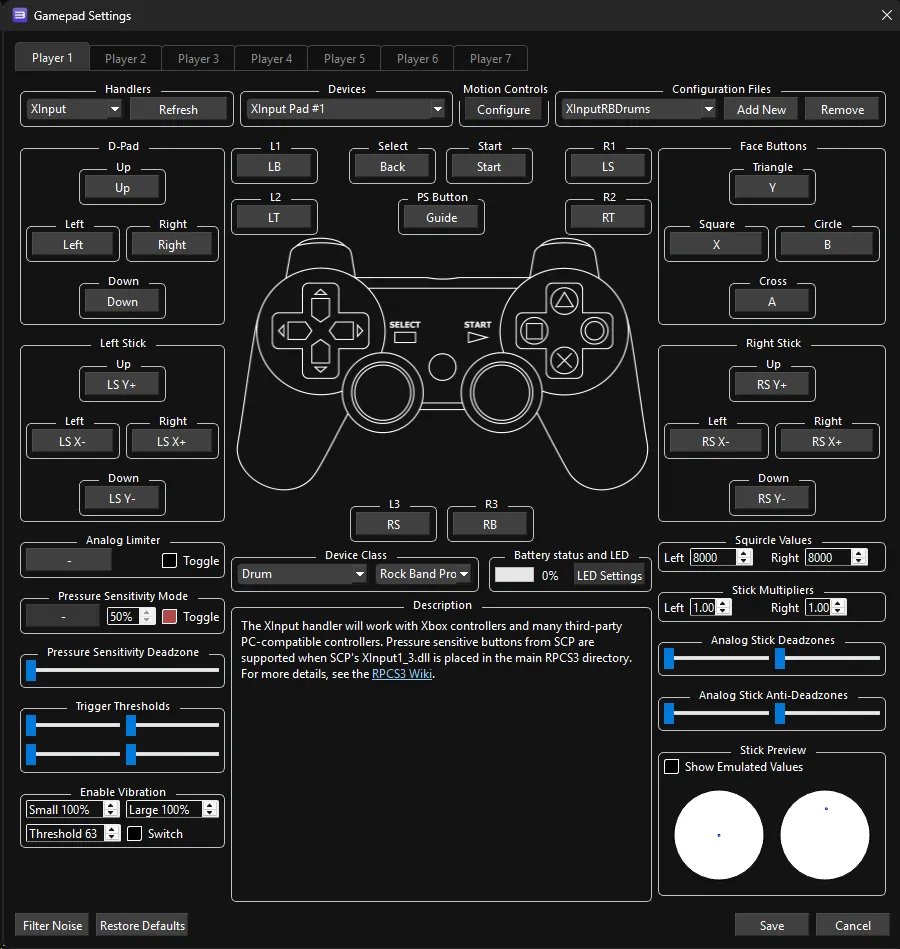
Section titled “Mapping”By default, XInput has most things bound correctly. You only need to remap the following:
| RPCS3 | XInput | Drums |
|---|---|---|
| R1 | 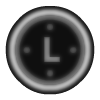 |  |
| L3 |  | Pad Modifier |
| R3 |  | Cymbal Modifier |
- Rock Band Drums send multiple button presses out at once. For example, a Red pad will send
BandRight Stick Click(which translates toCircleandL3.) Keep in mind these are needed to the emulator to tell your cymbals apart.- It’s strongly suggested to bind an Xbox controller like the Mapping screenshot below then swapping the Device to your Xbox 360 Rock Band Drums.
Profile
Section titled “Profile”How do I use profiles?
After downloading the profile,
- Extract the .7z file.
- Drag the
input_configsfolder into theconfigsfolder where you have RPCS3 in.

- After that, you can select the profile in the
Padsmenu.
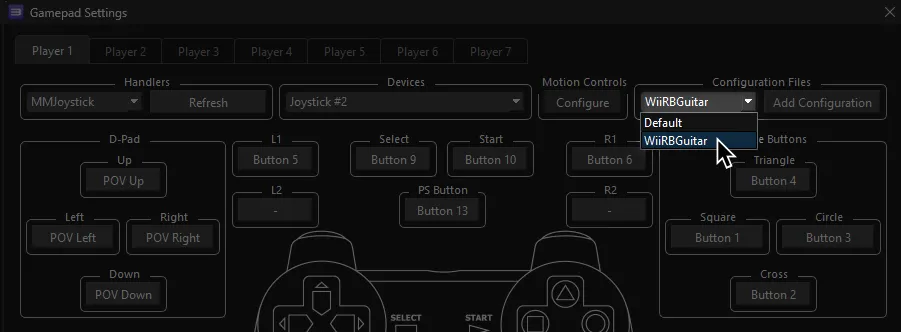
Most of the time, these controller profiles should work out of the box. If they don’t, try changing the controller listed in Devices, next to the Refresh button until it receives an input. You can edit this while the game is running.
Advanced Mapping
- To bind multiple buttons to one RPCS3 button, hold Shift then click on the RPCS3 button you want to assign multiple buttons to.
| RPCS3 | Rock Band Drums |
|---|---|
| Cross |  |
| Circle |  |
| Square |  |
| Triangle |  |
| R3 | Cymbal Modifier |
| D-Pad: Up | Yellow Cymbal Modifier |
| D-Pad: Down | Blue Cymbal Modifier |
| L3 | Pad Modifier |
| L1 |  |
| R1 | |
| Cross |  |
| Circle |  |
| Square |  |
| Triangle |  |
| D-Pad |  |
| PS Button |  |