Downloads
Installing REAPER
Section titled “Installing REAPER”-
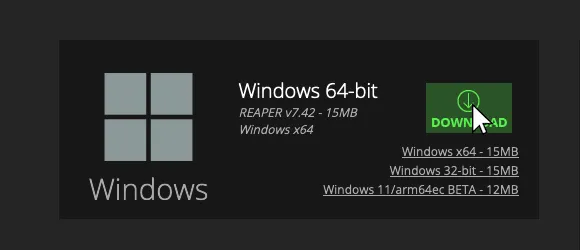
[Download and install the latest 64-bit version of REAPER.].
- Please DO NOT enable the
Portable installoption when installing!
- Please DO NOT enable the
-
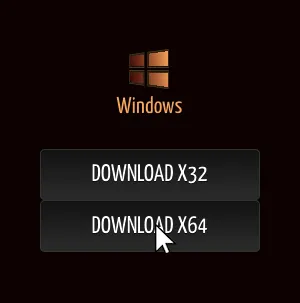
[Download and install the latest 64-bit version of SWS / S&M Extension.].
- Please keep
Python ReaScript supportenabled when installing!
- Please keep
-
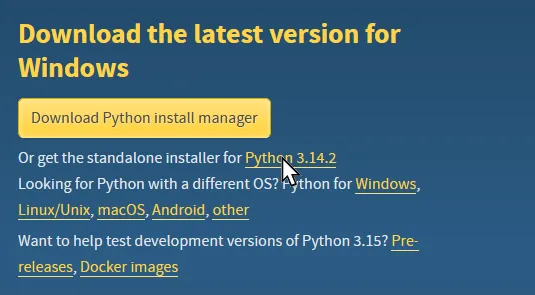
[Download the latest version of Python 3 if you don’t have it already.].
- Do NOT download Python install manager!
- Python 2 is NOT the same and will not work.
-
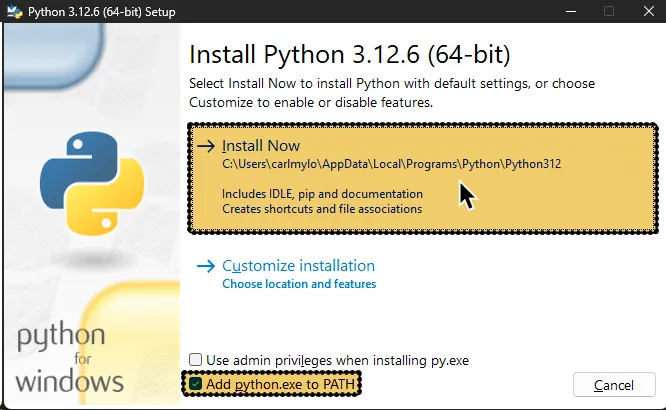
Once it finishes downloading, open the installer.
In the installer:- Activate
Add python.exe to PATH - Click
Install now
- Activate
-
[Click here to download the REAPER charting files

.ziparchive.].- a. Extract the
.ziparchive somewhere convenient. - b. Drag the
Commonfolder intoDRAG 'Common' HEREshortcut. - c. Drag
REAPERinto theDRAG 'REAPER' HEREshortcut. - d. Replace any files if you’re asked.
- a. Extract the
- Install REAPER along with SWS and ReaPack. TK and Unzip will be download and will be installed if they’re missing missing or updated if they’re outdated.
Terminal window sudo pacman -S reaper sws reapack tk unzip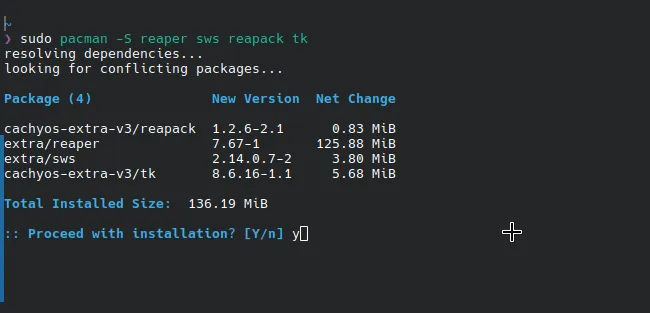
- Create a “symlink” (symbolic link) so REAPER can pick up SWS.
Terminal window ln -s /usr/lib/sws/reaper_sws-x86_64.so ~/.config/REAPER/UserPlugins/ln -s /usr/lib/sws/sws_python64.py ~/.config/REAPER/Scripts/
- After that finishes, download and install the REAPER charting files.
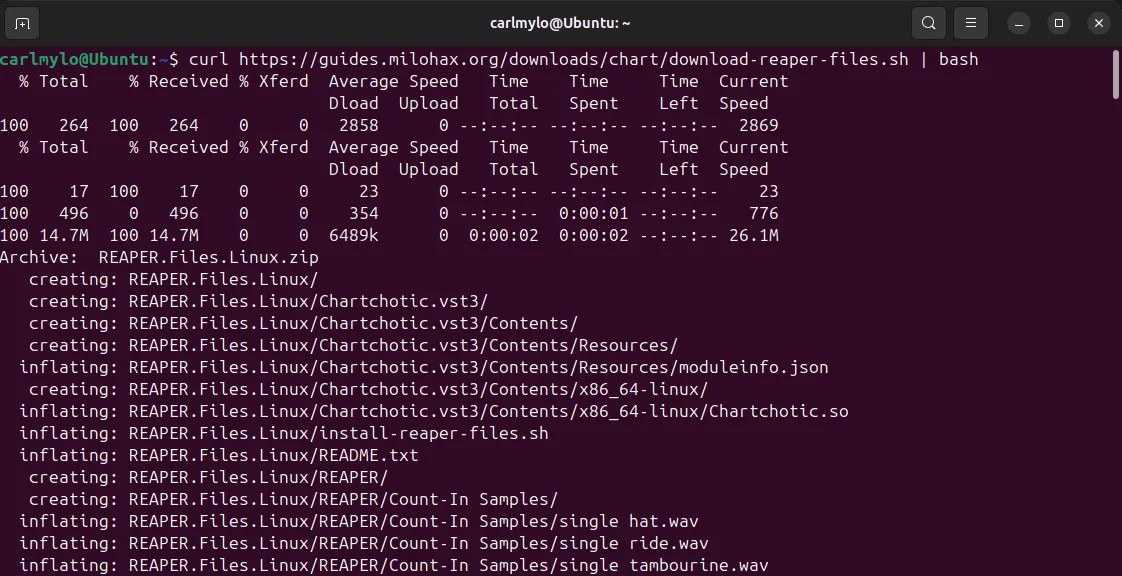
Run the following command in a terminal:
This will download and place all of the files you’ll need to chart in REAPER.
Terminal window curl https://guides.milohax.org/downloads/chart/download-reaper-files.sh | bash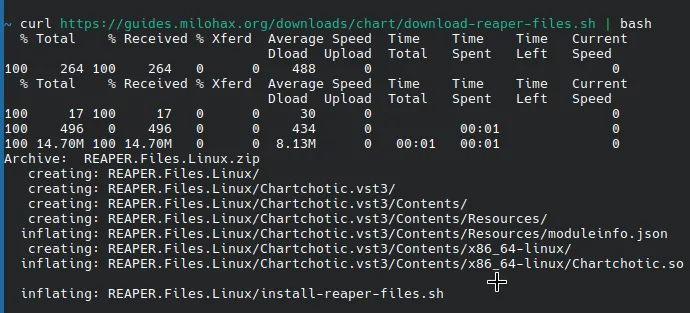
-
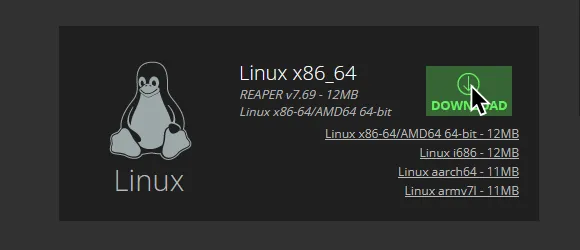
[Download the latest 64-bit version of REAPER].
-
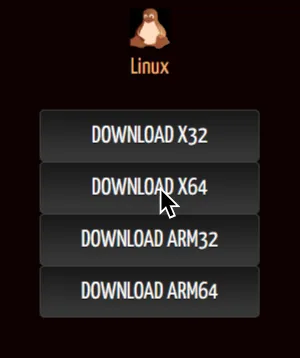
[Download and install the latest 64-bit version of SWS / S&M Extension for Linux].
-
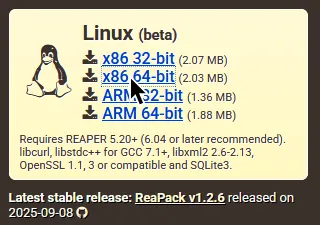
[Download the latest 64-bit version of ReaPack for Linux].
-
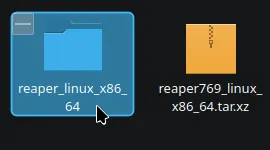
Go to the REAPER archive you download and extract it, then go into the extracted folder.
-
Run the
install-reaper.shscript.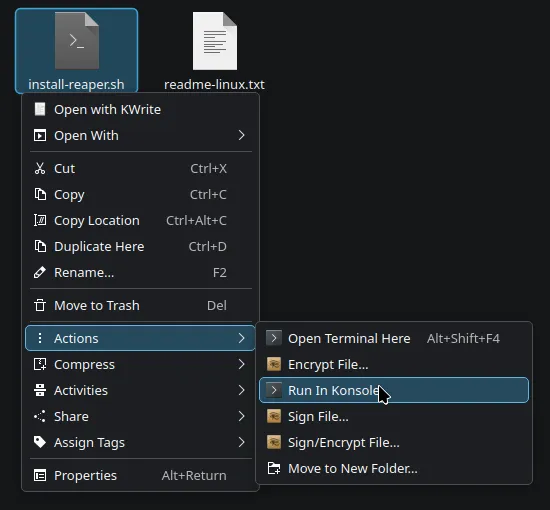
-
On the first part of the script, press
Ito install REAPER.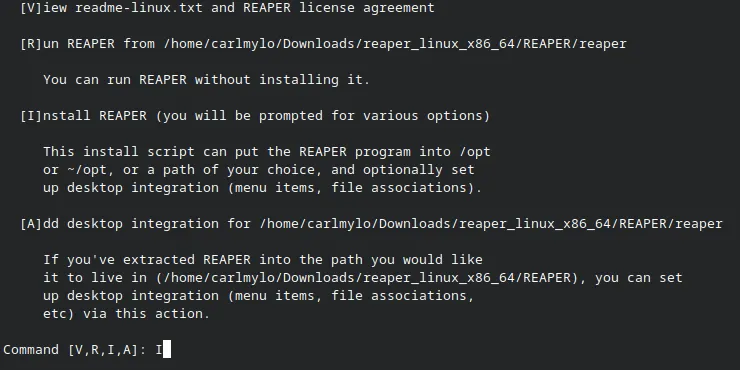
-
In the next part, you will be asked if you want to install REAPER to the system or the home folder.
You should install it to the home folder with2!After that, you’ll be asked if you want to add desktop integration.
This is suggested so you can open.RPP(REAPER Project files).
Select2to enable this.You’ll finally be asked to proceed with the installation.
PressYand let it finish to install REAPER.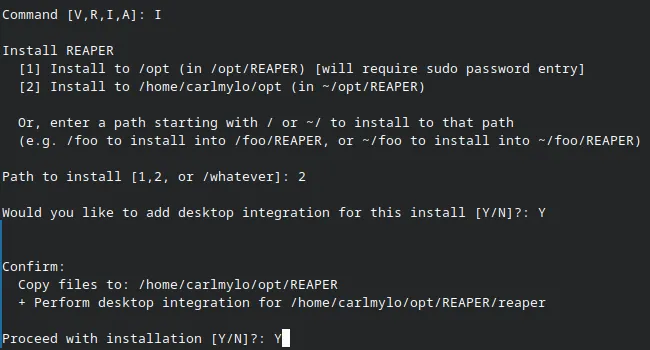
-
Open REAPER after installing it.
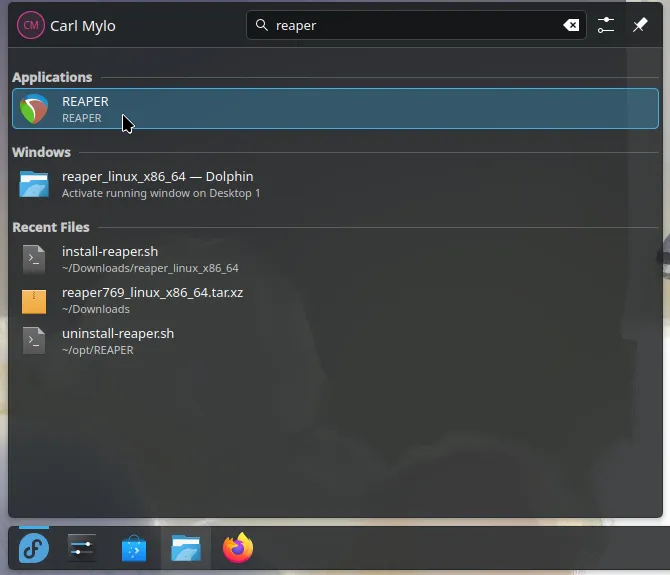
If REAPER asks you to select an audio device driver, select
Nofor now.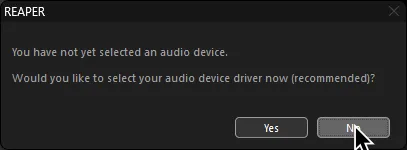
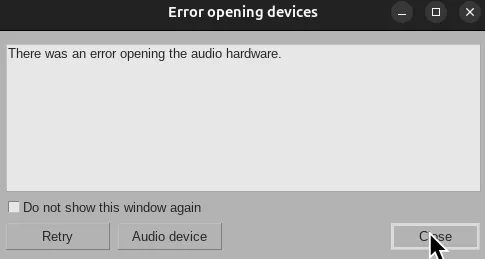
If REAPER alerts you that it cannot open up any audio hardware, ignore it for now.
-
Go to
Options>Show REAPER resource path in explorer/finder...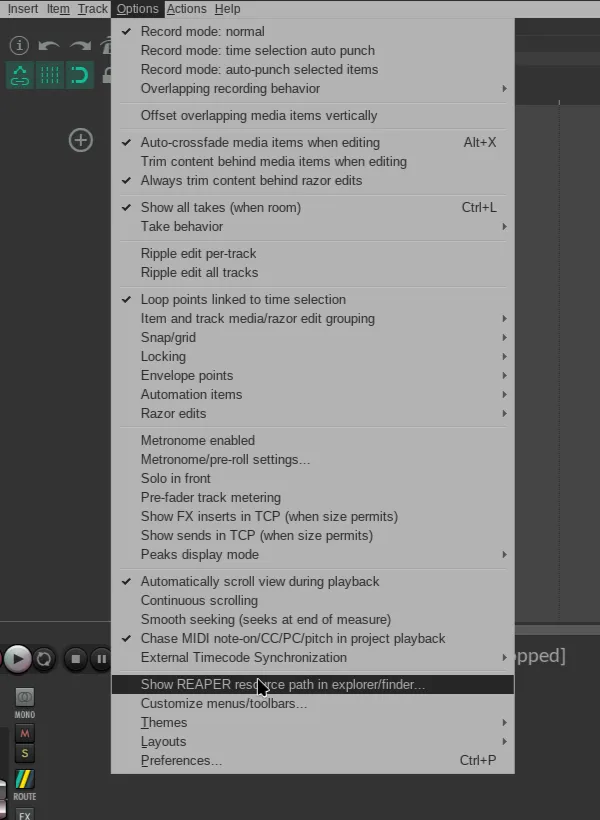
-
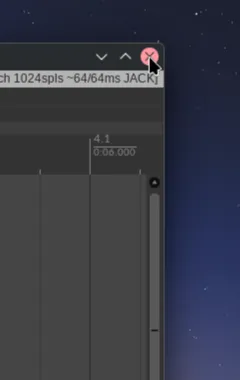
After the resources folder opens, close out REAPER.
-
While leaving the resource folder open, open another file browser window and go to the SWS archive you downloaded and extract it.
Go into the folder afterwards.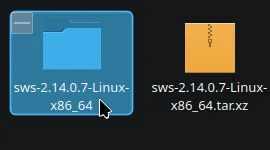
-

Drag the folders within the SWS folder into REAPER’s resource folder, writing into anything.
-
Leave the REAPER resource folder open and use the other file browser window to navigate to ReaPack’s downloaded file.
Drag that file into REAPER resources’UserPluginsfolder.
-
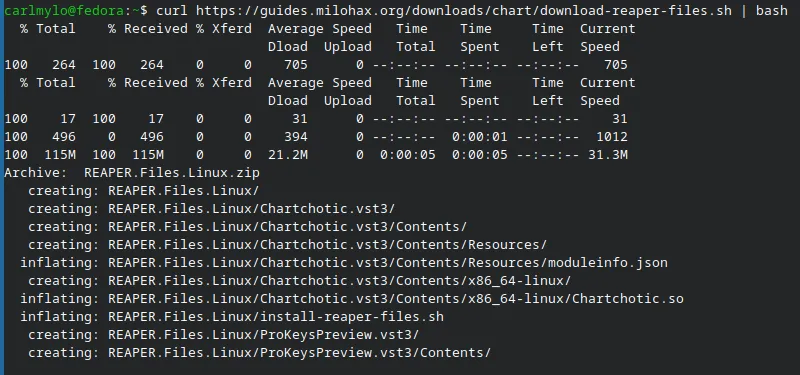
After all of that, download and install the REAPER charting files. Run the following command in a terminal:
Terminal window curl https://guides.milohax.org/downloads/chart/download-reaper-files.sh | bashThis will download and place all of the files you’ll need to chart in REAPER.
-
[Download the latest 64-bit version of REAPER].
-
[Download and install the latest 64-bit version of SWS / S&M Extension for Linux].
-
[Download the latest 64-bit version of ReaPack for Linux].
-
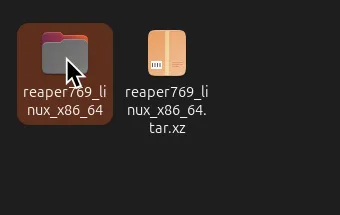
Go to the REAPER archive you download and extract it, then go into the extracted folder.
-
Run the
install-reaper.shscript.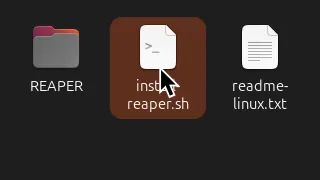
-
On the first part of the script, press
Ito install REAPER.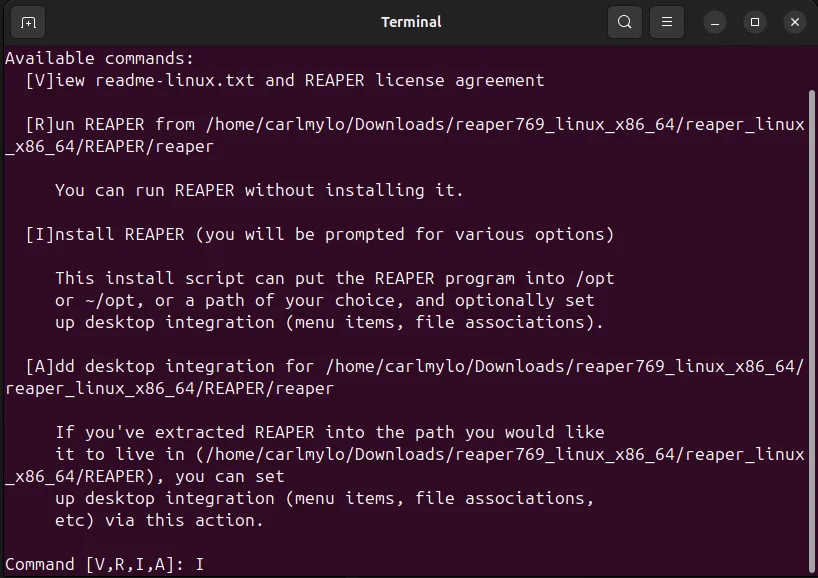
-
In the next part, you will be asked if you want to install REAPER to the system or the home folder.
You should install it to the home folder with2!After that, you’ll be asked if you want to add desktop integration.
This is suggested so you can open.RPP(REAPER Project files).
Select2to enable this.You’ll finally be asked to proceed with the installation.
PressYand let it finish to install REAPER.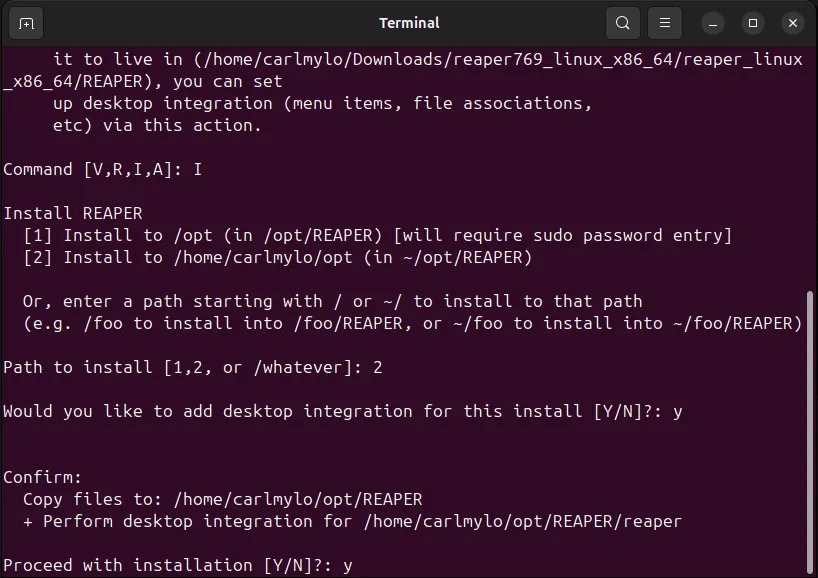
-
Open REAPER after installing it.
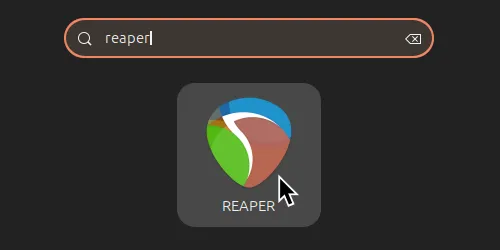
If REAPER asks you to select an audio device driver, select
Nofor now.
If REAPER alerts you that it cannot open up any audio hardware, ignore it for now.
-
Go to
Options>Show REAPER resource path in explorer/finder...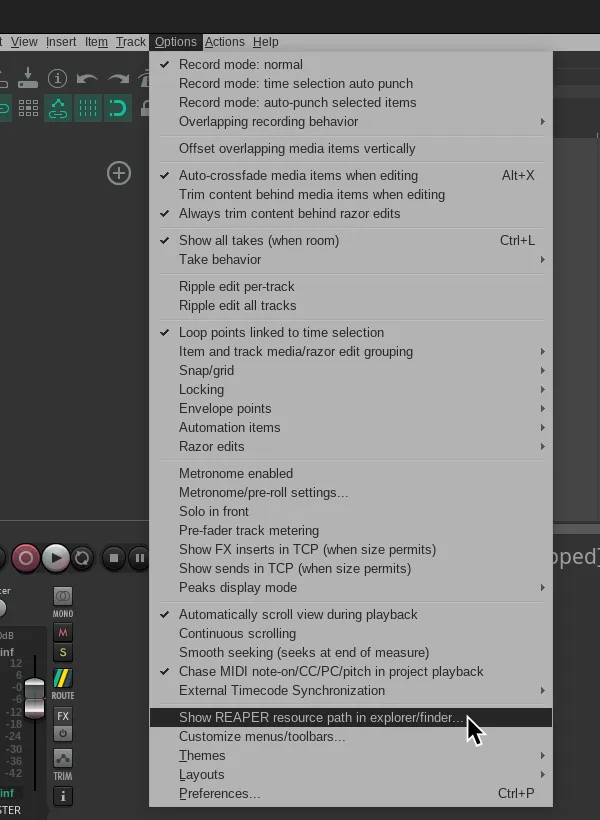
-
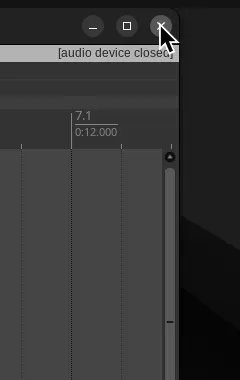
After the resources folder opens, close out REAPER.
-
While leaving the resource folder open, open another file browser window and go to the SWS archive you downloaded and extract it.
Go into the folder afterwards.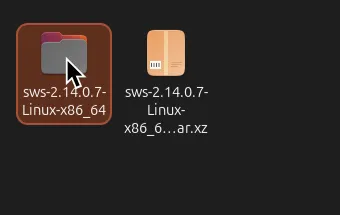
-

Drag the folders within the SWS folder into REAPER’s resource folder, merging any file it asks about.
-
Leave the REAPER resource folder open and use the other file browser window to navigate to ReaPack’s downloaded file.
Drag that file into REAPER resources’UserPluginsfolder.
-
After all of that, download and install the REAPER charting files. Run the following command in a terminal:
Terminal window curl https://guides.milohax.org/downloads/chart/download-reaper-files.sh | bashThis will download and place all of the files you’ll need to chart in REAPER.