

CRKD Les Paul (Multi-platform)

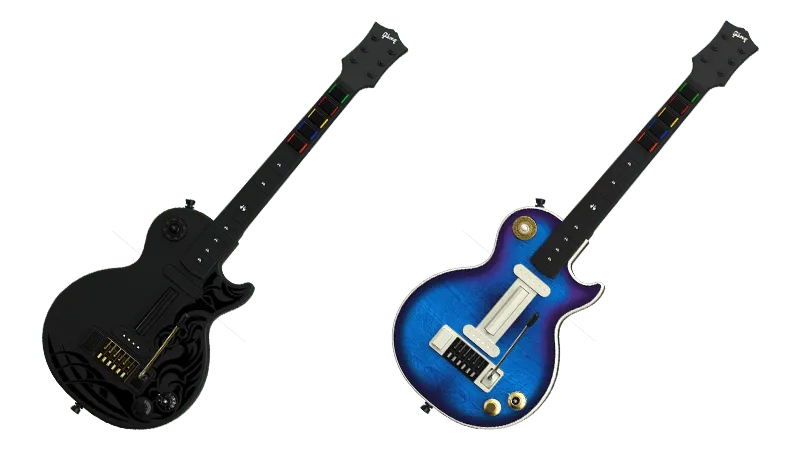
- CRKD Les Paul guitars can be connected wirelessly via its respective dongle, Bluetooth, and wired via USB. For Bluetooth, you need a Bluetooth receiver to connect to your computer.
- Dongle and wired USB are the recommended methods.
- [Deluxe] Controller Input Offset: Custom-Optimal
There are two ways to configure this guitar. Pick depending on whichever neck you have.
- This is the recommended configuration for users with the stock “OG” neck.
- There is no input profile as all controls are default.

How do I map my guitar?
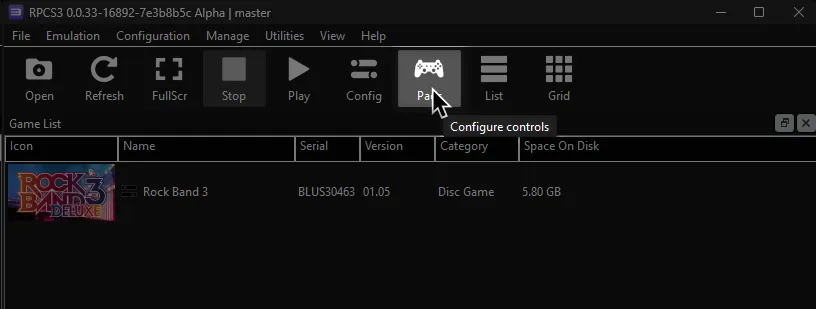
Click on the Pads icon at the top of RPCS3.
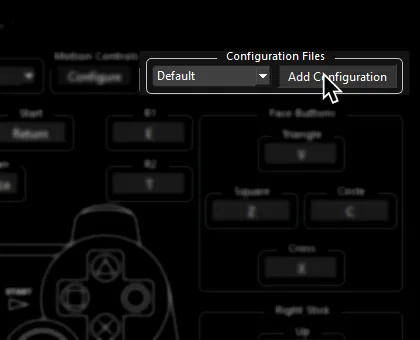
It’s suggested to create a new configuration by clicking Add Configuration at the top right of the Pads window.
This is so you can change configuration profiles in case you want to play other games.
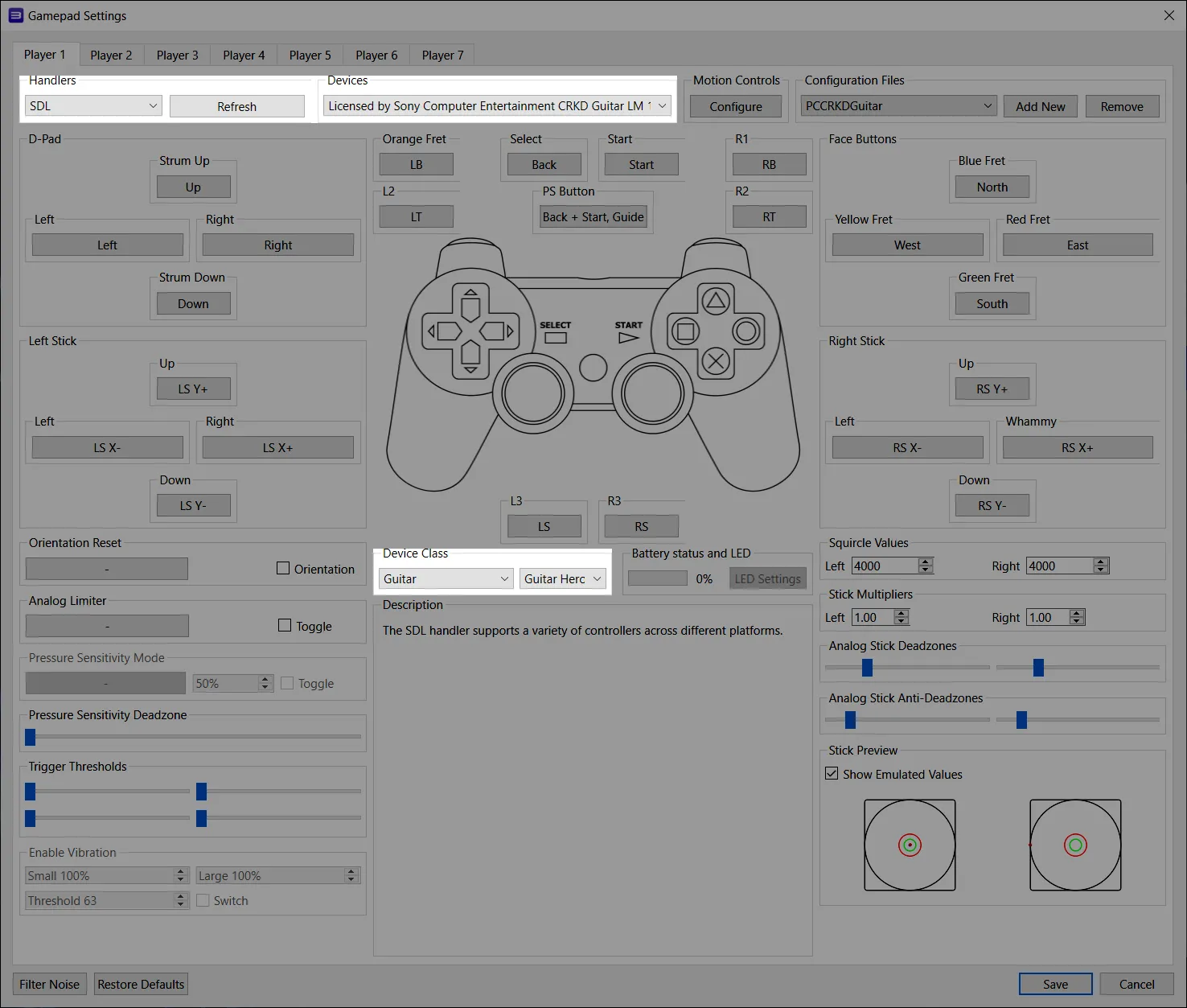
Follow the instructions and/or match the assignments below.
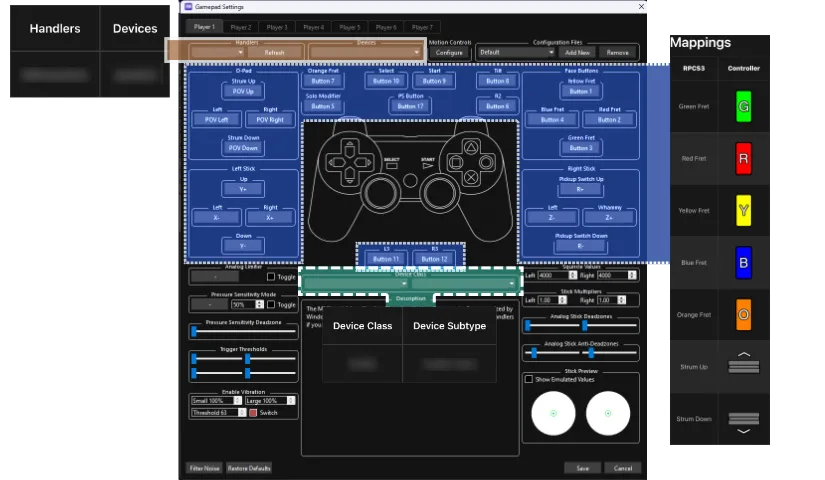
Pad Information
Section titled “Pad Information”| Handlers | Devices |
|---|---|
| SDL | Licensed by Sony Computer Entertainment CRKD Guitar LM |
| Device Class | Device Subtype |
|---|---|
| Guitar | Guitar Hero |
-
After connecting your guitar, switch the “Platform” selector to the
P3.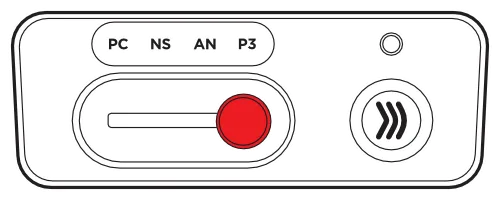
-
Map your guitar.
Mapping
Section titled “Mapping”By default, everything is bound correctly. You don’t need to remap anything or download a profile.
- This is the recommended configuration for users with the “Solo” neck.

- After connecting your guitar, switch the “Platform” selector to the “P3”.
- Boot up RPCS3 and enjoy. You don’t have to set up anything else!
-
Navigate to
/etc/udev/in your file browser.
Enter therules.dfolder.
If it doesn’t exist, make it.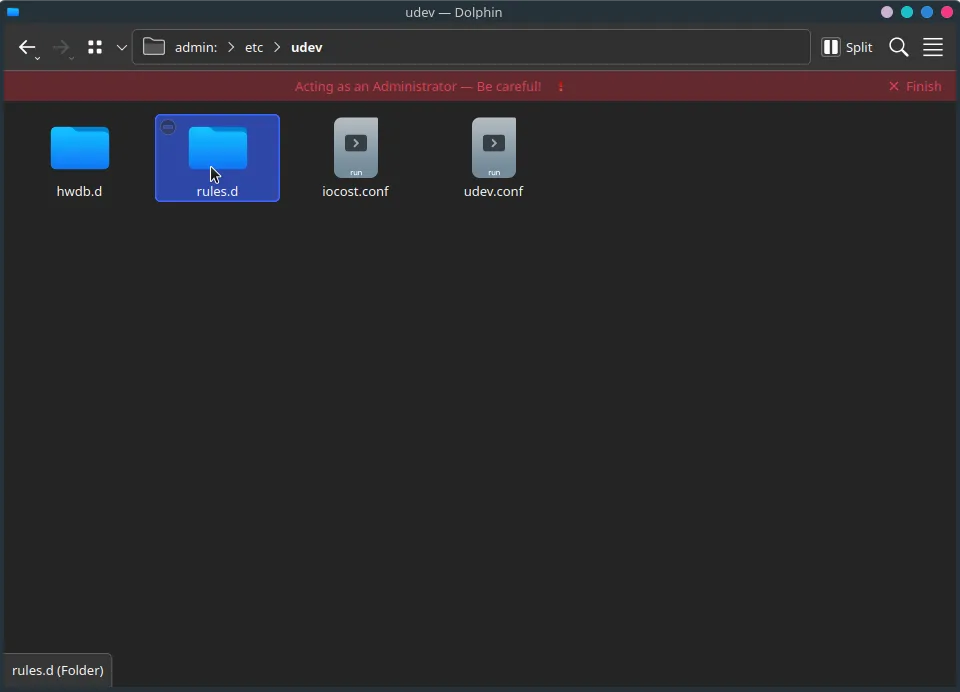
-
Create a new file.
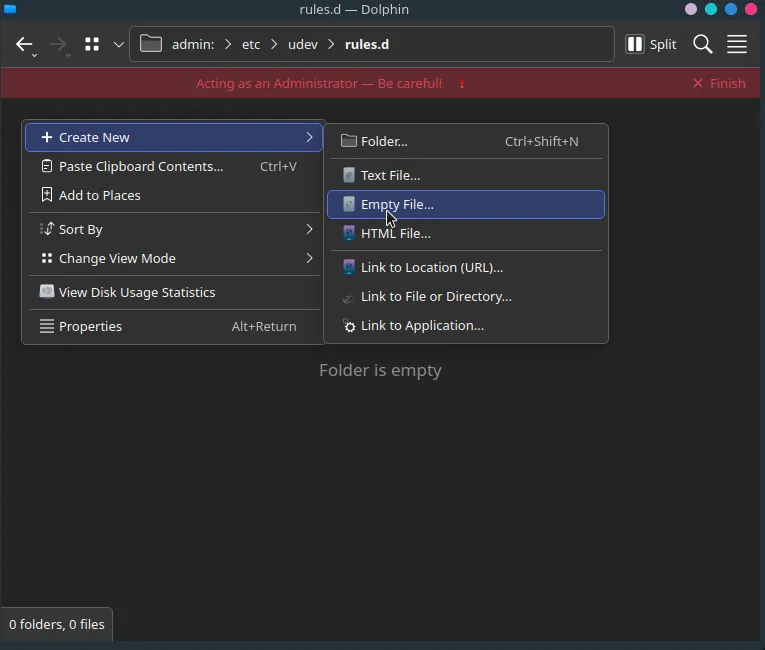
Name it
99-ps3-peripherals.rules.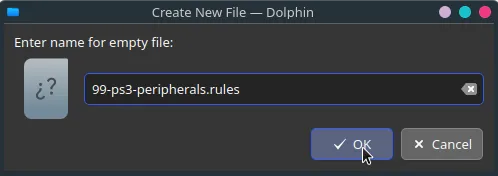
-
Open the file in a text editor.
Add an entry for your guitar:SUBSYSTEM=="usb", ATTRS{idVendor}=="12ba", ATTRS{idProduct}=="0200", MODE="0666"In this example, a PS3 Mustang and PS3 Keyboard are being added.
When you’re done, save your edits to the file.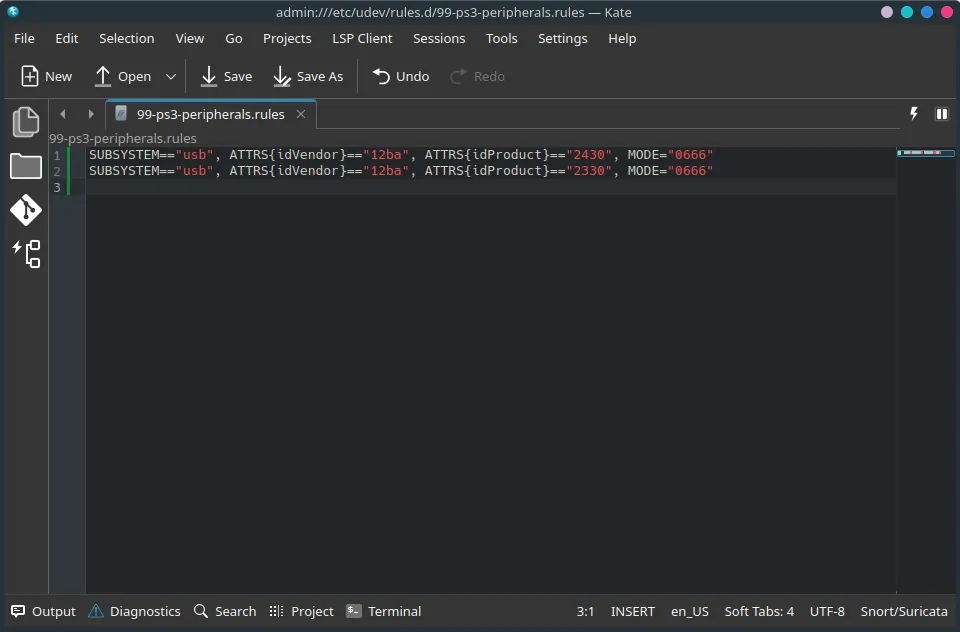
-
Run
sudo udevadm control --reload-rulesin a terminal or reboot your system.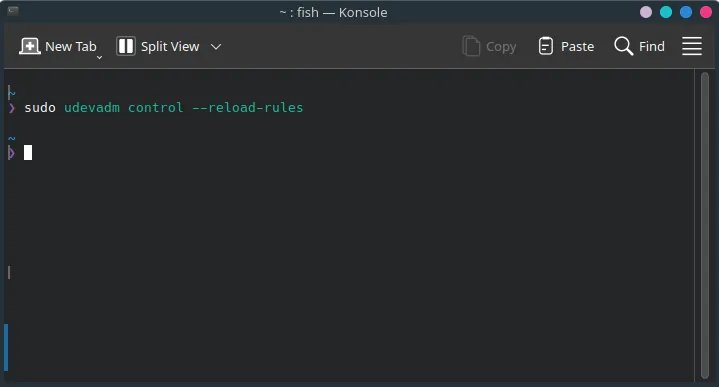
-
Disconnect your guitar, then reconnect it.
-
Open up Rock Band 3 in RPCS3 and sync your guitar.
You should see it automatically assign a player number.
Likewise, in Rock Band 3, you will see your guitar ready to join.
By default, macOS will attempt to load its own drivers when trying to use passthrough instruments on RPCS3.
Luckily, this is easy to fix!
-
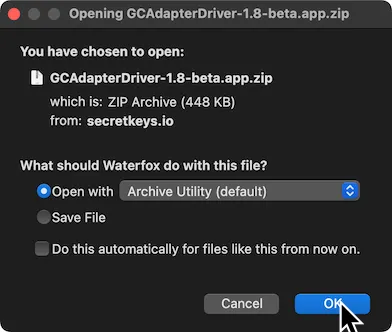
First, [click here download the GCAdapterDriver 1.8 beta]
-
Drag the extracted
GCAdapterDriver-1.8-betaapplication to theApplicationsfolder.
-
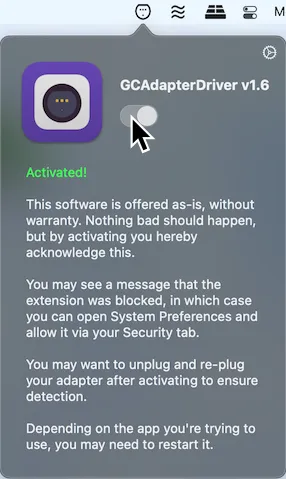
In the menu bar, click on the new GCAdapterDriver icon.
Click on the slider to try to activate it.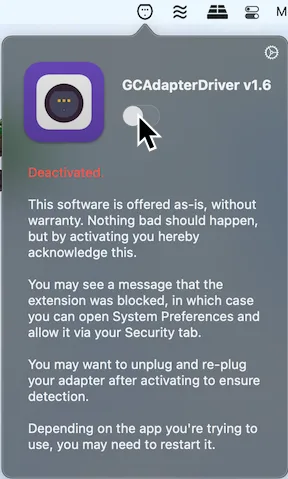
-
It will initially block the system extension.
Click onOpen Security Preferences.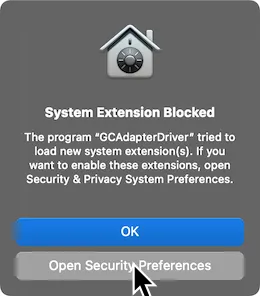
-
Unlock the page by click on the lock icon on the bottom left.
Click onAllowafter this.
Don’t forget to lock the page again when you’re done.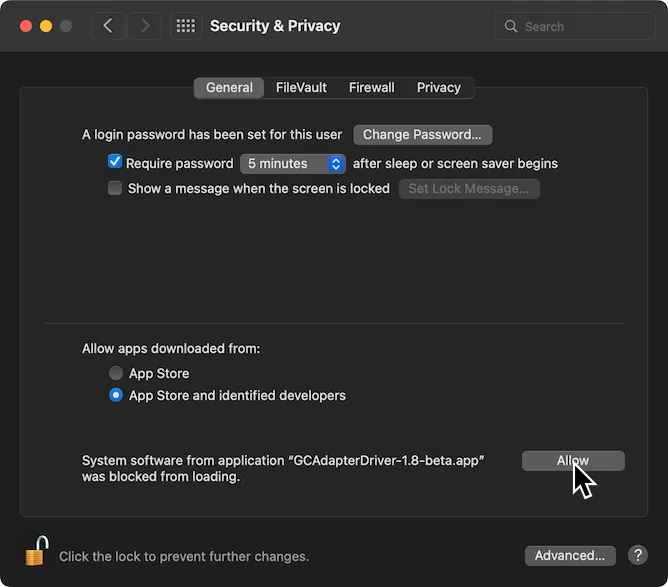
-
Now, activate GCAdapterDriver’s slider in the menu bar now.
Open up Rock Band 3 in RPCS3 and connect your guitar.
You should see it automatically assign a player number.
Likewise, in Rock Band 3, you will see your guitar ready to join.