

Troubleshooting
Customs not showing up/working online / Scores not saving
Section titled “Customs not showing up/working online / Scores not saving”Rock Band 3 can only remember scores for unique numeric song IDs. If you didn’t follow [the main Xbox 360 to PS3 guide] or have an outdated version of [Nautilus], chances are you will bump into songs with problematic IDs.
Songs with alphabetic IDs will generate a new ID and wipe your score every time the game starts.
While online, these songs will grey even if you and other players have the same song installed. To avoid this, the song needs to have a numeric ID.
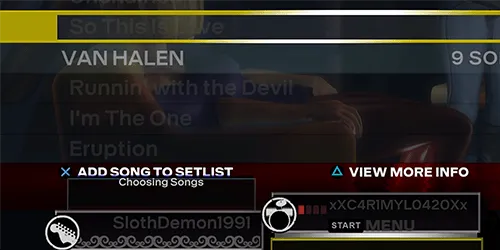
If the songs have a duplicate ID, only one of them will show up.
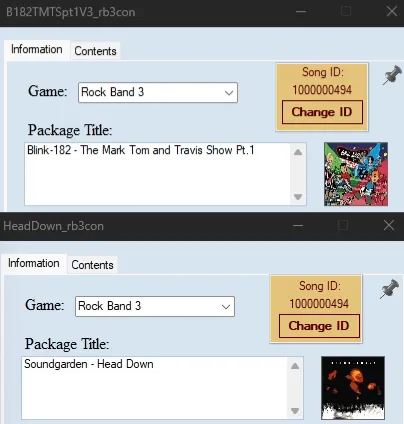
You can solve both of these issues by correcting the IDs with Nautilus.
Fixing IDs Before Installing
Section titled “Fixing IDs Before Installing”- Simply follow [the main Xbox 360 to PS3 guide].
This is automatically fixed.
Fixing IDs of Installed Songs
Section titled “Fixing IDs of Installed Songs”-
Open Nautilus and select
PS3 Converter.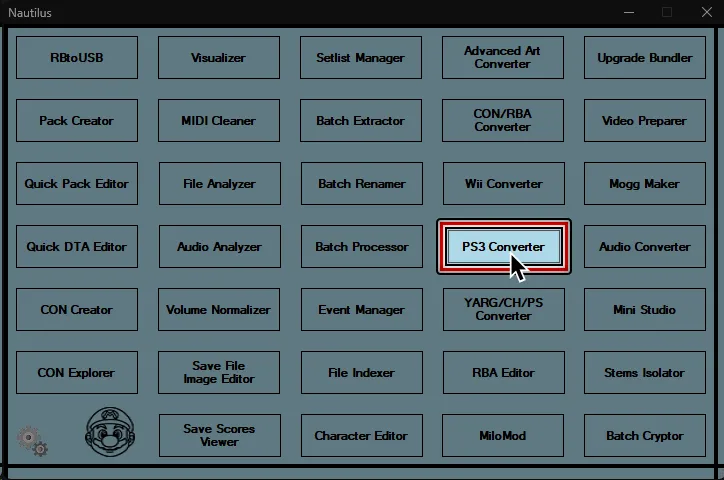
-
At the top of the
PS3 Converterwindow, go to:
Song ID Options > Batch correct song IDs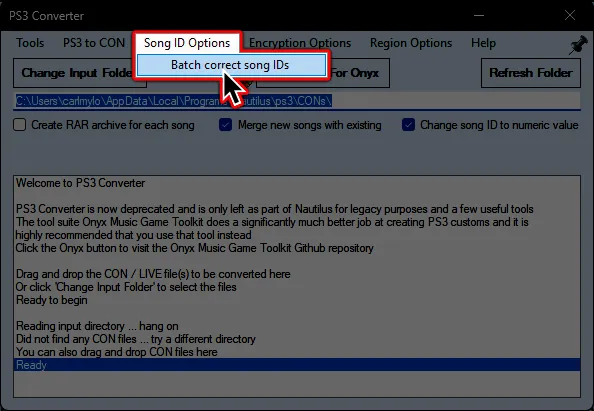
-
On either PS3 or RPCS3, navigate to song/pack containing the song with the bad ID (normally within
dev_hdd0\game\BLUS30463\USRDIR\[SONGNAME]\songs).
After finding it, select thesongs.dtafile within the folder.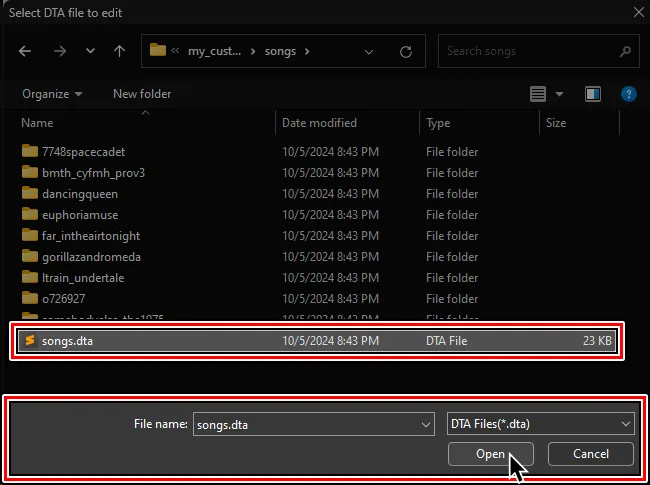
-
Wait for it to finish correcting every song within that pack.
When it finishes, you can share the fixedsongs.dtafile with your friends to play the previously unavailable songs together.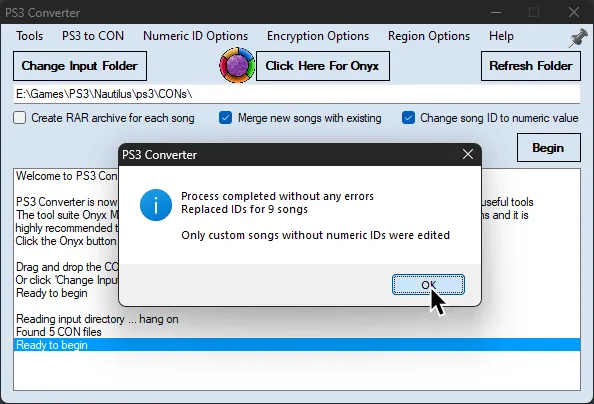
Broken venue animations
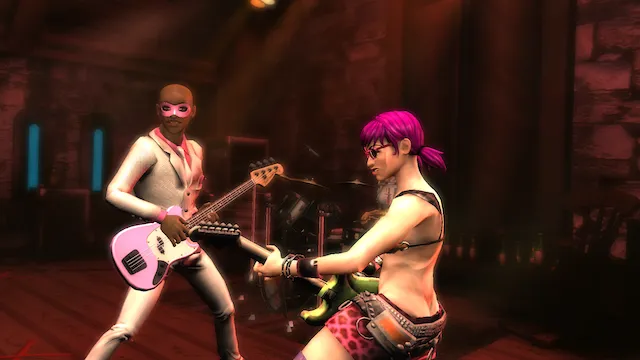
Section titled “Broken venue animations”Some older customs had incorrect data written in their songs.dta file which leads to the animation data not loading correctly.
You can easily notice this because the camera locks in place while characters slowly move off stage.
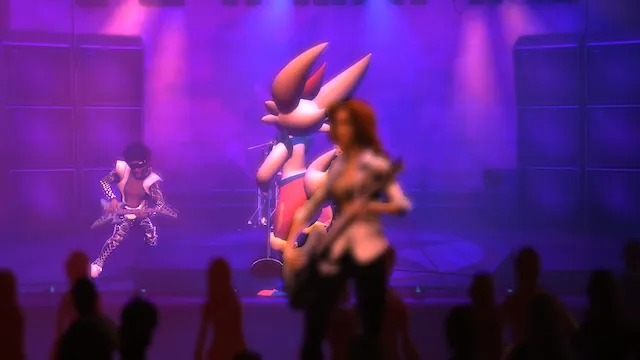
To fix this, you will need to locate the problematic songs.dta file.
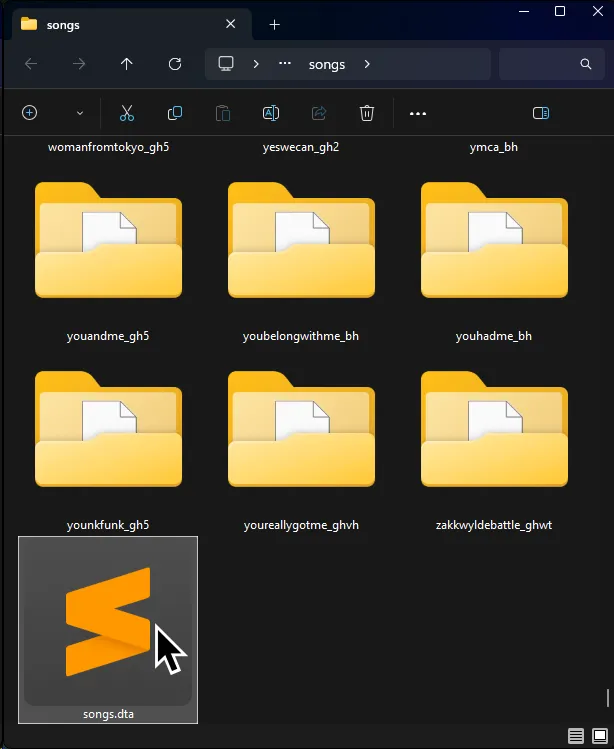
An easy way to find it is to use Rock Band 3 Deluxe’s Report Song Location feature.
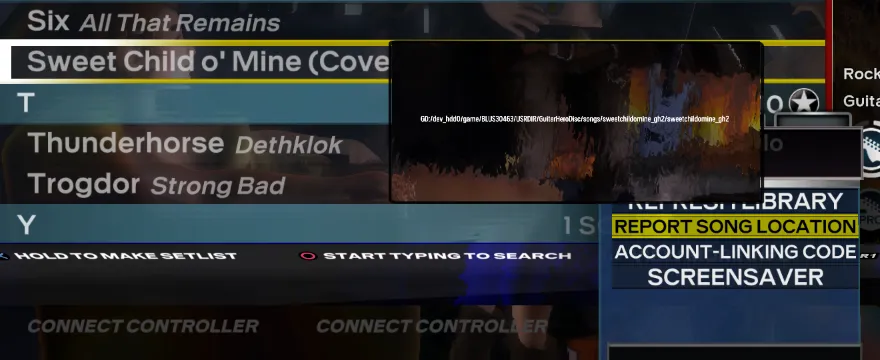
Open the songs.dta file in your preferred text editor (like Notepad, Notepad++, or Sublime Text).
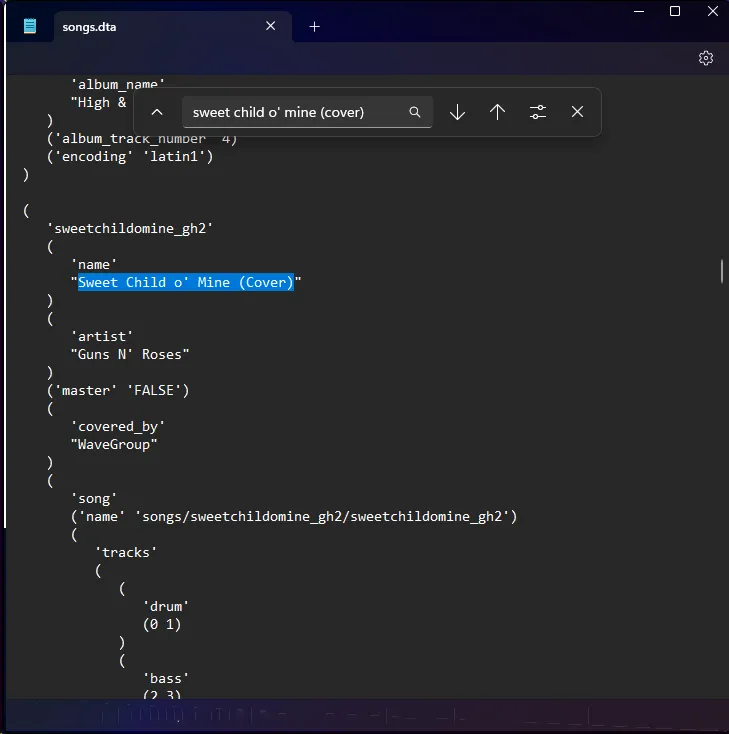
Search for the song with venue issues.
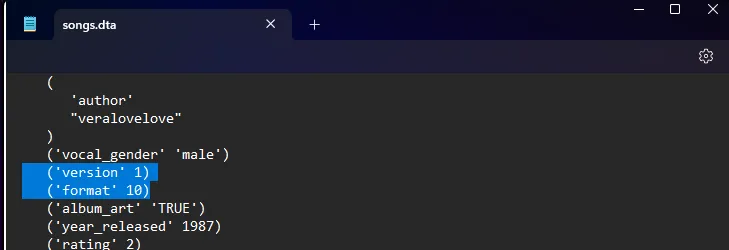
You will notice that there are a couple of values called 'version' and 'format' with a number next to them.
Songs with ('format' 10) that also have ('version' 1) will have issues.
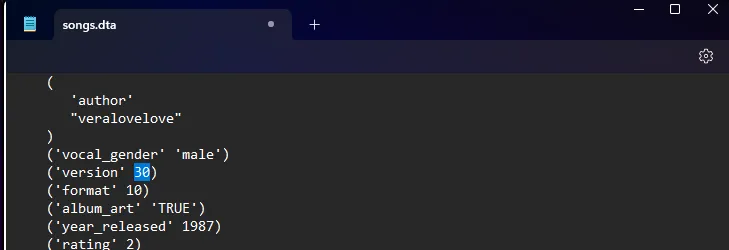
Simply change ('version' 1) to ('version' 30) then save your changes.
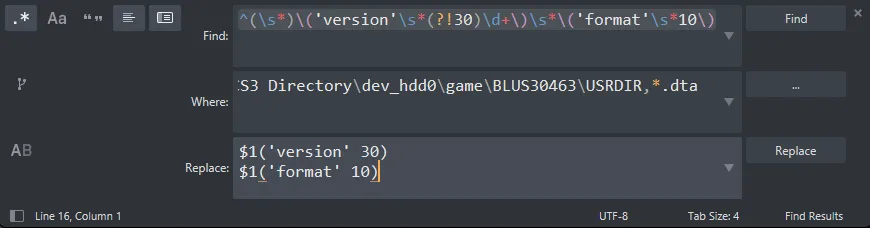
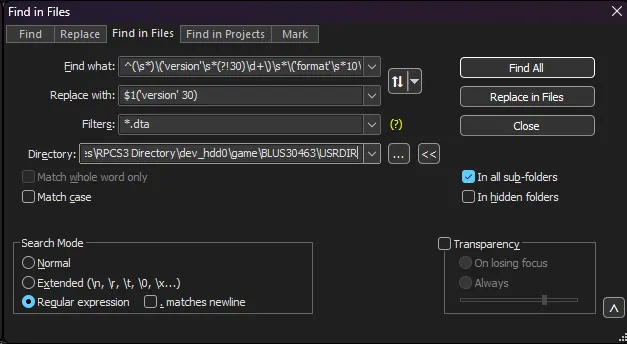
If you’re using an advanced text editor like Notepad++ or Sublime Text, you can take advantage of the Regular Expression (Regex) feature to fix various songs at once.
Enable Regex and search for
^(\s*)\('version'\s*(?!30)\d+\)\s*\('format'\s*10\)in your Rock Band 3 USRDIR folder (dev_hdd0/game/BLUS30463/USRDIR).
You should also add a filter to only search within .dta files.
Replace with:
$1('version' 30)$1('format' 10)Sublime Text:
Notepad++:
When you reboot your game, the venue animations should be fixed.
PS3: Greyed out customs
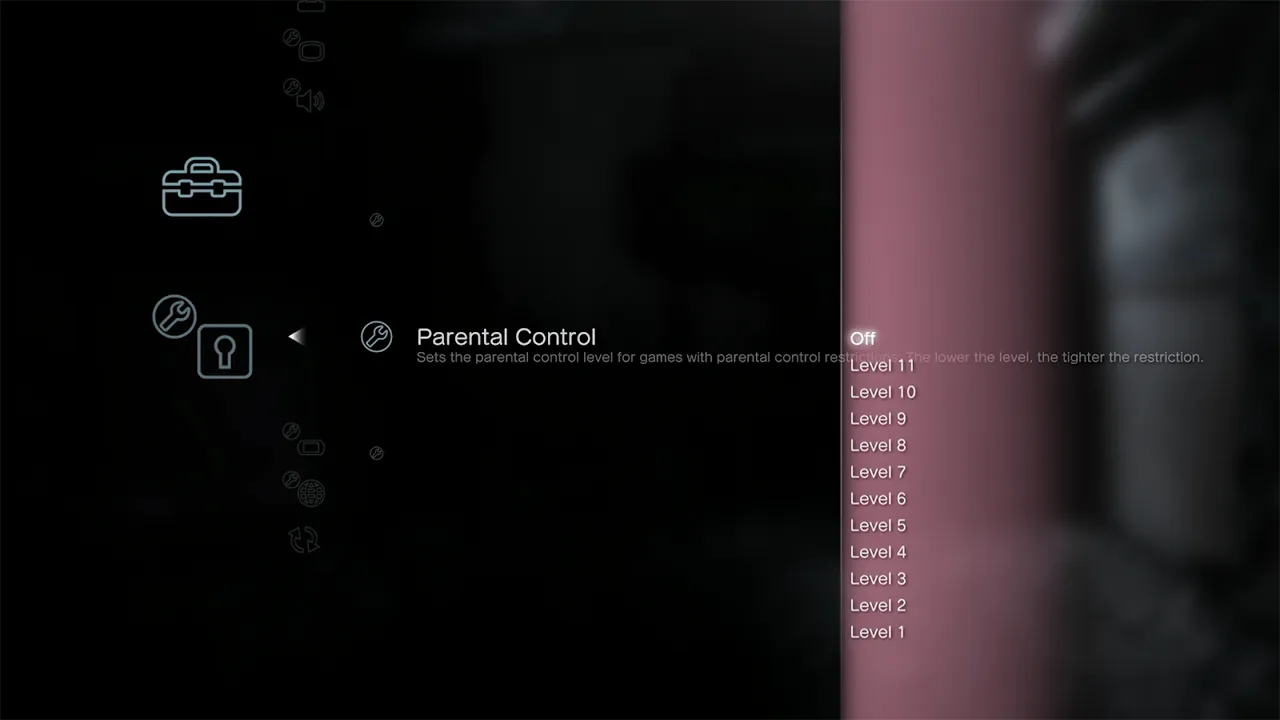
Section titled “PS3: Greyed out customs”By default, the PlayStation 3’s Parental Controls are set to level 9.
This doesn’t allow customs that are classified as “Unrated”, causing them to appear grey.
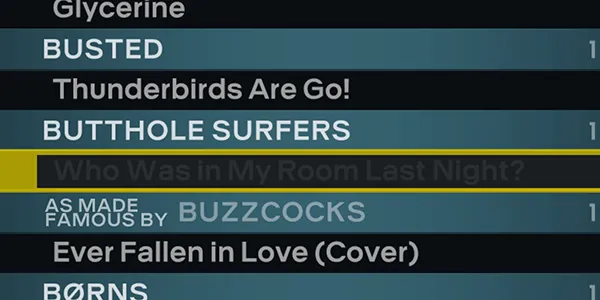
Selecting these songs will cause a crash.
To fix this, set the Parental Control to Off in:
XMB: [ Settings ] -> [ Security Settings ] -> [ Parental Control ] -> [ Off ]
Songs still infinite loading
Section titled “Songs still infinite loading”Some songs may have odd encryption that even the PS3 Fixer fails to catch.
This typically leads to the game getting stuck while trying to load the song.
Thankfully, this is easily resolved by MOGG Inspector!
-
Find the problematic song’s folder that contains the
.moggfile.
It will usually be indev_hdd0\game\BLUS30463\USRDIR\[PACKNAME]\songs\[PROBLEMATICSONG]).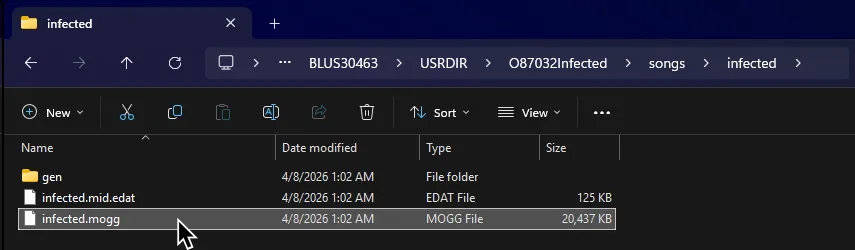
An easy way to find it is to use Rock Band 3 Deluxe’s
Report Song Locationfeature.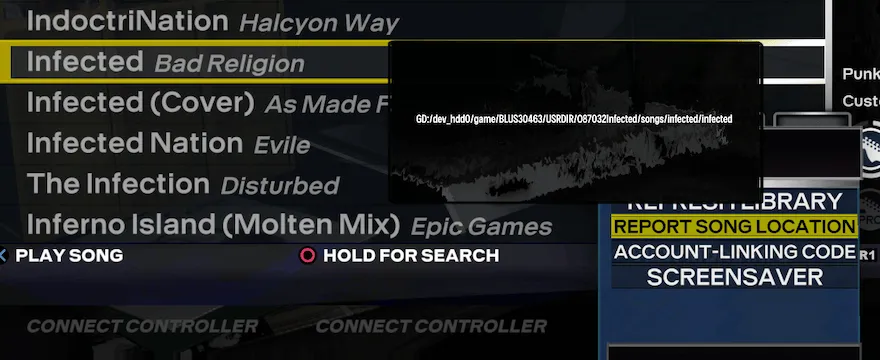
-
Drag the
.moggfile into MOGG Inspector.
-
You should see a warning that there’s an incorrect PS3 Keymask and an option to patch it.
ClickPatch PS3 keymask.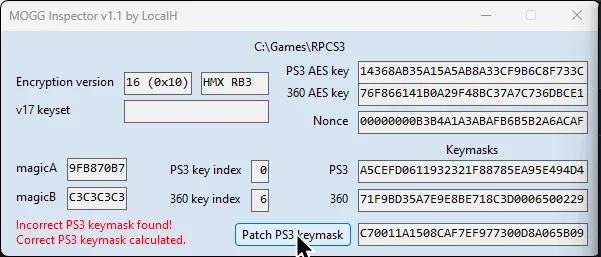
-
You should get a notification that the correct keymask was patched.
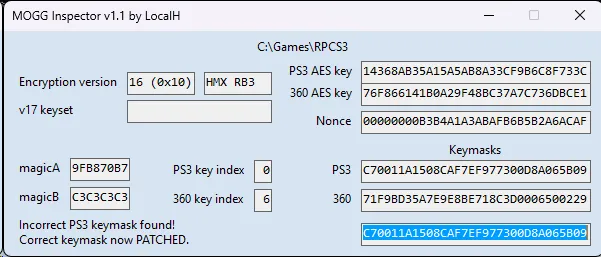
That’s it!
If it doesn’t fix it, read below for further instructions.
Alternative fix for infinite loading
Section titled “Alternative fix for infinite loading”In very rare cases, songs might still have infinite loading, even after following the proper conversion instructions and using Mogg Inspector.
You can fix this with Nautilus’ Batch Cryptor.
-
Open Nautilus and select
Batch Cryptor.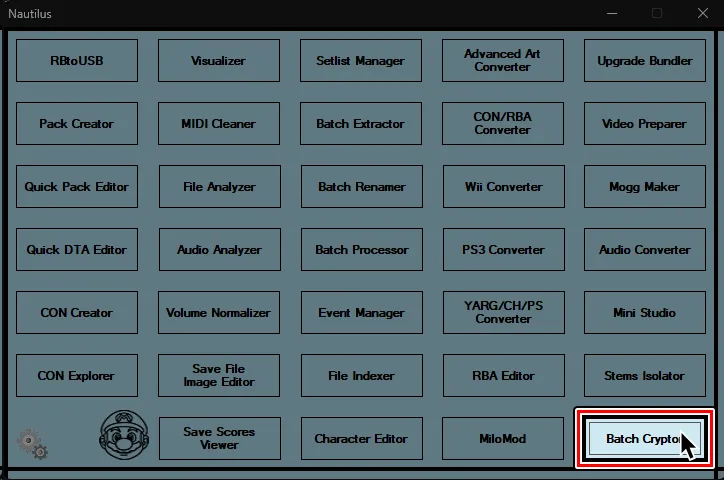
-
Swap to
Decryptat the bottom of the screen.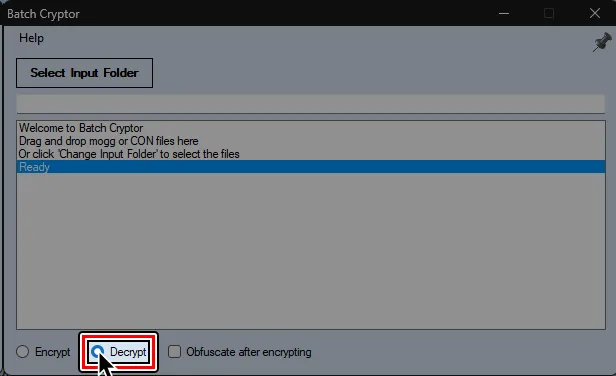
-
For both PS3 and RPCS3 users, navigate to the folder containing the song you wish to fix.
It will usually be indev_hdd0\game\BLUS30463\USRDIR\[PACKNAME]\songs\[PROBLEMATICSONG]).
There will be a.moggfile in the song’s folder.
-
Drag and drop the song’s
.moggfile ontoBatch Cryptorand clickBegin.
-
A new folder called
decryptedwill appear when it finishes.
Go into the newdecryptedfolder and cut the.moggfile inside of it.
Go back to the song’s main folder and replace the old.moggfile.
Songs stuck looping at the end
Section titled “Songs stuck looping at the end”Occasionally certain songs may freeze toward the end of the chart, constantly looping the last bits of the audio endlessly.
- You will need to uninstall the song. Check [the deletion guide] if needed!
- You will need need the original CON file to fix this issue!
- Do not run every song through this if it does not need fixing, the audio will be re-encoded and will have a slight decrease in audio quality
-
Open Nautilus and select
PS3 Converter.
-
At the top of the
PS3 Converterwindow, go to:
Tools > Batch fix looping songs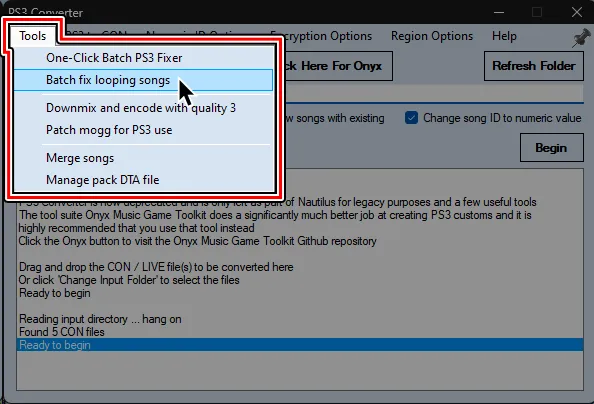
-
Go to the folder where the problematic CON is at and select the folder.
Wait for it to finish.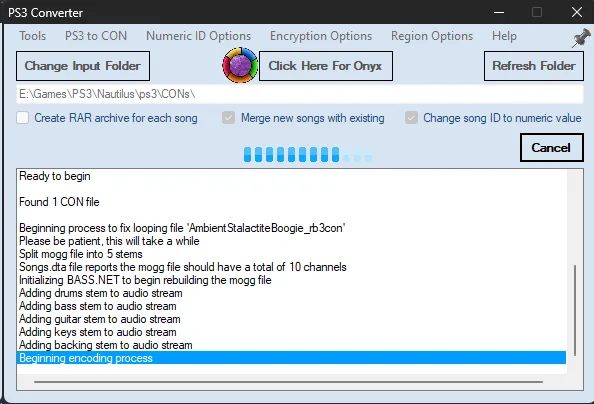
-
After it’s done, you can go back to step 4 of [the main tutorial].