

Custom Configuration
This page is for advanced users that want to tweak RPCS3’s Rock Band 3 Custom Configuration more than the average user.
Some of this stuff can get very technical!
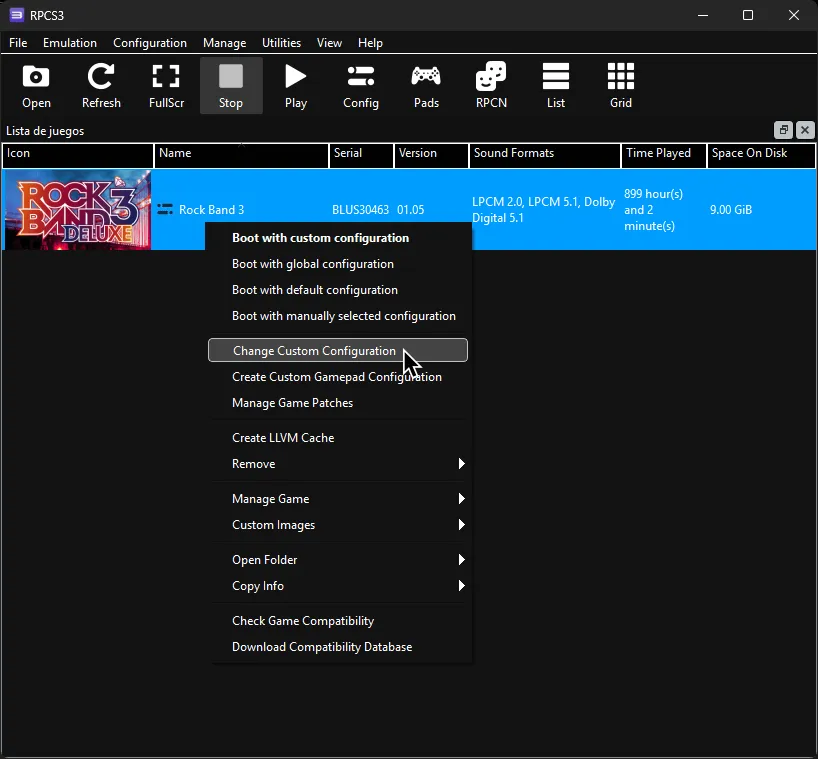
If you’re editing a Custom Configuration (like the one you installed from [Quick Configuration]), right click on Rock Band 3 in RPCS3, then click on Change Custom Configuration.
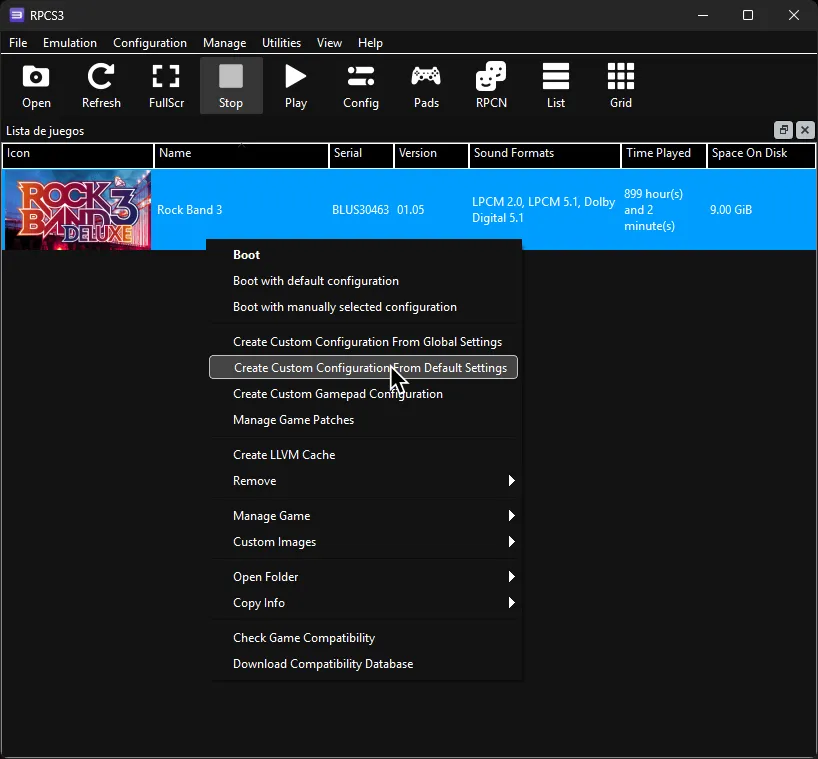
If you don’t have a Custom Configuration yet, right click on Rock Band 3 in RPCS3, then click on Create Custom Configuration From Default Settings.
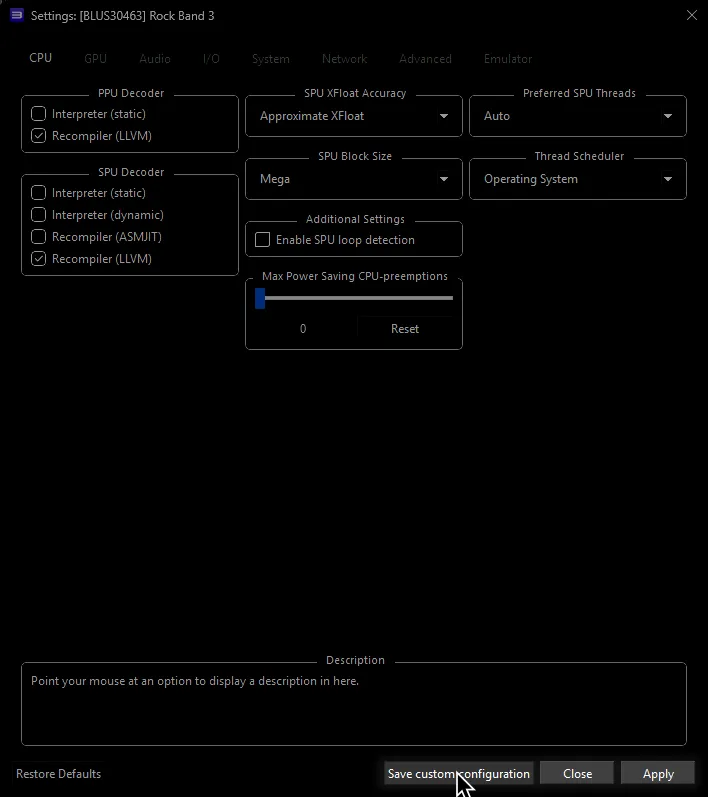
Don’t forget to click Apply then Save custom configuration after adjusting settings!
Keep in mind that you’ll have to restart the game for most of these settings.
Color Guide
Section titled “Color Guide”To make things easier, all configuration tweaks have been color coded.
Anything not colored should be left on defaults.
| COLOR | MEANING |
|---|---|
 | REQUIRED |
 | Performance Tweaks |
 | Recommended |
Custom Configuration
Section titled “Custom Configuration”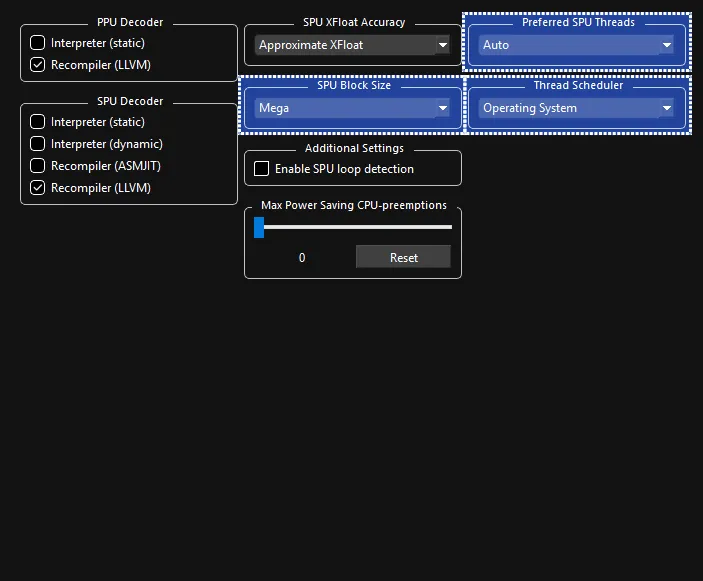
 Improved performance, depending on machine:
- Change
SPU Block SizetoMega- Ties smaller SPU compiled together, which can help machines with fewer cores/threads.
Drastically speeds up game startup time on certain machines. - Change
Preferred SPU Threadsto1,2,3, or4- May help prevent stutter caused by CPU overloads on systems with fewer cores/threads.
Start at4and lower it one by one until it improves. - Change
Thread SchedulertoRPCS3 Scheduler, orRPCS3 Alternative Scheduler- FOR CPUs WITH 12+ THREADS ONLY!
May help with thread distribution to prevent microstutters.
- Change
-
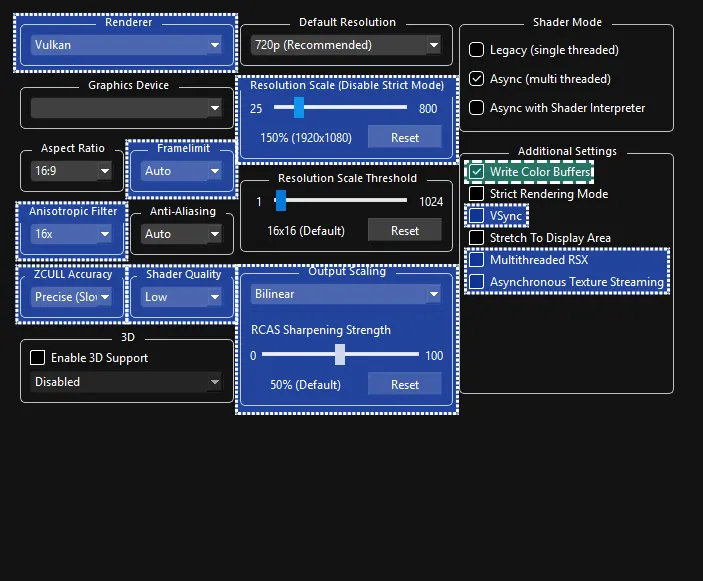
 REQUIRED:
- Enable
Write Color Buffers- Characters will have severe graphical bugs without this.
- Enable
-
Adjust depending on graphics card:
- Adjust
Resolution Scaleto increase the rendering resolution. Higher numbers require a better graphics card.
Lowering this below 100% will rarely help performance. - Adjust
Output Scalingto preference and to what your computer can handle. This affects how the game is “blown up” in size when fitting to your monitor’s native resolution. Helpful for those keepingResolution Scale(mentioned above) at 100% while playing on a monitor larger than 1280x720.Nearestis completely unfiltered and gives you a raw unmodified image. This can cause the game to look pixelated.Bilinearuses smoothing to scale the image up. This may cause the game to look blurry.FidelityFX Super Resolution 1(FSR1) uses complicated math to sharpen and enhance the image when it gets blown up to your monitor’s resolution. This can create odd artifacts in some instances.- You can use
RCAS Sharpening Strengthbelow to adjust the strength of its effect.
- You can use
- Change
Framelimit- Leave it on
Autoto let RPCS3 set a frame rate limit. - Set it to
Offif you’re usingVSyncor an external frame limiting. 120is recommended if you’re using a 144Hz (or higher) display.- Set it to
Displayif you want to lock to your display’s refresh rate. - DO NOT set it below
60! - Higher framerates require more resources. Keep this in mind if you’re on a low end system.
- It’s suggested to disable VSync within Rock Band 3 Deluxe itself in
Menu > Options > Deluxe Settings > Venue Options > Graphics > Advanced.
- Leave it on
- Enable
VSync- Reduces screen tearing at the cost of slight latency. It’s suggested to use your graphics card’s VSync instead.
Do not enableVSyncwithFramelimitenabled. - Adjust
Anisotropic Filter- Improves texture rendering at distances and angles. Just about every GPU should be able to handlex16. - Change
ZCULL AccuracytoRelaxed- Provides a slight performance improvement at the cost of some accessories looking weird at distances. - Adjust
Shader Qualityto preference - Setting this toLowseems to do nothing visually but it improves performance. - Enable
Multithreaded RSXif you have a computer with CPU cores/threads to spare.
This offloads a few RSX (graphics unit in the PS3) operations to other cores/threads. - Enable
Asynchronous Texture Streamingif you have a high end machine, are using Vulkan, and also enabledMultithreaded RSX.
This transfers textures on a parallel thread, which may help performance. - Change
Rendererdepending on your computer. - This is at the very bottom because it’s not recommended for most people.
Only people on extremely low end machines should change this toOpenGL.
- Adjust
-
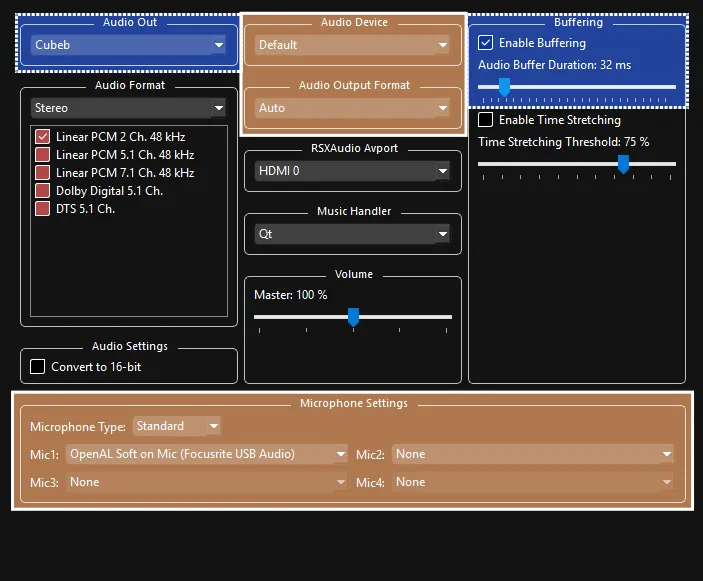
Tweak depending on computer:
- Leave
Enable Bufferingon if you prefer stable audio at the cost of latency.
Disable it if you want less latency at the cost of potential audio errors. - Adjust
Audio Buffer Durationdepending on system. This only works ifEnable Bufferingis on!- Set this as low as you can before you hear crackling.
32 msis a decent starting point on most systems.- Lower values = less audio latency but more CPU impact.
- Higher values = more audio latency but use less CPU impact.
- Vocalists are affected the most by this, as a higher latency creates a distracting echo. Instrument players can use calibration to compensate regardless of audio buffer setting.
- You can change this while the game is running!
- Changing this require re-calibrating in Rock Band 3’s system settings.
- Set this as low as you can before you hear crackling.
- Change
Audio OuttoXAudio2- While most users should stay onCubeb, a few people have experienced better performance with XAudio2. Your milage may vary.
- Leave
-
 Change depending on audio setup:
- For vocalists:
- Set
Microphone TypetoStandard. - Select an input device in
Mic1,Mic2, andMic3for vocals.
If not playing vocals,Mic1will be used for voice chat.
- Set
- Change
Audio Deviceif you want audio to come out of another device that isn’t the default one. - Change
Audio Output Formatif you’re using a surround sound setup.
Rock Band 3 supports LPCM 2.0, LPCM 5.1, and Dolby Digital 5.1 (NOT RECOMMENDED!).
- For vocalists:
Make sure your MIDI instrument is connected.. YOU MAY HAVE TO MAKE THE WINDOW WIDER TO READ THE OPTIONS!
-
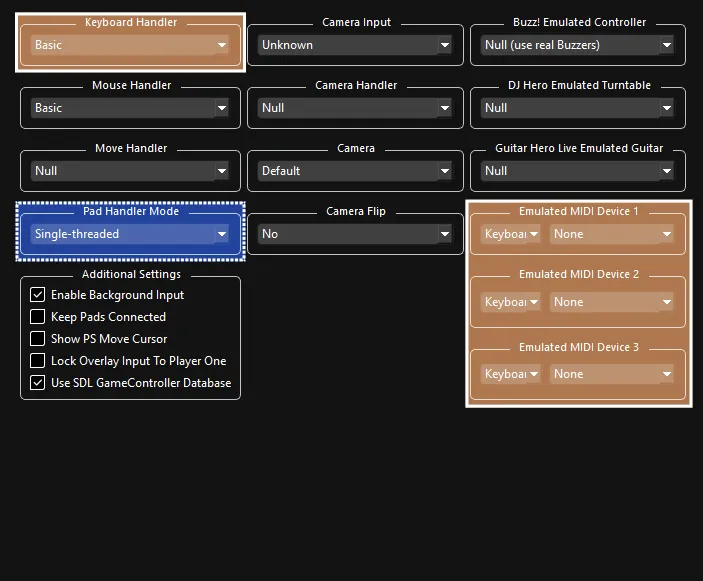
Performance Tweaks:
- Change
Pad Handler ModetoMulti-threaded- Only change this if you have plenty of cores/threads.
May help improve performance.
- Change
-
Recommended:
- Leave
Keyboard HandleronBasicto use Rock Band 3 Deluxe’s keyboard functions. - 🎹 [MIDI Keyboard Players]: Leave your
Emulated MIDI typeonKeyboardand select your keyboard or MIDI interface in the drop-down menu next to it. - 🥁 [MIDI Drums Players]: Change your
Emulated MIDI typefromKeyboardtoDrums, then select your MIDI Drum Kit or MIDI to USB interface in the drop-down menu next to it. - 🎸 [MIDI Pro Guitar Players]: Change your
Emulated MIDI typefromKeyboardtoGuitar (17 Frets)if you have a Mustang Pro Guitar, orGuitar (22 Frets)if you have a Squier Pro Guitar, then select your MIDI to USB interface in the drop-down menu next to it.- Revisit the [Controllers page] if you need help.
- Leave
-
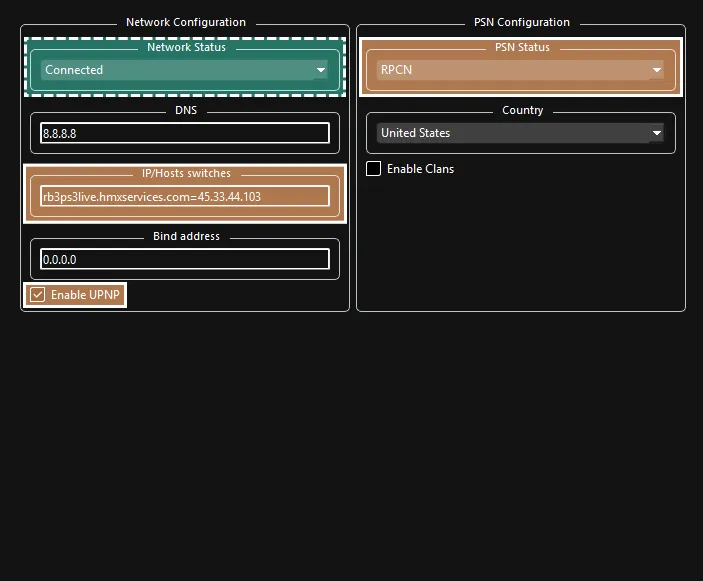
REQUIRED:
- Change
Network StatustoConnected. - If left onDisconnected, the game will temporarily freeze when browsing the song library.
- Change
-
For online multiplayer:
- To play Rock Band 3 online, add Rock Band Enhanced’s Server IP.
- Set
IP/Hosts switchestorb3ps3live.hmxservices.com=45.33.44.103. - Either tick
Enable UPNPor forward port 9103 (UDP) in your firewall. - This is necessary to play with more than 2 players.
- Set
- To play Rock Band 3 online, add Rock Band Enhanced’s Server IP.
-
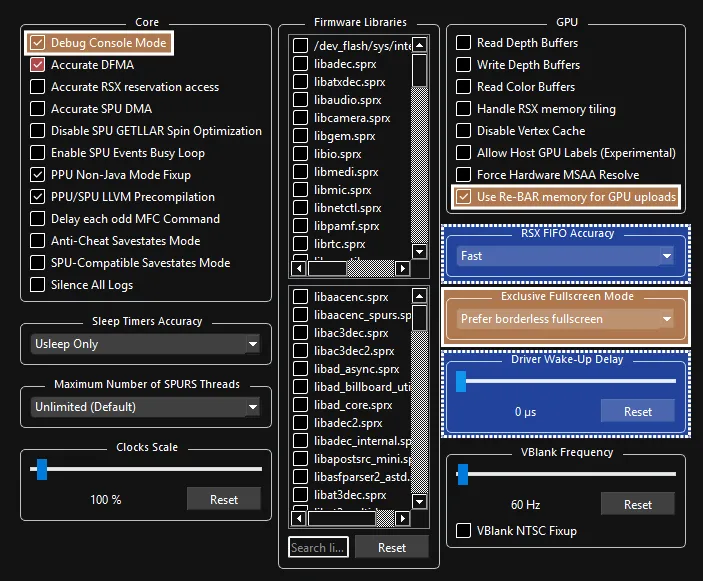
Depending on your computer:
- Change
RSX FIFO AccuracytoFast- May help with latency but needs more testing. If you useFast, you must set aDriver Wake-up Delayto20µsor higher! - Set
Driver Wake-up Delayto20µsto avoid crashing after a few songs if usingFastRSX FIFO Accuracy. Increase it to40µsif the issue persists.
If it keeps happening, keep increasing it by increments of 20.
- Change
-
Strongly Suggested:
- Enable
Debug Console Mode- This, along with Rock Band 3 Deluxe, will allow Rock Band 3 to have more memory. This means more songs (up to 16000) and increased stability.
Everyone should enable this! [Click here for more information.] - Change
Exclusive Fullscreen ModetoPrefer borderless fullscreento prevent potential crashes and audio desync when changing from Rock Band 3 to another program while in fullscreen. - Toggle
Use Re-BAR memory for GPU uploadsdepending on your graphics card. This can increase performance significantly if you have a Re-BAR compatible graphics card and Re-BAR is enabled in your BIOS. Check your graphics card and BIOS manuals for more information!
- Enable
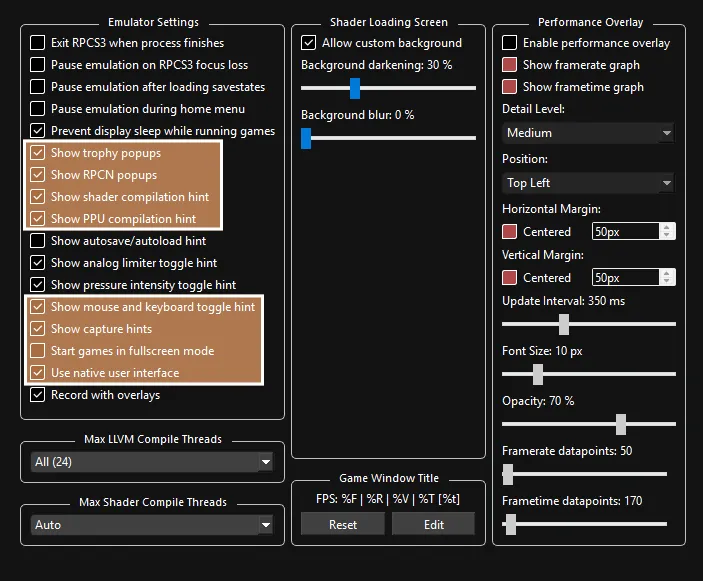
You can leave this as is if you want, but these are still nice options to consider:
- Optional tweaks:
Show trophy popups- Mimics the way Trophy notifications appear on the PS3.Show RPCN popups- Shows a message on the top left whenever you or your friends connect to RPCN.Show shader compilation hint- This creates a popup whenever RPCS3 is compiling shaders. When you emulate PS3 games, it has to compile shaders to “translate” the graphics from a PS3 format to a format your PC can work with. The game will stutter when this happens. This happens on ALL computer systems. When it finishes compiling an effect, it will usually never happen again. The best way to deal with this is just to play the game as it will quickly go away.
You can also use Rock Band 3 Deluxe’s Autoplay modifier to let it go through a few songs in party shuffle and let it compile a decent amount of shaders.Show PPU compilation hint- This creates a popup whenever RPCS3 is compiling units for the PPU. This only comes up when launching the game if you’re using suggested settings.Show mouse and keyboard toggle hint- Shows a message on the top left whenever the keyboard is being used in the native interface, such as the virtual keyboard that comes up when naming things.Show capture hints- Shows a notification when you take a screenshot.Start games in Fullscreen mode- Switches to Fullscreen when you start Rock Band 3.Use Native Interface- If you disable this, it will remove the pretty displays RPCS3 adds, including notifications, RPCN menus, and the game startup background. It will instead use old school pop-ups. This can sometimes fix a problem with instrument controllers soft-locking the game when the keyboard comes up.