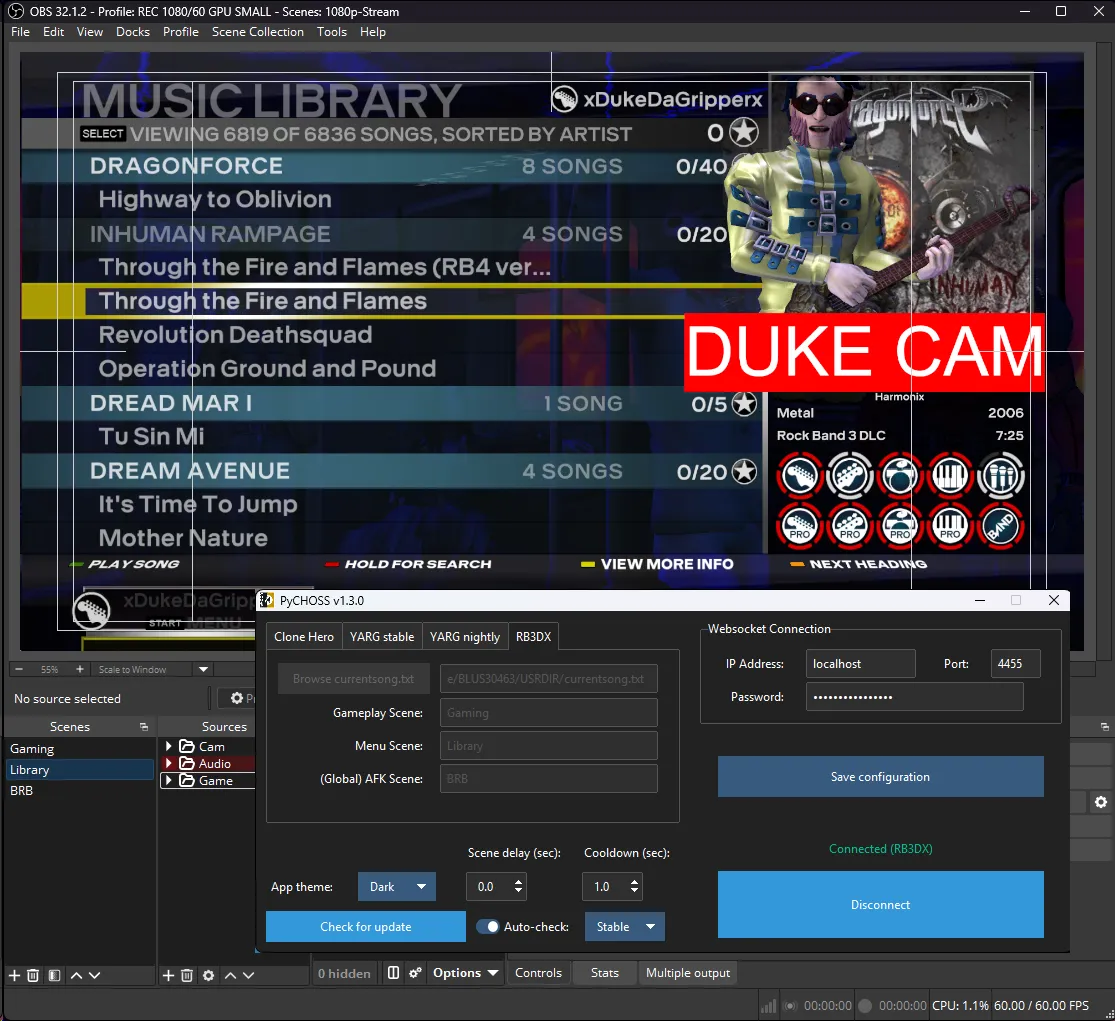
[OBS] Automatic Scene Switching
Do you regularly stream Rock Band 3 and want a more elaborate setup, such as switching scenes when you enter song?
This is easily done with PyCHOSS, an automatic scene switching program for OBS.
PyCHOSS is designed to be used with Clone Hero, YARG, and with Rock Band 3 Deluxe running on RPCS3.
Initial Setup
Section titled “Initial Setup”-
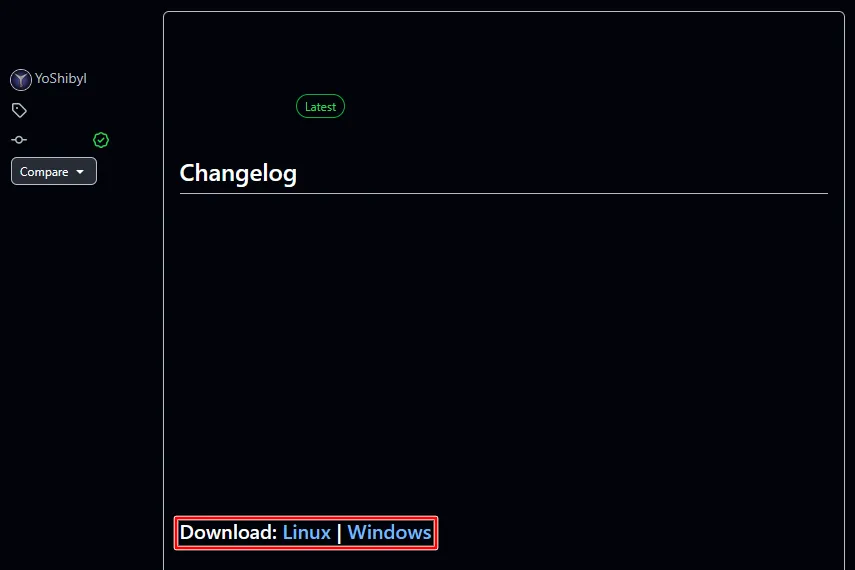
[Download the latest release of PyCHOSS for your platform].
-
Open PyCHOSS.
-
Swap to the
RB3DXtab then click onBrowse currentsong.txt.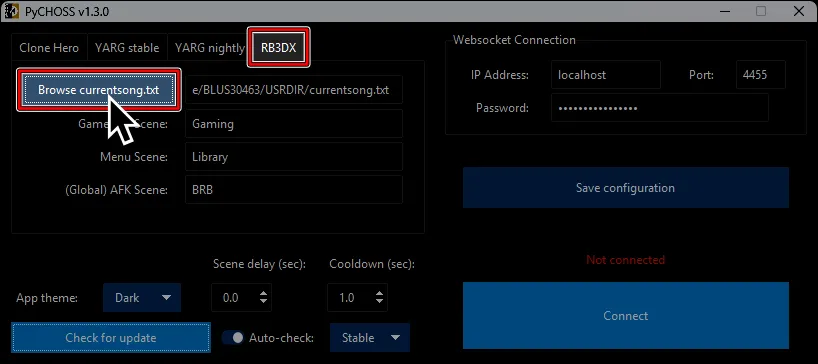
-
Find the
currentsong.txtfile.
It will be located withindev_hdd0/game/BLUS30463/USRDIR.
By default, this is located in RPCS3’s install folder on Windows and~/.cache/rpcs3on Linux.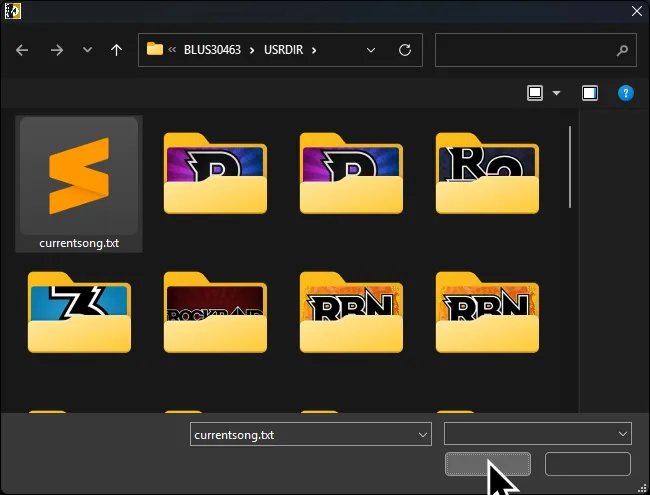
-
Open OBS and leave it open.
-
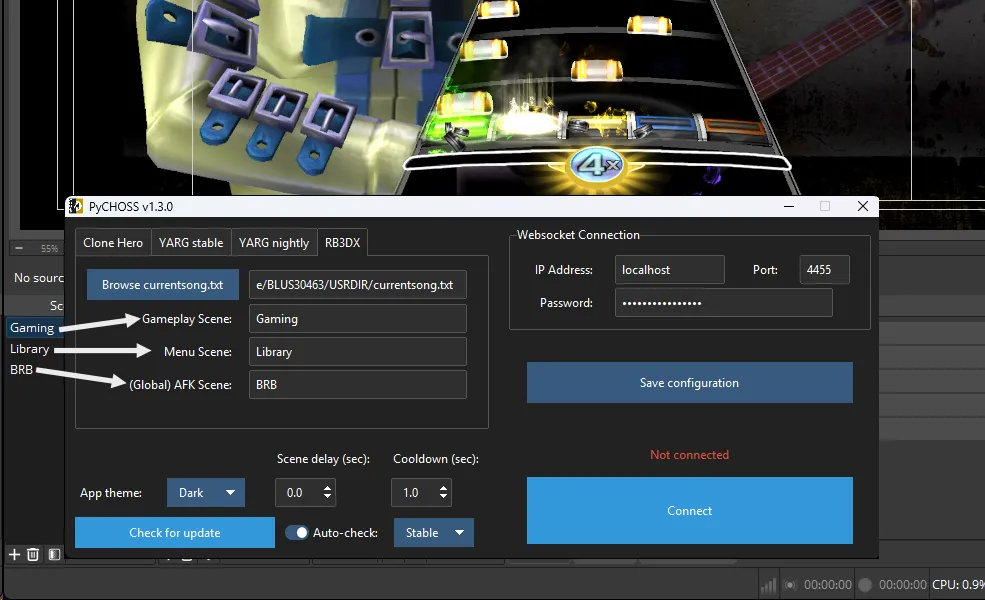
Back in PyCHOSS, match
Gameplay,Menu, and(Global) AFK Scene’s names in PyCHOSS with the ones in OBS.- Gameplay’s scene should be when you’re playing a song.
- Menu’s scene should be when you’re outside of a song.
- The AFK scene is the scene for when you step away from the computer or need privacy. Scene switching will be disabled until you swap back to the Gameplay or Menu scenes.
You can name them whatever you want.
-
Switch to OBS and go to
Tools > WebSocket Server Settings.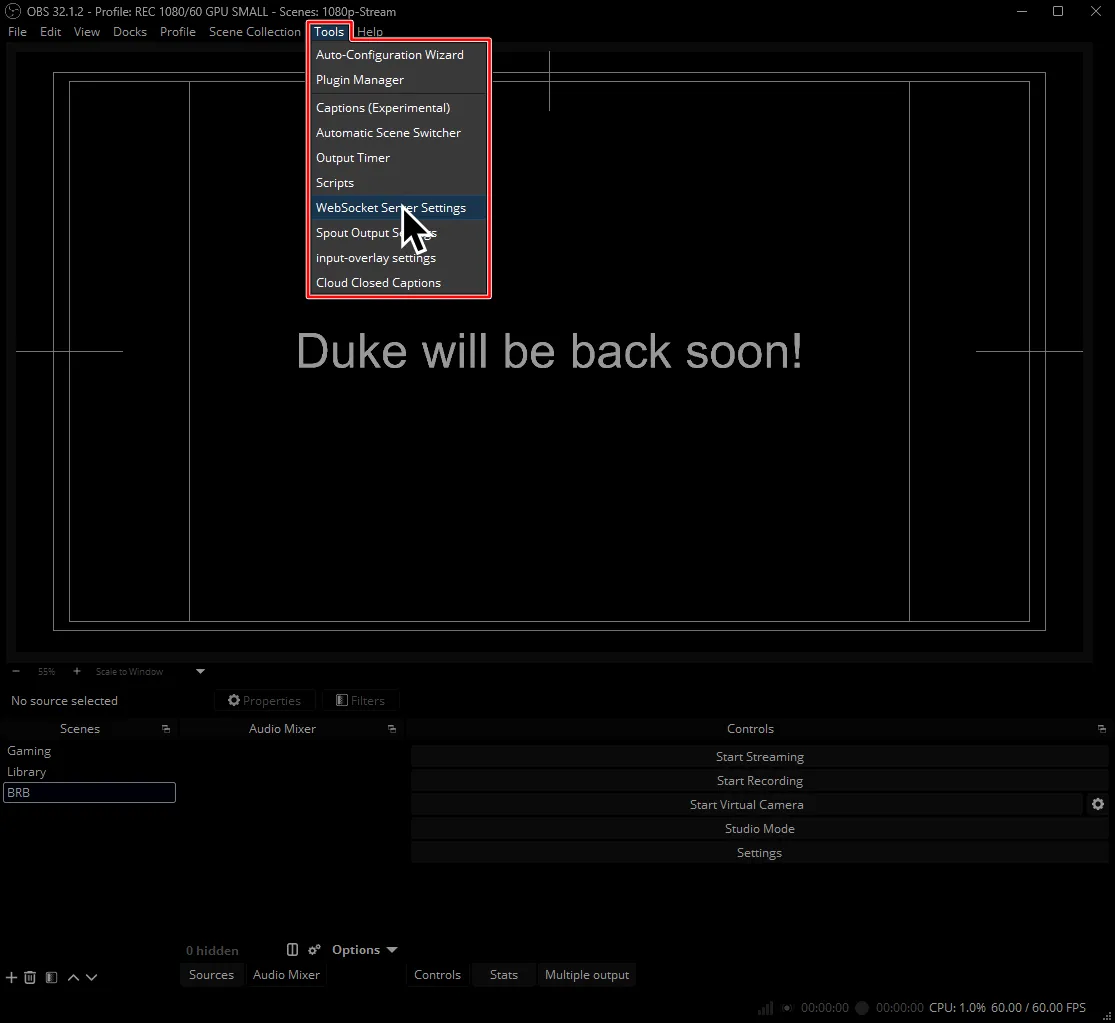
-
Tick
Enable WebSocket serverthen clickApplyat the bottom.
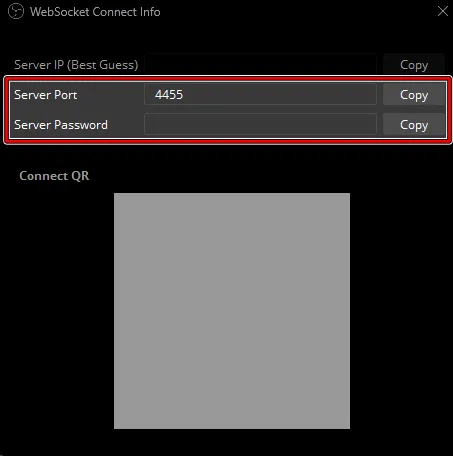
Afterwards, click onShow Connect Info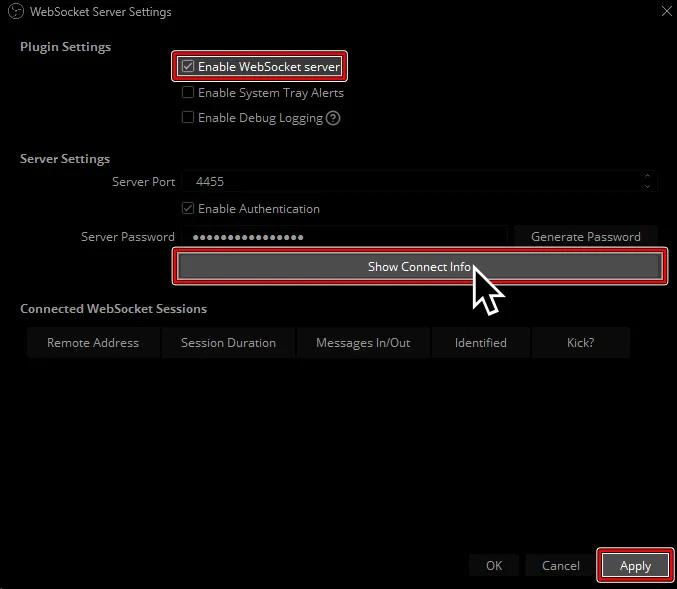
-
Take note of the server port and password.
-
Copy this info into PyCHOSS under the
Websocket Connectionsection.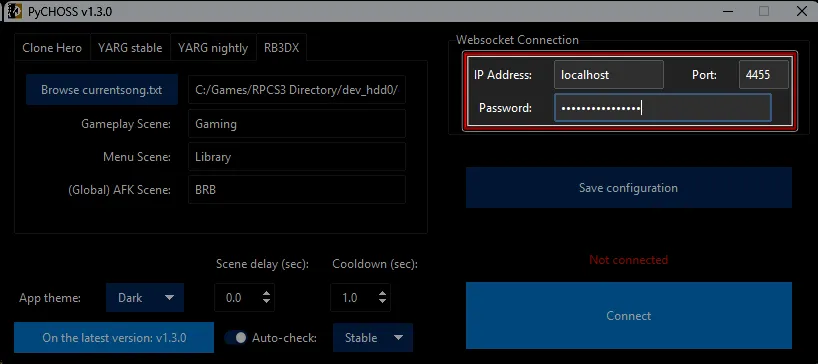
-
Click
Connectin PyCHOSS.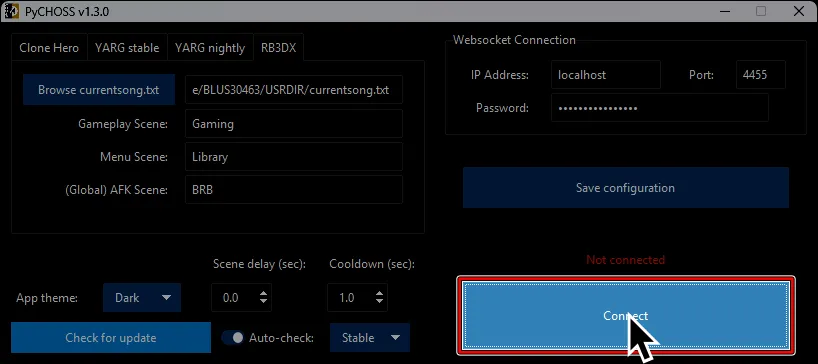
If it connects successfully, you can close out the
WebSocket Connect InfoandWebSocket Server Settingsin OBS.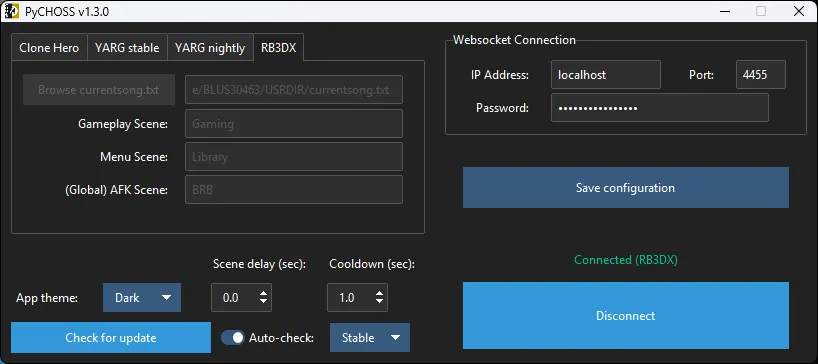
After initial setup, all you need to do is click Connect in PyCHOSS afterwards.
It will automatically swap scenes in OBS for you!