

Custom Configuration: GPU
-
 REQUIRED:
- Enable
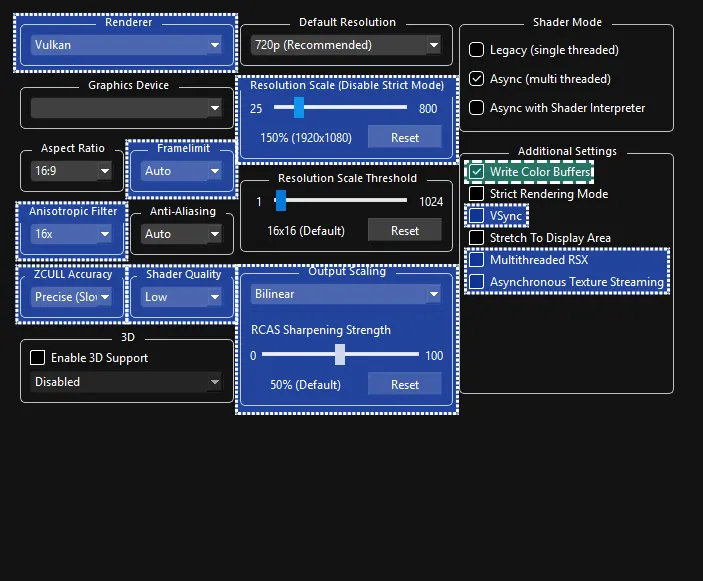
Write Color Buffers- Characters will have severe graphical bugs without this.
- Enable
-
 Adjust depending on graphics card:
- Adjust
Resolution Scaleto increase the rendering resolution. Higher numbers require a better graphics card.
Lowering this below 100% will rarely help performance. - Adjust
Output Scalingto preference and to what your computer can handle. This affects how the game is “blown up” in size when fitting to your monitor’s native resolution. Helpful for those keepingResolution Scale(mentioned above) at 100% while playing on a monitor larger than 1280x720.Nearestis completely unfiltered and gives you a raw unmodified image. This can cause the game to look pixelated.Bilinearuses smoothing to scale the image up. This may cause the game to look blurry.FidelityFX Super Resolution 1(FSR1) uses complicated math to sharpen and enhance the image when it gets blown up to your monitor’s resolution. This can create odd artifacts in some instances.- You can use
RCAS Sharpening Strengthbelow to adjust the strength of its effect.
- You can use
- Change
Framelimit- Leave it on
Autoto let RPCS3 set a frame rate limit. - Set it to
Offif you’re usingVSyncor an external frame limiting. 120is recommended if you’re using a 144Hz (or higher) display.- Set it to
Displayif you want to lock to your display’s refresh rate. - DO NOT set it below
60! - Higher framerates require more resources. Keep this in mind if you’re on a low end system.
- It’s suggested to disable VSync within Rock Band 3 Deluxe itself in
Menu > Options > Deluxe Settings > Venue Options > Graphics > Advanced.
- Leave it on
- Enable
VSync- Reduces screen tearing at the cost of slight latency. It’s suggested to use your graphics card’s VSync instead.
Do not enableVSyncwithFramelimitenabled. - Adjust
Anisotropic Filter- Improves texture rendering at distances and angles. Just about every GPU should be able to handlex16. - Change
ZCULL AccuracytoRelaxed- Provides a slight performance improvement at the cost of some accessories looking weird at distances. - Adjust
Shader Qualityto preference - Setting this toLowseems to do nothing visually but it improves performance. - Enable
Multithreaded RSXif you have a computer with CPU cores/threads to spare.
This offloads a few RSX (graphics unit in the PS3) operations to other cores/threads. - Enable
Asynchronous Texture Streamingif you have a high end machine, are using Vulkan, and also enabledMultithreaded RSX.
This transfers textures on a parallel thread, which may help performance. - Change
Rendererdepending on your computer. - This is at the very bottom because it’s not recommended for most people.
Only people on extremely low end machines should change this toOpenGL.
- Adjust