RPCN - Adding Friends
Let’s go over how to add friends in RPCN.
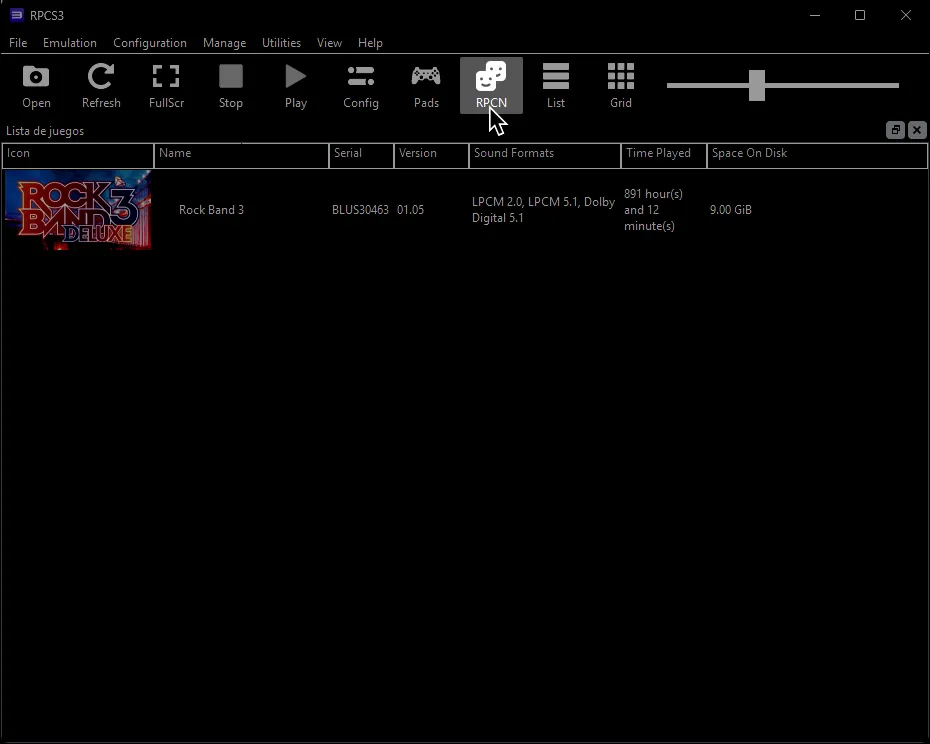
Click on the RPCN button:
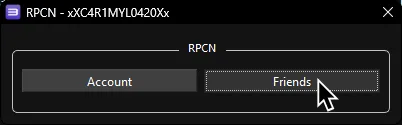
Click on Friends.
This will open the ‘Friends’ window.
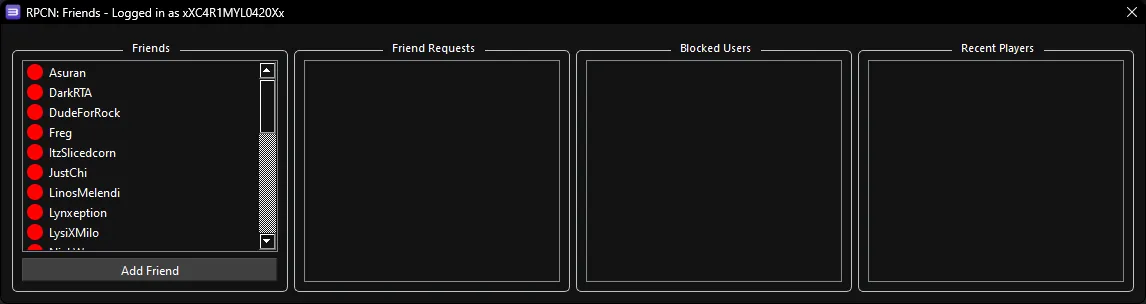
Once here, you can add friends in different ways including:
Adding by Search
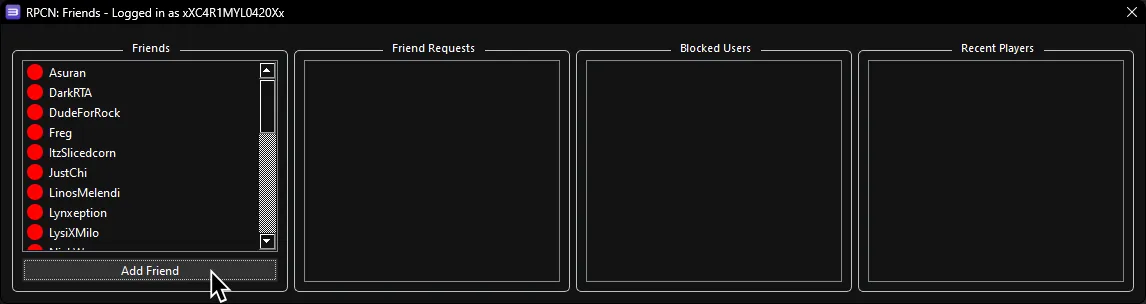
Section titled “Adding by Search”To add a friend by their username, click on Add Friend, at the bottom side of the RPCN: Friends window.
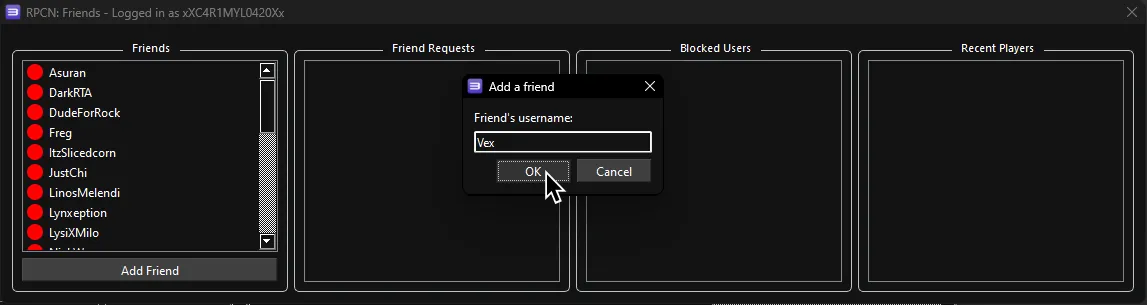
A popup will appear. Type in your friend’s username then click OK.
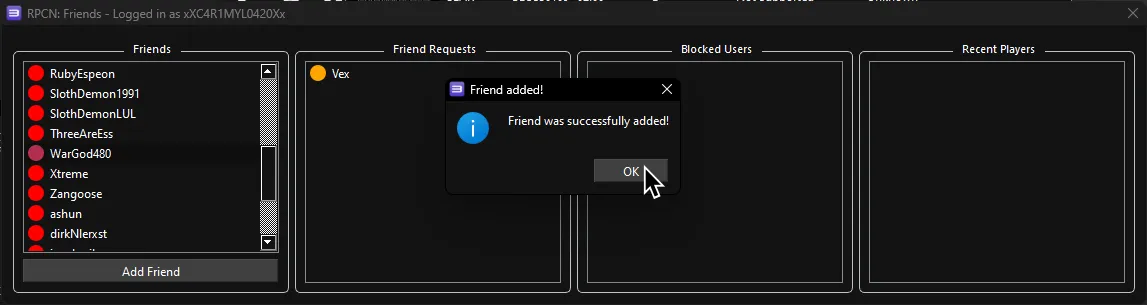
If you typed in their name correctly, you should see a Friend added! popup.
The icon next to their name will be orange until they add you.
Once they accept your request, that’s it!
Accepting Friend Requests
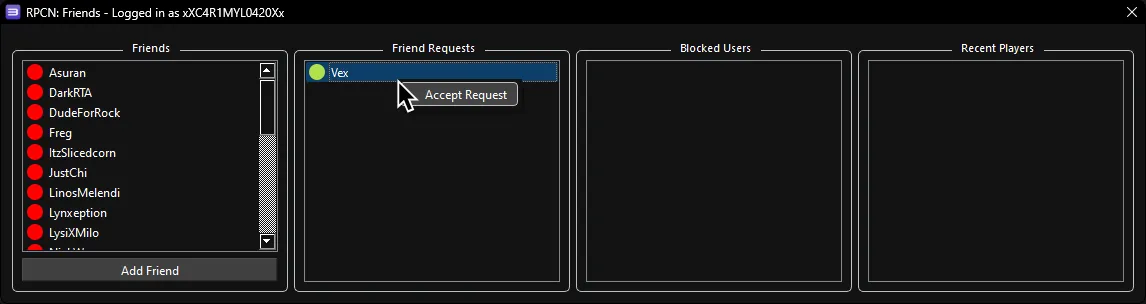
Section titled “Accepting Friend Requests”Any friend requests will be below Friend Requests in the RPCN:Friends window, with a yellow icon next to their name.
To accept any requests, simply right click the request and click Accept Request.
Adding Recent Players
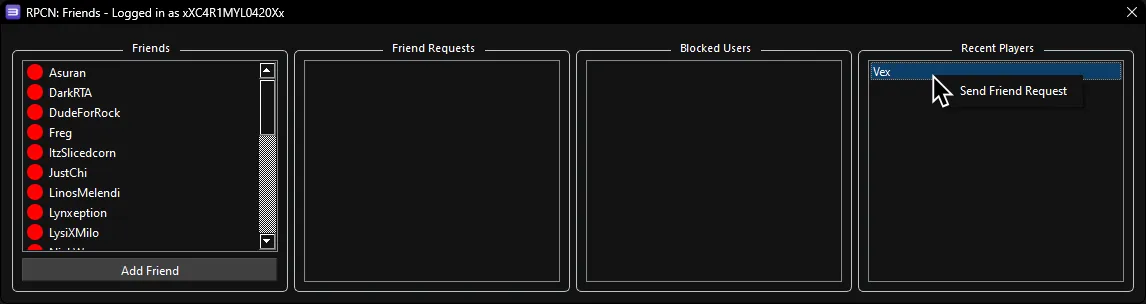
Section titled “Adding Recent Players”Any person you’ve played with that isn’t already your friend will show up in the right side of the RPCN:Friends window. To add anyone here, simply right click the name and you will be able to send them a friend request.