

Initializing
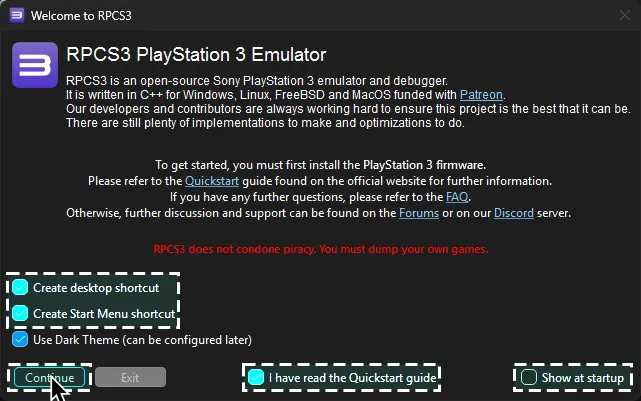
Now, go to the folder where you extracted RPCS3. Keep this folder open in the background. Open up RPCS3.
Tick:
Create desktop shortcutCreate Start Menu shortcutI have read the Quickstart guideDo not show again
Disable:
Show at startup
After that, click Continue.
Firmware

Section titled “Firmware”Drag the PS3UPDAT.PUP file you just downloaded from Sony’s website into RPCS3.
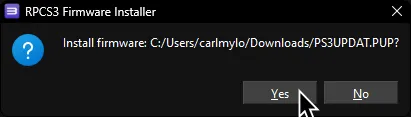
Click Yes when the firmware installer prompts you.
Let it install.

When it finishes, click OK.

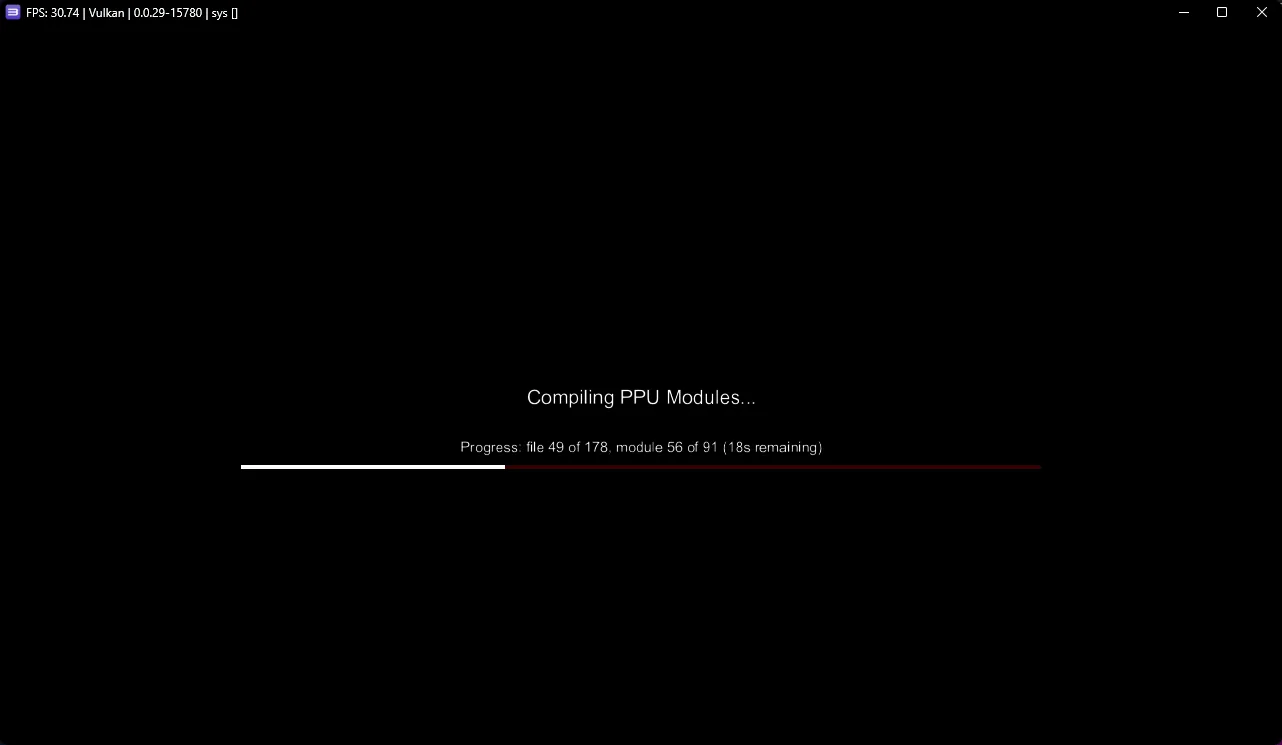
It will start compiling modules to load the PS3 XMB into the emulator, which may take a few minutes. You can either let it do its thing or close it.
Rock Band 3
Section titled “Rock Band 3”Next, open a new file browser window. Now go to the folder where you have your copy of Rock Band 3 stored and drag the folder into RPCS3’s “games” folder.
Again, you’re on your own when it comes to finding a copy. You can use a PS3 with CFW or HEN to create a copy of the game or [“PS3 Disc Dumper”] if you don’t have a console.


After dragging in Rock Band 3, click Refresh in RPCS3. Rock Band 3 should appear in your game library.
Rock Band 3 Deluxe
Section titled “Rock Band 3 Deluxe”Finally, let’s install [Rock Band 3 Deluxe].
This is a must-have mod, which also fixes some critical bugs RPCS3 has with Rock Band 3. On top of that, it adds [many great features].
[Click here to download Rock Band 3 Deluxe].
Download the PS3 version.
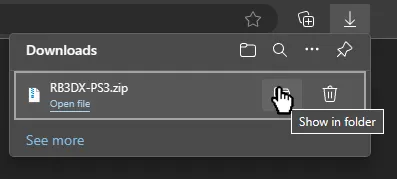
When it’s finished downloading, extract the archive.

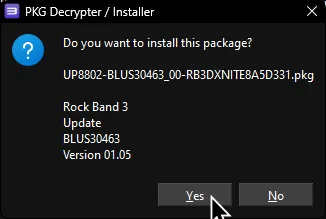
When it finishes extracting, drag the PKG file into RPCS3 and click Yes on the prompt, just like you did earlier with the PS3UPDAT.PUP file.

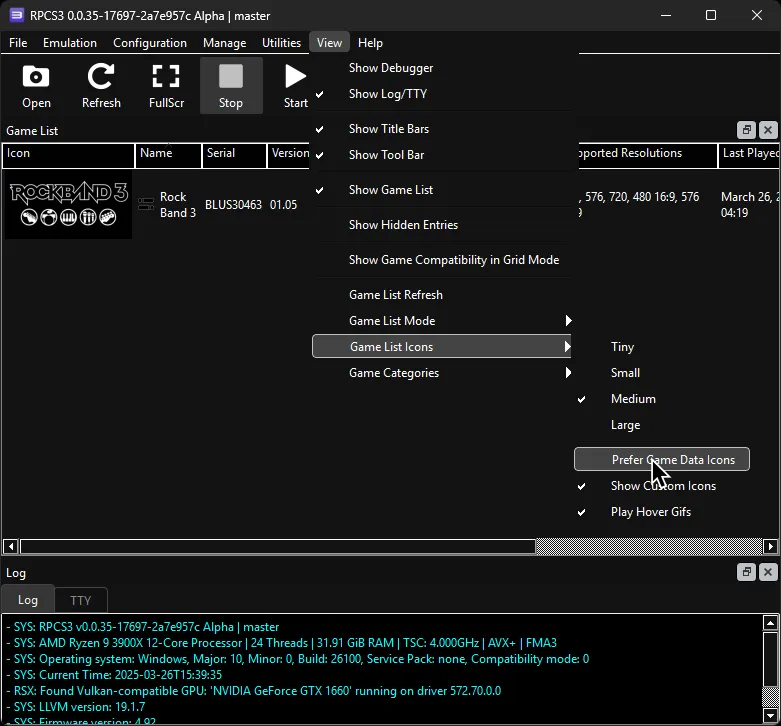
The best way to check if Rock Band 3 Deluxe installed correctly is to enable Prefer Game Data Icons under View > Game List Icons.
If it installed successfully, you should see that the Rock Band 3 icon has changed.
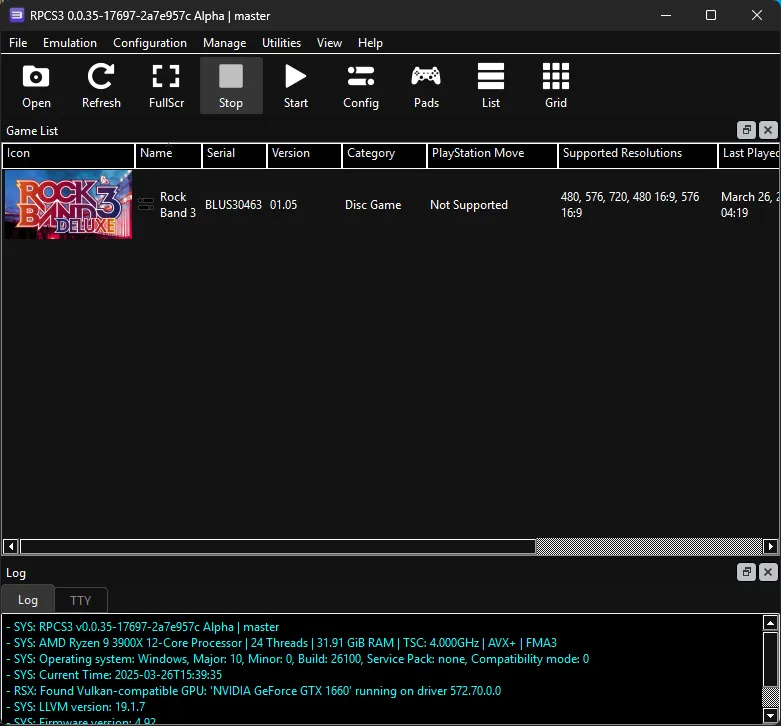
You can also rename the game in the list to “Rock Band 3 Deluxe” if you wish. To do this, right-click on “Rock Band 3” and select Rename In Game List.