Downloads
Before you begin, make sure your drivers and operating system are up to date.
Prerequisites
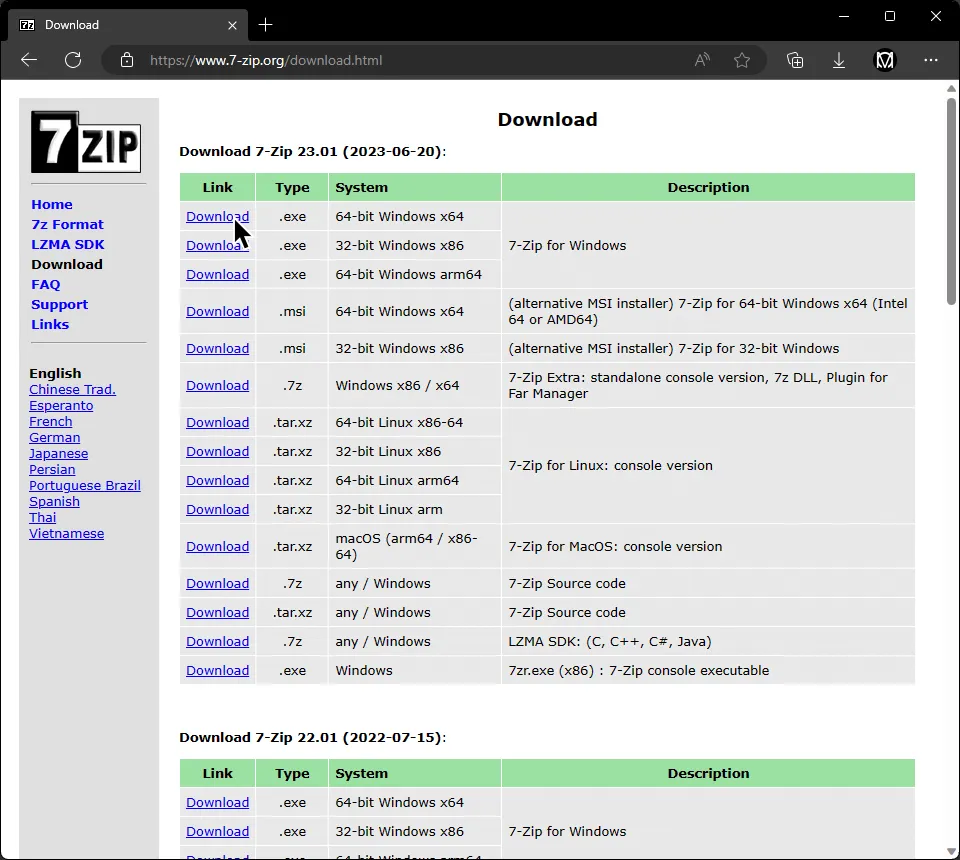
Section titled “Prerequisites”Let’s start by downloading 7-Zip, which will open the compressed archives most of these downloads will be stored inside of. If you already have 7-Zip or an alternative installed, you can skip to the next step.
[Click here to go to 7-Zip’s download page].
Now, let’s go ahead and install Microsoft Visual C++ 2019 Redistributable, which is required by RPCS3. You probably already have this, but it doesn’t hurt to double check.
[Click here to download Microsoft Visual C++ 2019 Redistributable]
Once it finishes downloading, open it up and install it.

Next, let’s download RPCS3.
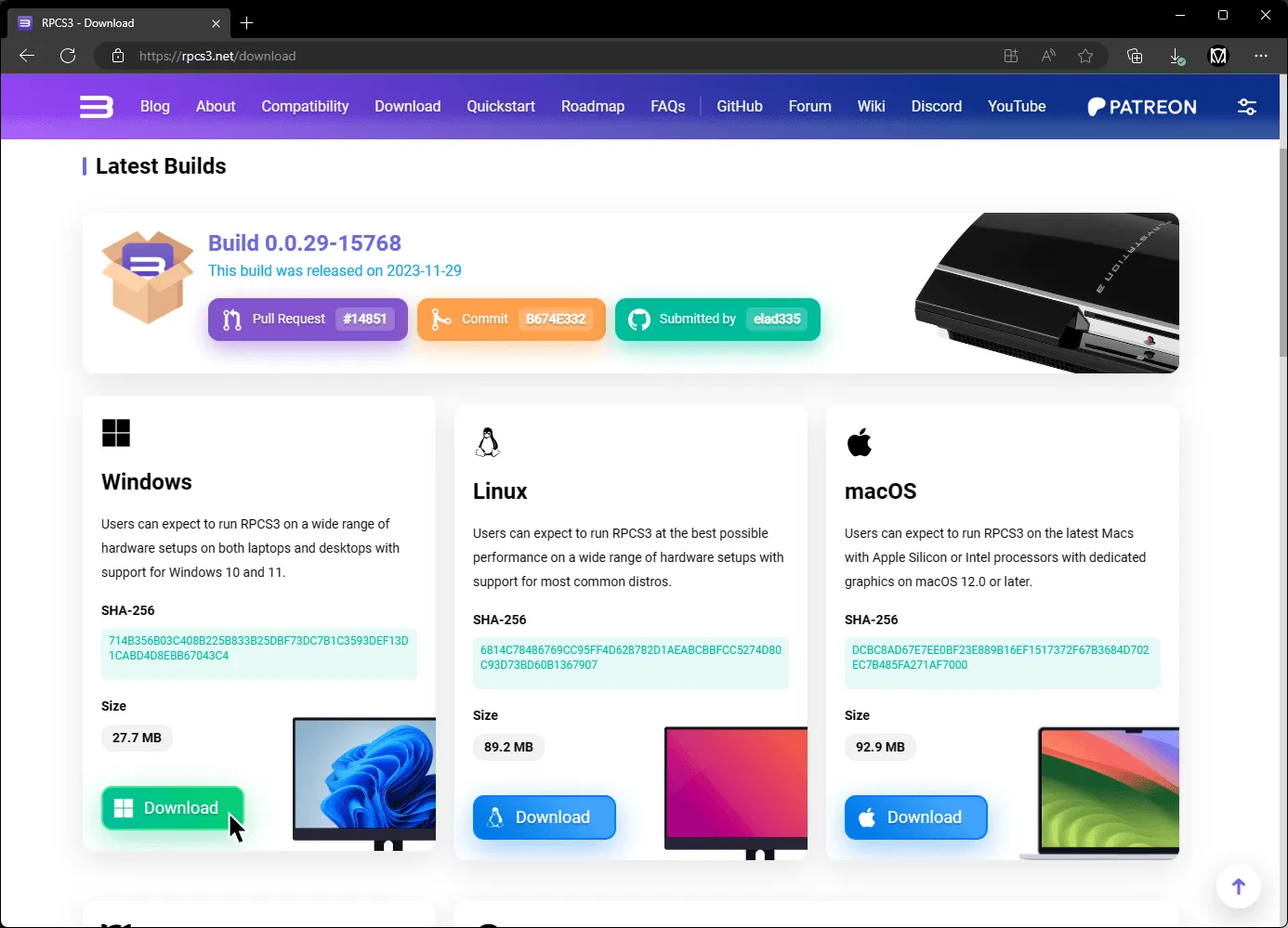
[Click here to go to RPCS3’s download site].
Scroll down a bit and download the Windows version.
Once it downloads, extract the .7z file.
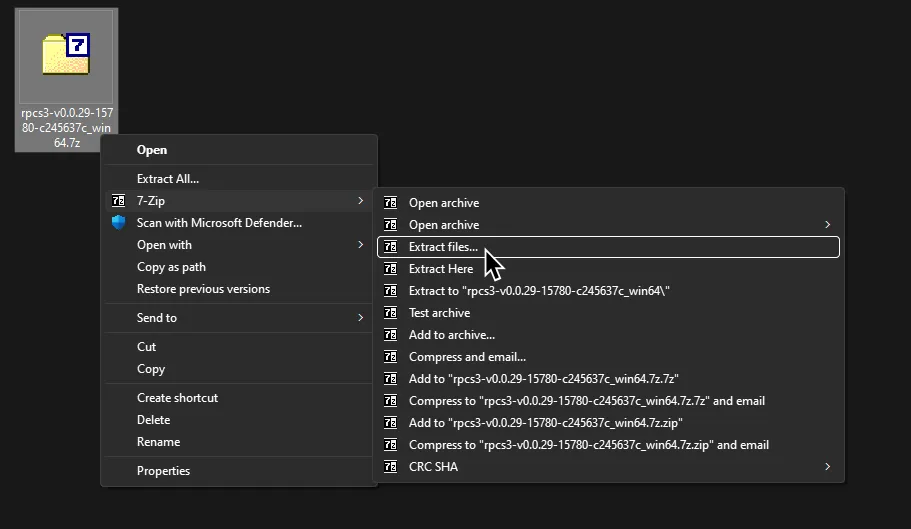
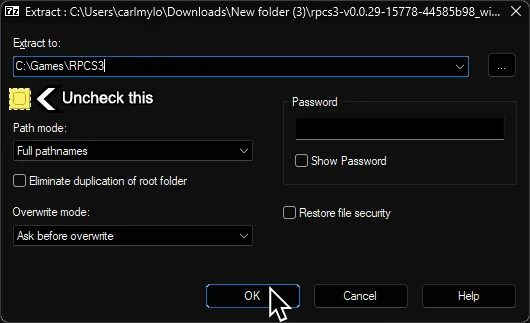
It’s suggested to extract the files into C:\Games\RPCS3 or a separate internal drive to avoid permissions issues. Also, untick the box that will create a sub-directory, as shown highlighted in the picture.
Firmware
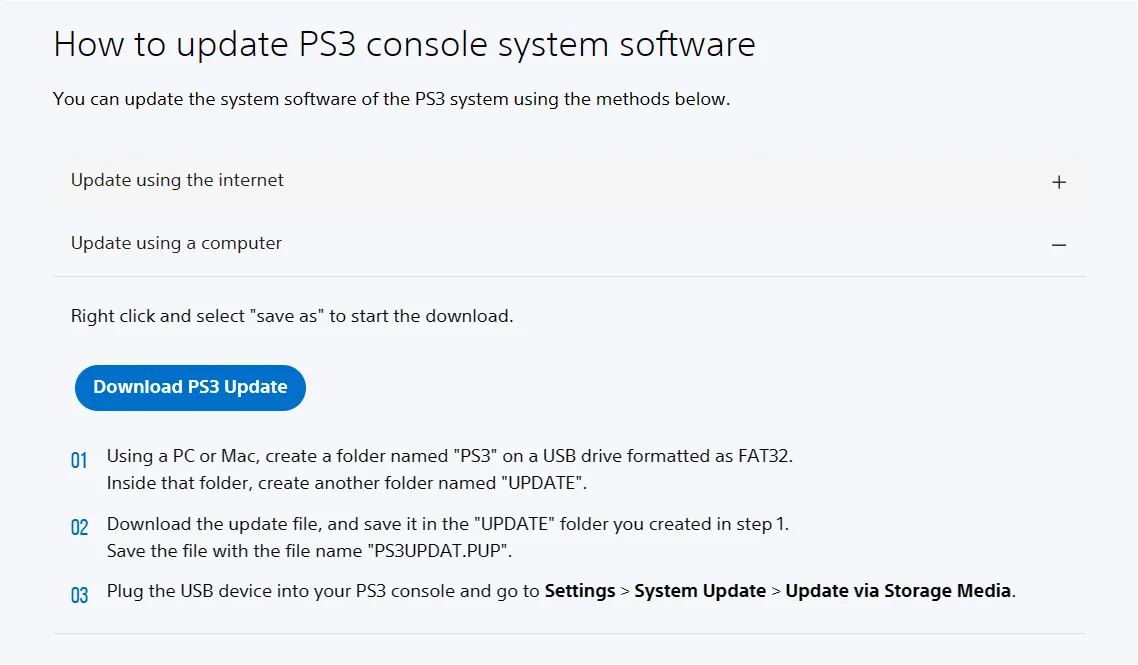
Section titled “Firmware”Once that’s extracted, [download the PlayStation 3 system software from Sony’s website]. Scroll down until you get to “Update using a computer.” Click that to expand, then click on “Download PS3 Update.”
If you’re using a Chromium-based browser like Chrome or Edge, MAKE SURE YOU RIGHT-CLICK AND “Save link as,” or your download MAY become stuck.