

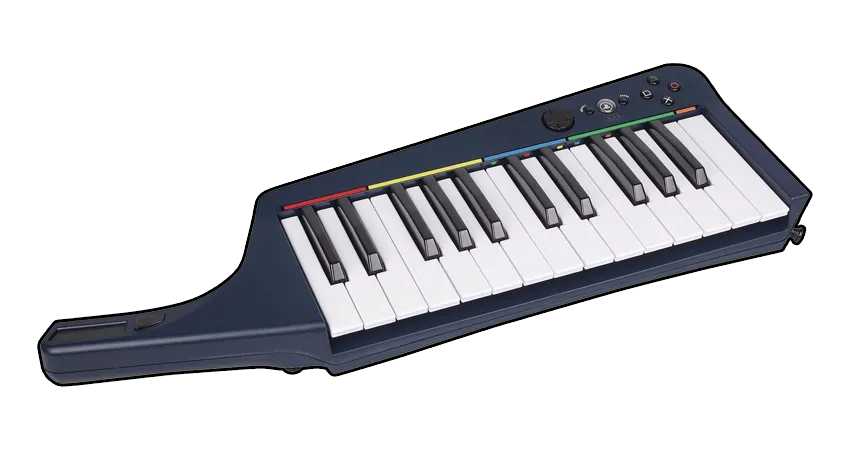
PlayStation 3 Rock Band Wireless Keyboard
Instructions
Section titled “Instructions”There are two different ways to connect this keyboard. If you don’t have the Rock Band Keyboard Receiver for PlayStation 3, you will need to use MIDI to USB.
Pick whichever is the most convenient for you:
This is the recommended method because the keyboard will work as expected.
You will need:
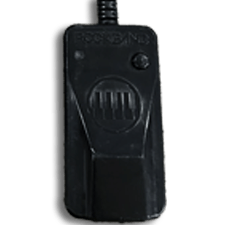
- a PlayStation 3 Wireless Keyboard Receiver to connect to your computer.
-
Connect your Rock Band Keyboard Receiver for PlayStation 3 to your computer.
-
Now, [go to Zadig’s website] and download the latest version, then open it up.
-
Click on
OptionsthenList All Devices.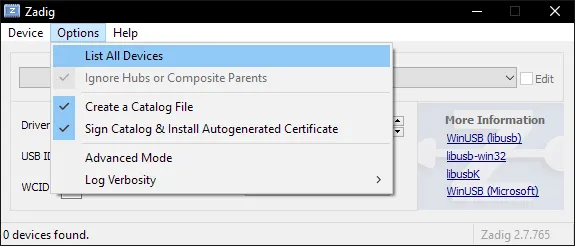
-
You should now see devices listed. Switch it to your Rock Band 3 Wireless Keyboard Receiver.
In this example, it’s the Pro Guitar (Harmonix RB3 Mustang Guitar for PlayStation® 3).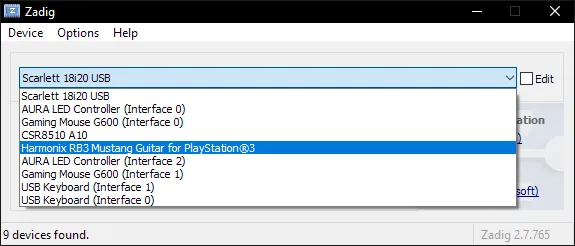
-
After selecting the right device, you should see the option to replace the driver.
MAKE SURE YOU ARE REPLACING THE DRIVER ONLY FOR THE RB3 WIRELESS KEYBOARD RECEIVER!!
ClickReplace Driver.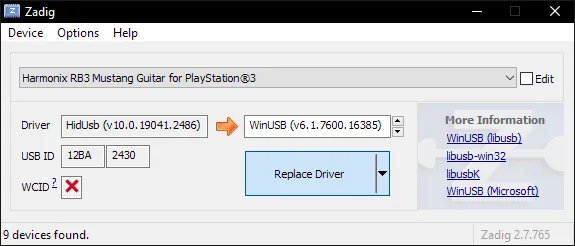
-
A warning will appear. Again, make sure you have selected your RB3 Wireless Keyboard receiver. After you have made sure, click
Yes.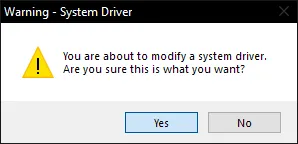
-
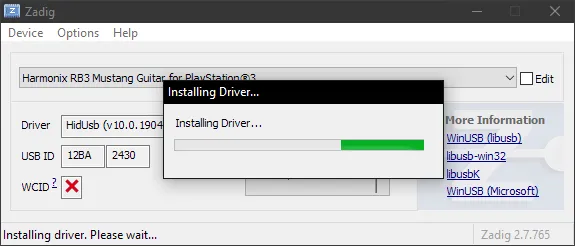
It will then install the driver. As the program says, it may take a few minutes.
-
If everything goes well, you will get this message:
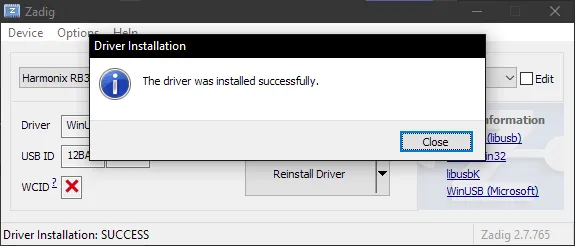
-
Close Zadig and, with the dongle still connected, open up RPCS3 and open Rock Band 3. Turn your controller on and you should see it automatically assign a player number.
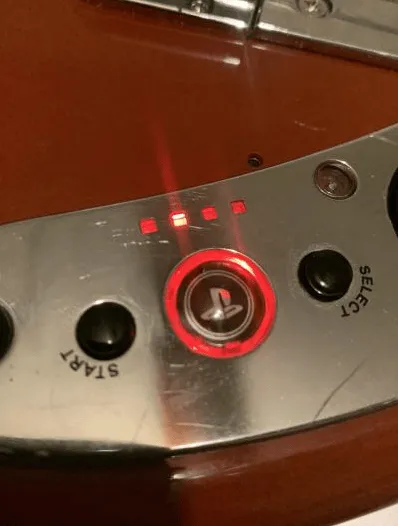
You will see the instrument ready to join in Rock Band 3, .
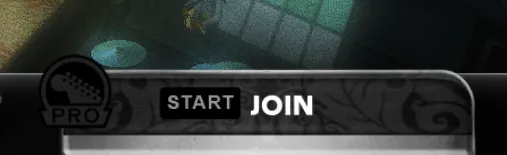
From this point, you can just connect your Rock Band 3 Wireless Keyboard receiver whenever you want without having to repeat this setup process!
Uninstalling
Applying a Zadig driver on a device will make it only work on applications with passthrough. Thankfully, reverting this is very easy.-
Open the Start menu and search for
Device Manager. Open it.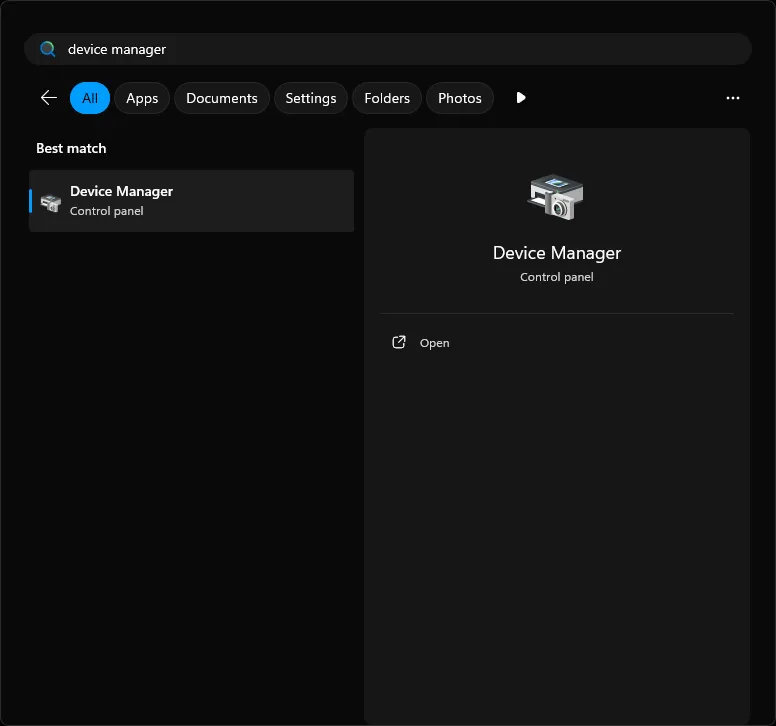
-
Scroll down until you find the
Universal Serial Bus devicescategory.
Expand it and right click the instrument you applied the Zadig driver on and then selectUninstall device.
In this example, it’s the Pro Guitar (Harmonix RB3 Mustang Guitar for PlayStation® 3).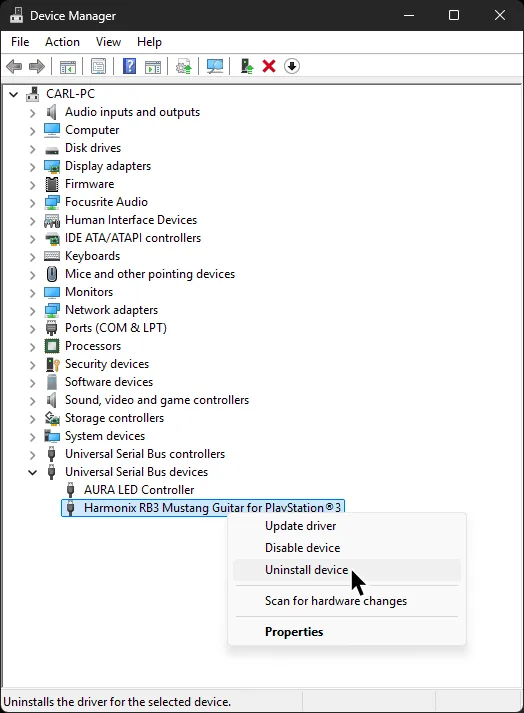
-
In the next window that pops up, make sure to tick
Attempt to remove the driver for this device. -
After that, click
Uninstalland that’s it!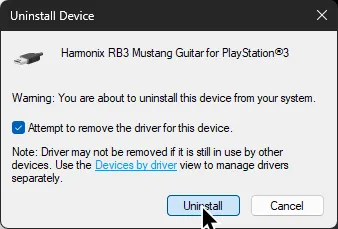
When you disconnect then reconnect the device, it will revert back to the original driver.
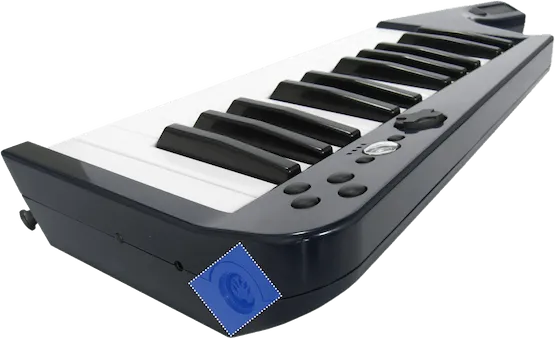
For this, you will need a MIDI to USB interface.
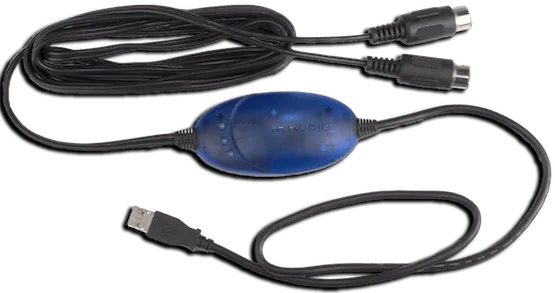
Here’s an example of a MIDI to USB interface. Most will come with an LED indicator to show activity. To check that you’ve plugged it in correctly, you should see “MIDI In” blinking when you press a key.
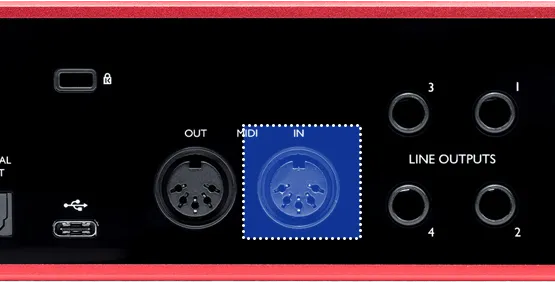
If you have an audio interface, you may already have a way to plug in MIDI to your computer, as some audio interfaces come with MIDI inputs. For example, this Scarlett has MIDI connections in the back.
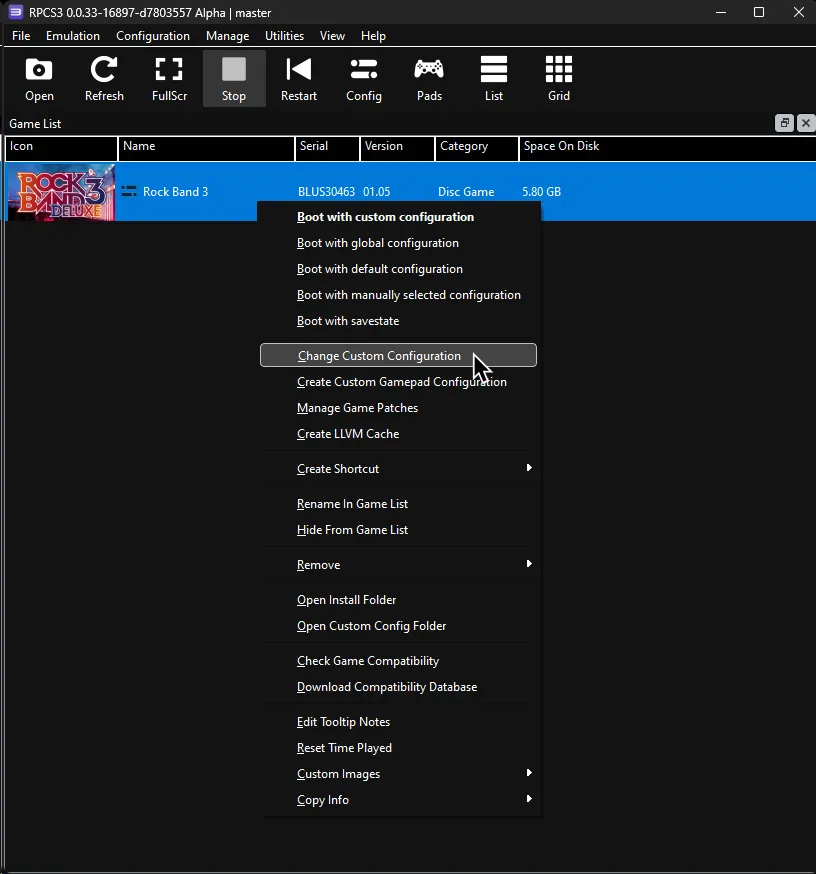
After that, right click on Rock Band 3 in RPCS3, then click on Change Custom Configuration.
After that, go to the I/O tab.
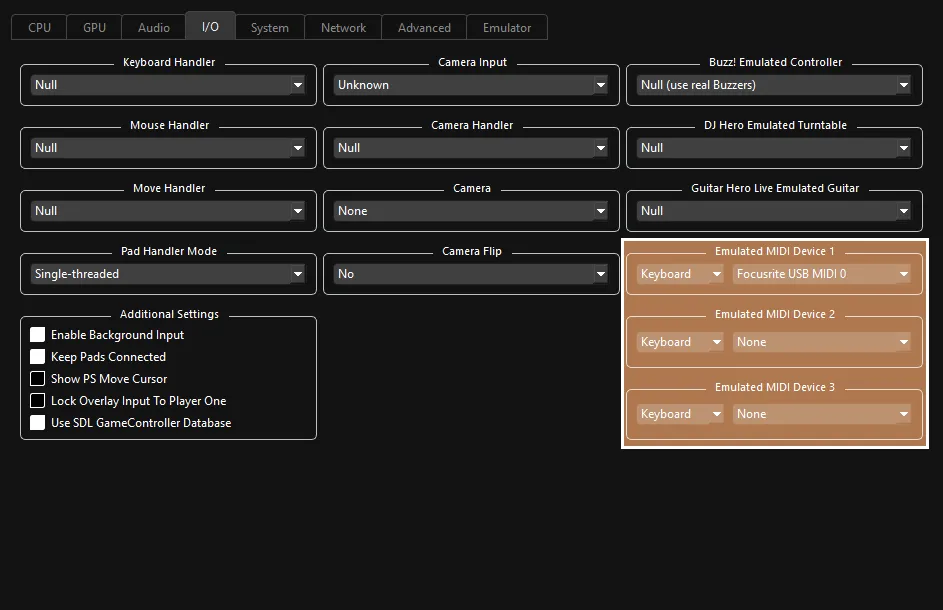
 :
:
- 🎹 Leave your
Emulated MIDI typeonKeyboardand select your MIDI interface in the drop-down menu next to it.
- 🎹 Leave your
Additional Information
Section titled “Additional Information”Since the keyboard controller buttons don’t function like they do when connected with a dongle, you will have to shift octaves to control the menus.
You can shift octaves with the X and B buttons.

| Note | Button |
|---|---|
| C2 |  |
| D2 |  |
| E2 |  |
| F2 |  |
| G2 |  |
| A2 | Deploy Overdrive |
| C#2 |  |
| D#2 | 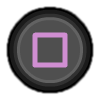 |
| F#2 | 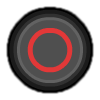 |
| G#2 |  |
| A#2 |  |
| Modwheel | Deploy Overdrive |
| Sustain | Deploy Overdrive |
| Pitch Wheel | Whammy/Touch Strip |
[Using a computer keyboard along with a 25 key keyboard]
You can use your regular computer keyboard and convert its key presses to the MIDI notes that correspond to the game buttons in case you want to avoid swapping octaves constantly.
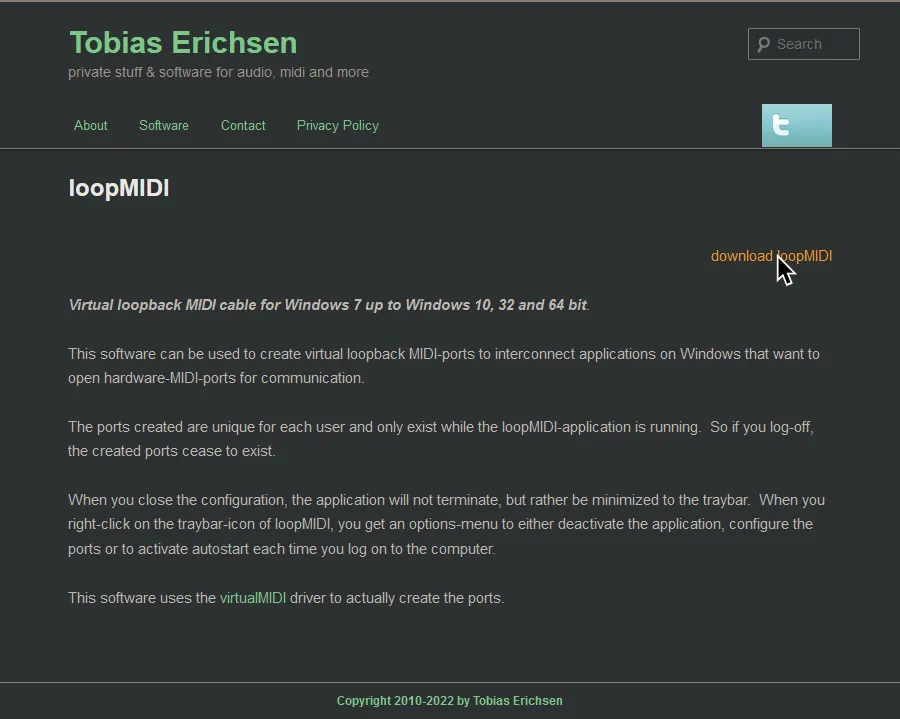
First, [download loopMIDI].
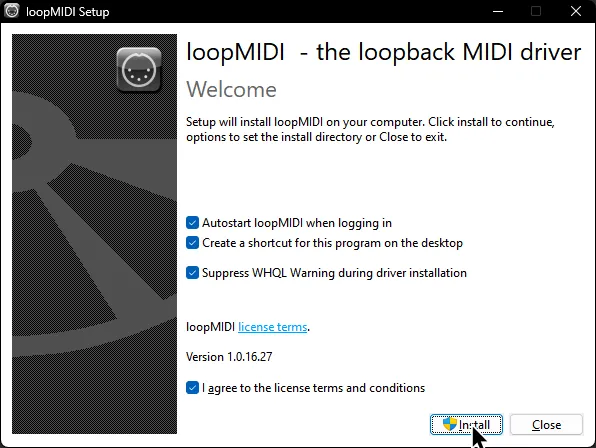
Install loopMIDI.
Launch it after it finishes.
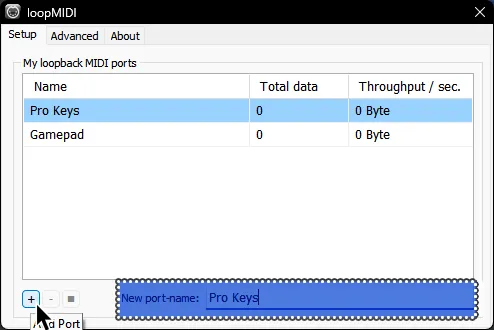
Add two new ports by clicking on the + button in the bottom. You should name the ports, too. They’ve been named “Pro Keys” and “Gamepad” in this example.
Now, download [the .zip archive that contains the win64 version of FreePiano].

Extract the .zip archive somewhere you can easily find it.
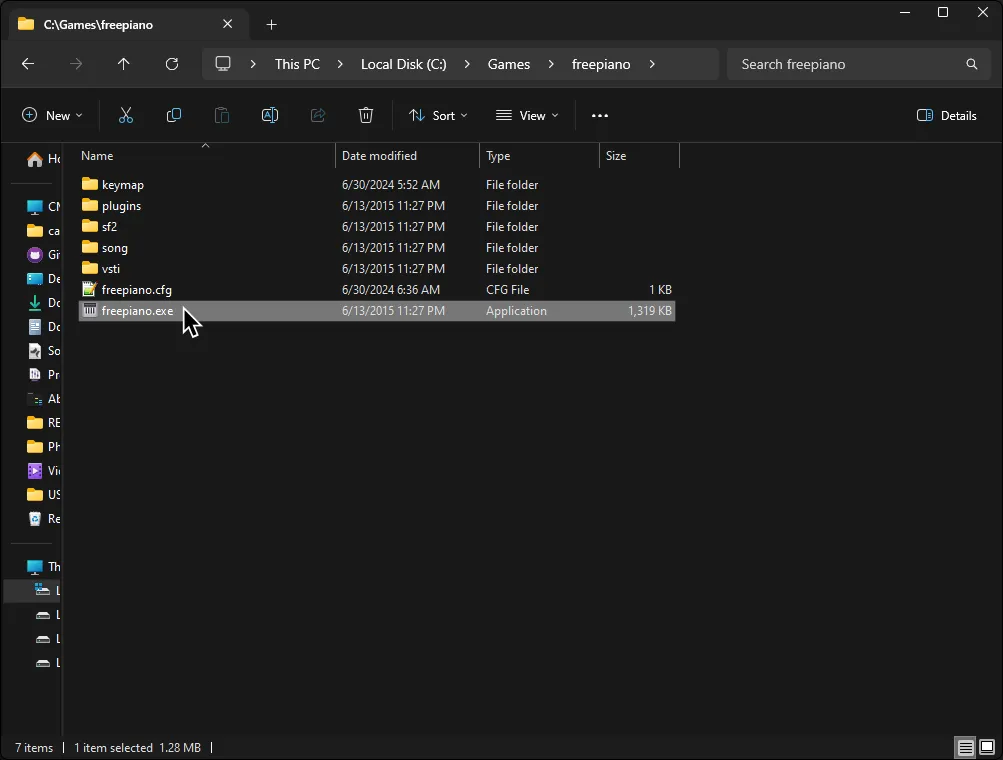
It was extracted to C:\Games\freepiano in this example.
Go to where you extracted FreePiano and run the freepiano executable.
Assign the keys to your liking as shown in the [#Additional Information] section above.
There is also a premade profile if you’d like, which you can [download here].
To use the preset, place the rb3gamekeys.map file in the keymap folder located where you extracted FreePiano.
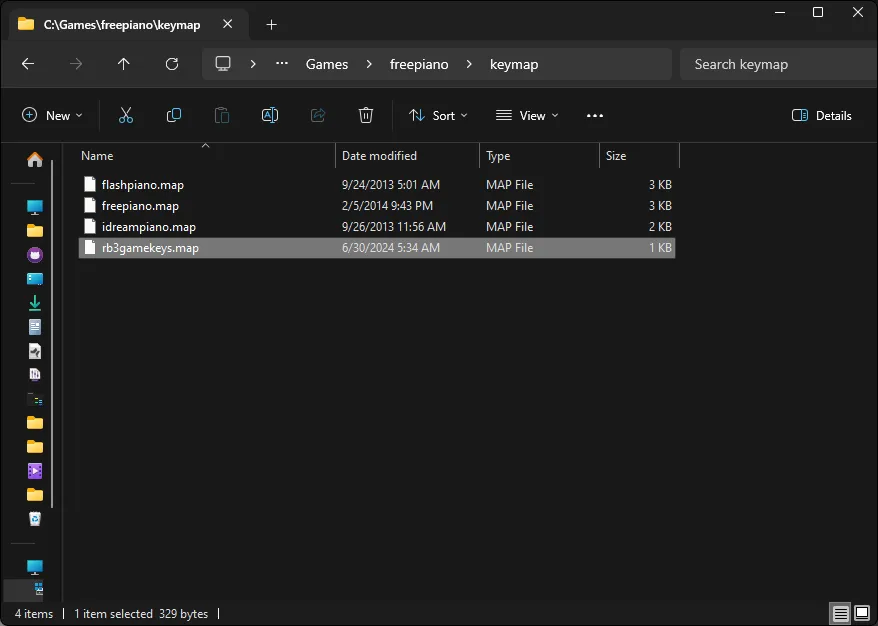
Select rb3gamekeys.map in the Keymap dropdown button to load the premade profile.
Likewise, if you made your own profile or edited the premade profile, you can click on Save to save your profile.

The premade profile is mapped like this:
| Key | Action |
|---|---|
Enter | |
Shift | |
Up | |
Down | |
Left | |
Right | |
A | |
S | |
D | |
F | |
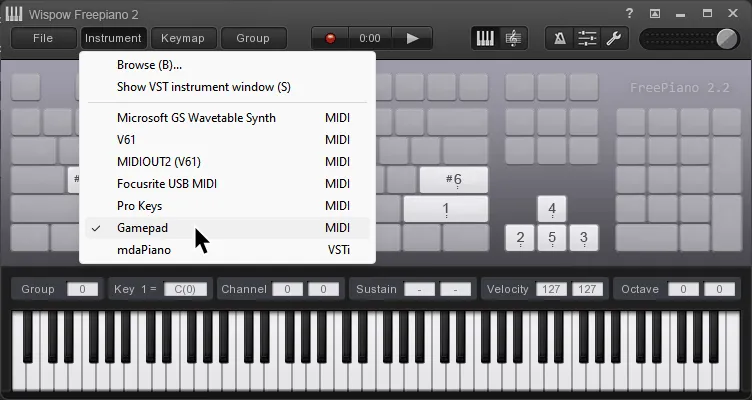
Once you are done mapping, click on Instrument at the top of Freepiano’s window and select the Gamepad MIDI output, which you made with loopMIDI earlier.
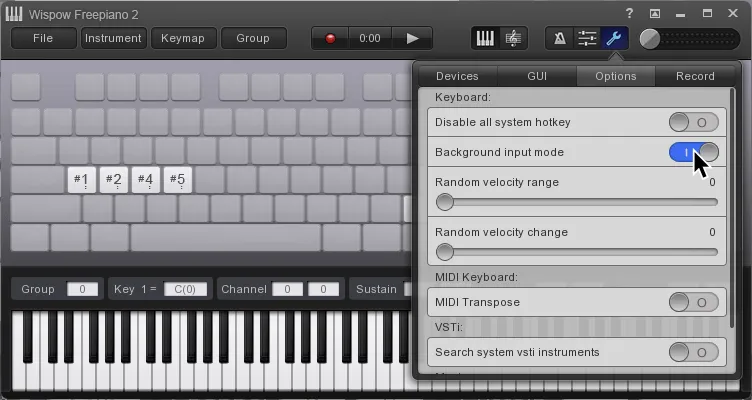
It’s suggested you enable Background input mode, located within the Options tab which is accessed by pressing the Wrench icon in the top right side of FreePiano.
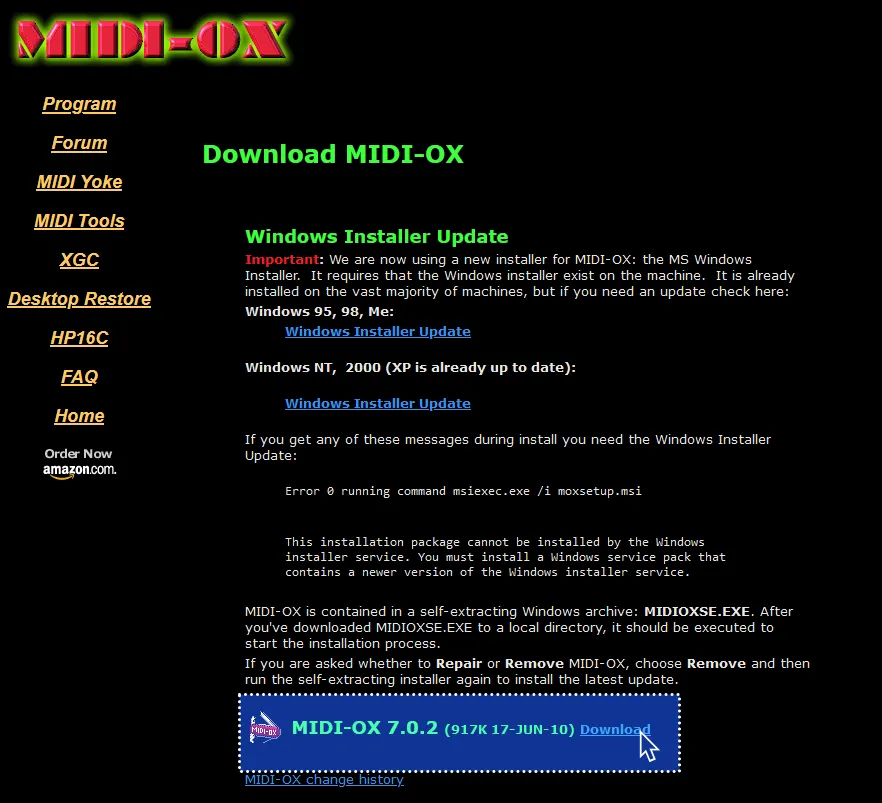
Now, [download MIDI-OX].
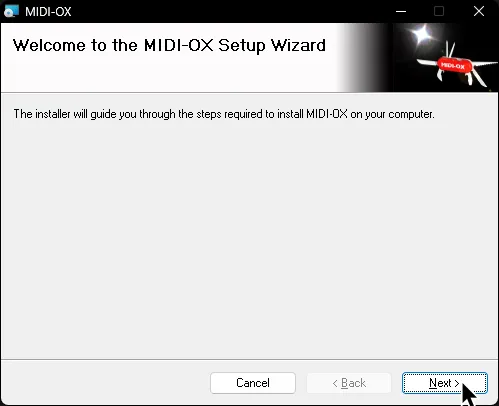
Install MIDI-OX.
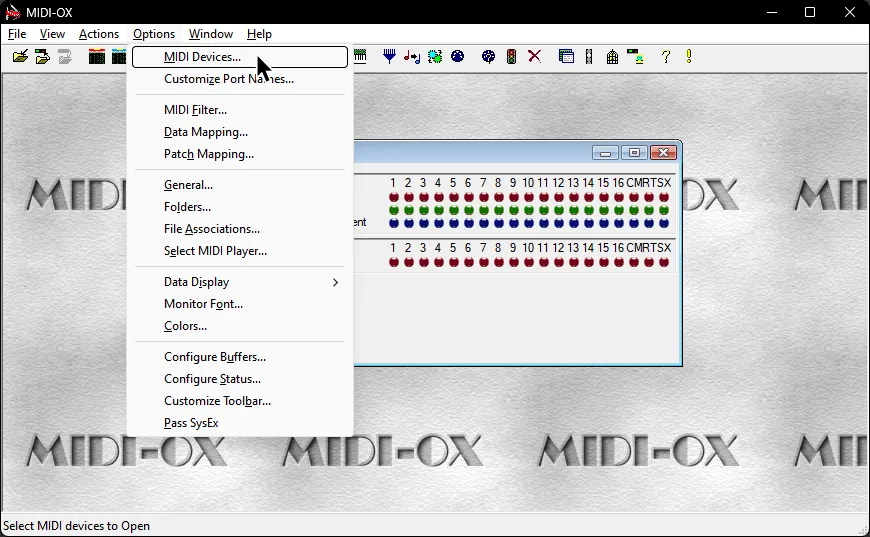
Open MIDI-OX then navigate to Options > MIDI Devices
In the MIDI Devices menu, select your keyboard and the port you made in loopMIDI (“Gamepad”) for FreePiano in the MIDI Inputs section.
Select the other port you made in loopMIDI (“Pro Keys”) in MIDI Outputs. This will combine both MIDI inputs into a single output.
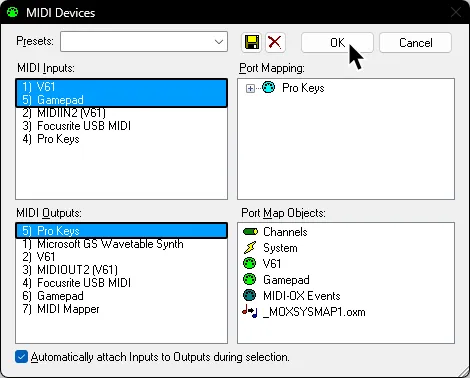
Finally, in RPCS3, go to Rock Band 3’s Custom Configuration then go to the I/O tab.
Select the port that you selected as your output in MIDI-OX (“Pro Keys”).
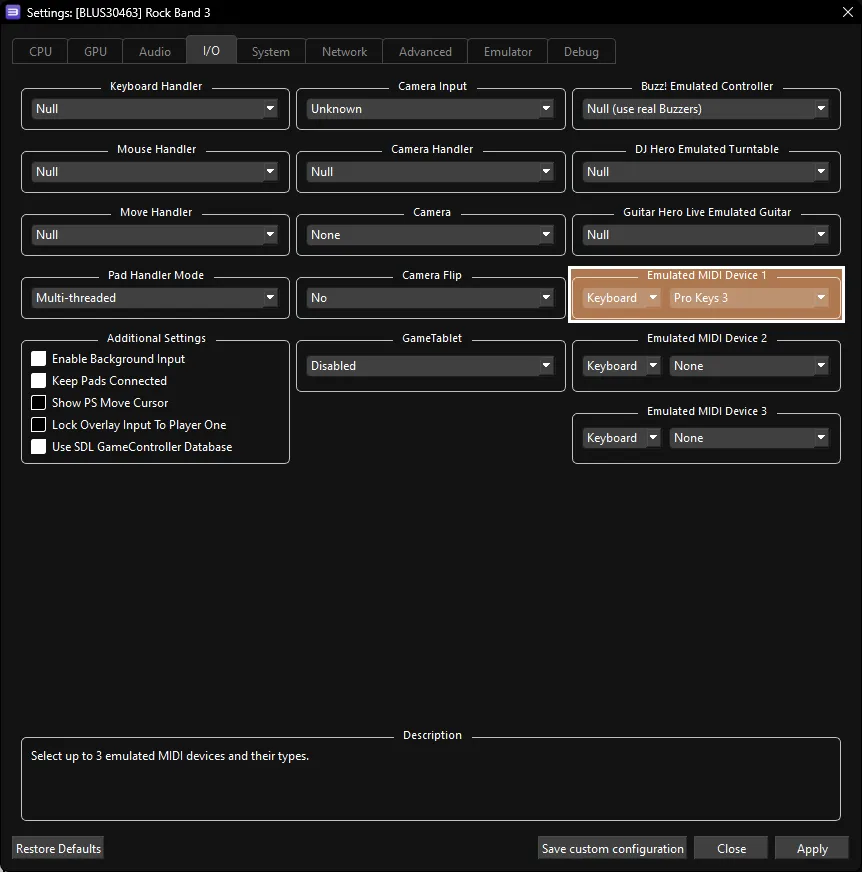
That’s it. Remember to close all three different programs when you’re not using them because they may cause issues with certain shortcuts on Windows.
You will have to reopen these programs every time you want to play.
Research by [Linos]