

PlayStation 3 Rock Band MIDI PRO Adapter Drums

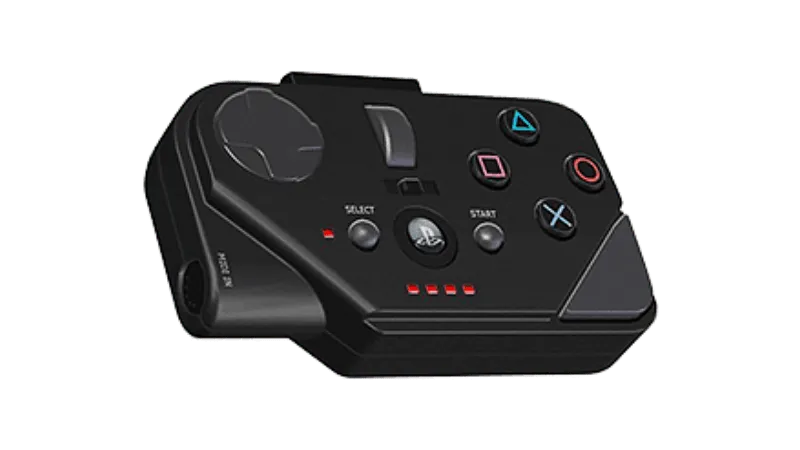
- Nintendo Wii MIDI Pro Adapters can be converted to PlayStation 3. This requires hardware modification and will not be covered here.
-
Connect your RB3 MIDI PRO Adapter and switch it to Drum mode. Simply set the middle switch to left-most
Dposition.
Please note that you need to do this even if you already did it for the other two modes.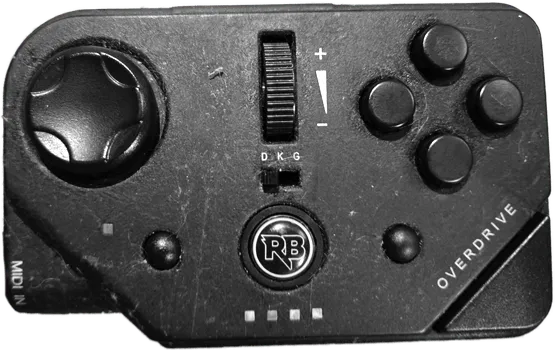
-
Now, [go to Zadig’s website] and download the latest version, then open it up.
-
Click on
OptionsthenList All Devices.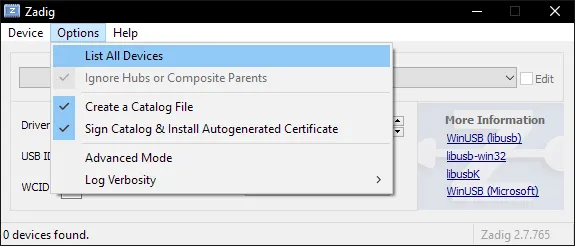
-
You should now see devices listed. Switch it to your RB3 MIDI Pro Adapter.
In this example, it’s the Pro Guitar (Harmonix RB3 Mustang Guitar for PlayStation® 3).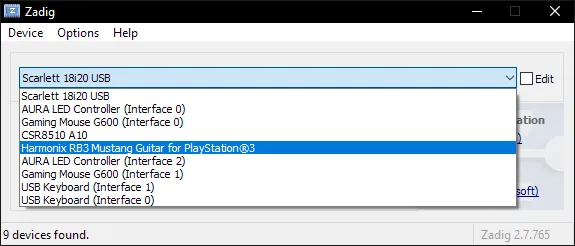
-
After selecting the right device, you should see the option to replace the driver.
MAKE SURE YOU ARE REPLACING THE DRIVER ONLY FOR THE RB3 MIDI PRO ADAPTER!!
ClickReplace Driver.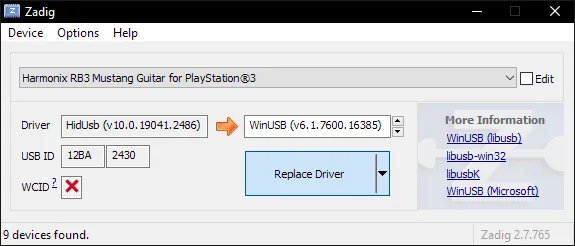
-
A warning will appear. Again, make sure you have selected your RB3 MIDI PRO Adapter. After you have made sure, click
Yes.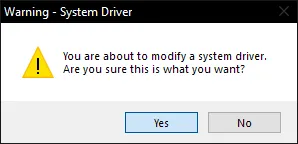
-
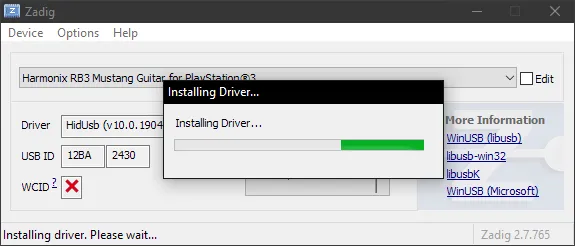
It will then install the driver. As the program says, it may take a few minutes.
-
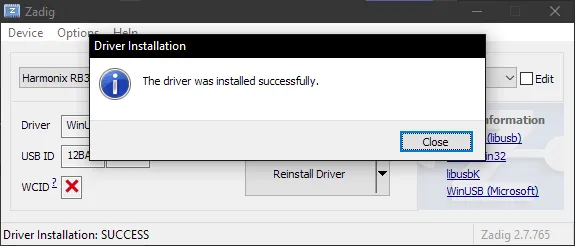
If everything goes well, you will get this message:
-
Close Zadig and, with the dongle still connected, open up RPCS3 and open Rock Band 3. Turn your controller on and you should see it automatically assign a player number.
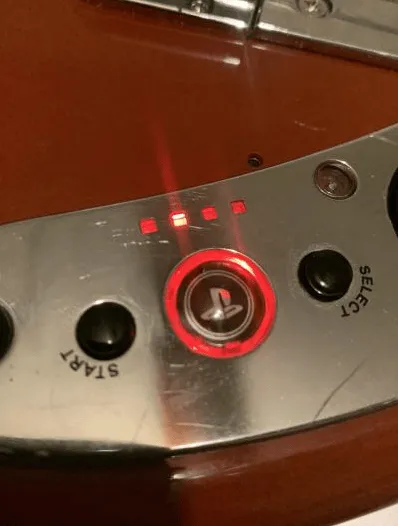
You will see the instrument ready to join in Rock Band 3, .
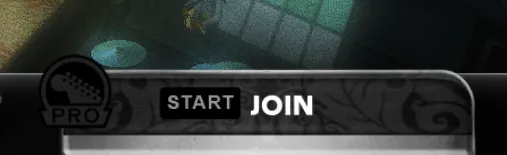
From this point, you can just connect your RB3 MIDI Pro Adapter whenever you want without having to repeat this setup process!
Uninstalling
Applying a Zadig driver on a device will make it only work on applications with passthrough. Thankfully, reverting this is very easy.
-
Open the Start menu and search for
Device Manager. Open it.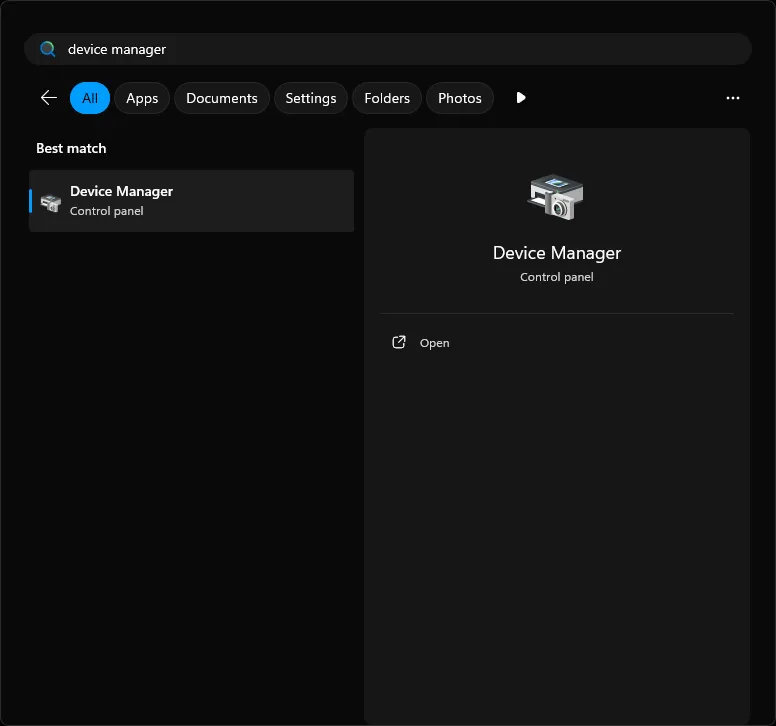
-
Scroll down until you find the
Universal Serial Bus devicescategory.
Expand it and right click the instrument you applied the Zadig driver on and then selectUninstall device.
In this example, it’s the Pro Guitar (Harmonix RB3 Mustang Guitar for PlayStation® 3).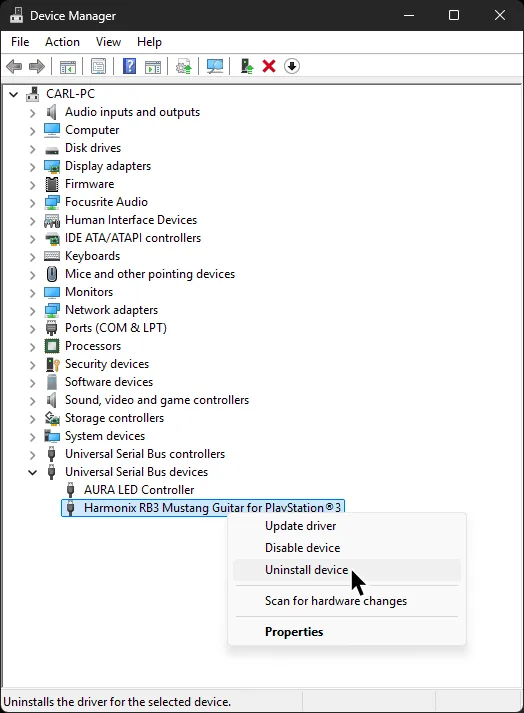
-
In the next window that pops up, make sure to tick
Attempt to remove the driver for this device. -
After that, click
Uninstalland that’s it!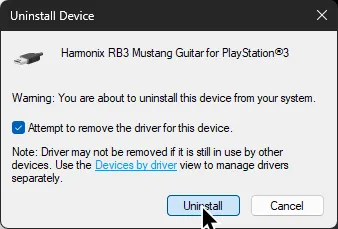
When you disconnect then reconnect the device, it will revert back to the original driver.
Research by [Linos]