

Xbox 360 Rock Band Drums


-
Rock Band 1 Drums can be connected via USB. Rock Band 1 drums are black with grey pads and lack the connectors for cymbals.
-
Rock Band 2 (and later) Drums require an Xbox 360 Wireless Gaming Receiver for Windows to connect to your computer.
 Need one?
- [Buy one from RetroCultMods (RCM Shop)]
- [Buy one from Roll Limitless]
- [Buy one from Amazon]
- Please note that any generic Xbox 360 Wireless Gaming Receiver should work fine!
-
Rock Band MIDI PRO Adapters for Xbox 360 can be connected via USB.
-
Works with or without the Pro Cymbal expansions.
- Make sure to configure which cymbals are connected within Rock Band 3.
Menu > Options > Drum Options
- Make sure to configure which cymbals are connected within Rock Band 3.
-
Velocity sensitivity doesn’t seem to work.
-
RPCN Menus (for sending or accepting online invites) may cause a softlock. You may need an alternative input method to navigate these menus, such as [a typing keyboard or a gamepad].
How do I map my drums?
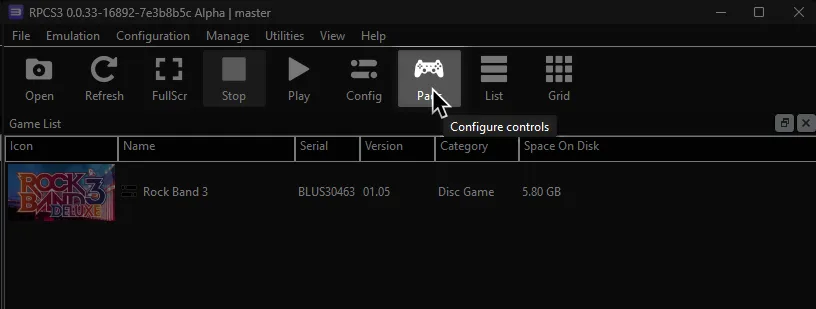
Click on the Pads icon at the top of RPCS3.
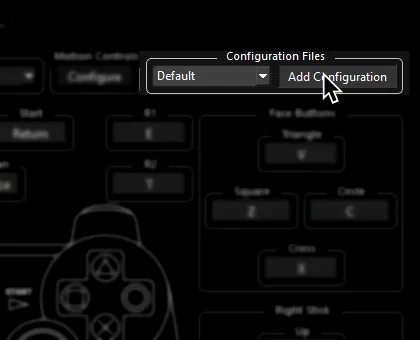
It’s suggested to create a new configuration by clicking Add Configuration at the top right of the Pads window.
This is so you can change configuration profiles in case you want to play other games.
Follow the instructions and/or match the assignments below.
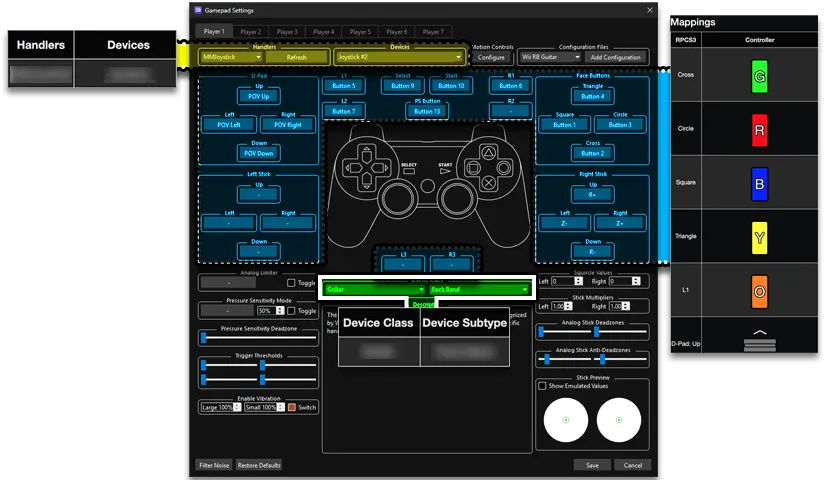
Pad Information
Section titled “Pad Information”| Handlers | Devices |
|---|---|
| XInput | XInput Pad |
| Device Class | Device Subtype |
|---|---|
| Drums | Rock Band Pro |
Mapping
Section titled “Mapping”By default, XInput has most things bound correctly. You only need to remap the following:
| RPCS3 | XInput | Drums |
|---|---|---|
| R1 | 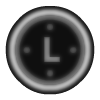 |  |
| L3 | 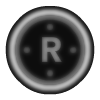 | Pad Modifier |
| R3 |  | Cymbal Modifier |
- Rock Band Drums send multiple button presses out at once. For example, a Red pad will send
BandRight Stick Click(which translates toCircleandL3.) Keep in mind these are needed to the emulator to tell your cymbals apart.- It’s strongly suggested to bind an Xbox controller like the Mapping screenshot below then swapping the Device to your Xbox 360 Rock Band Drums.
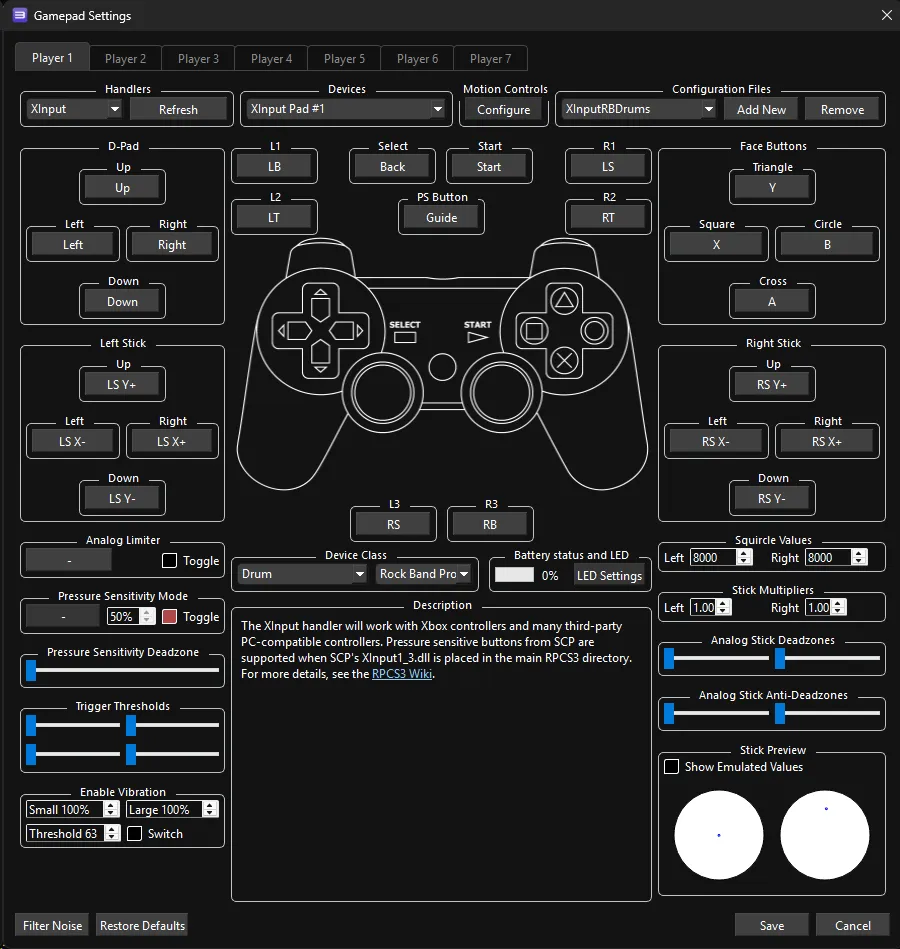
Profile
Section titled “Profile”How do I use profiles?
After downloading the profile,
- Extract the .7z file.
- Drag the
input_configsfolder into theconfigsfolder where you have RPCS3 in.

- After that, you can select the profile in the
Padsmenu.
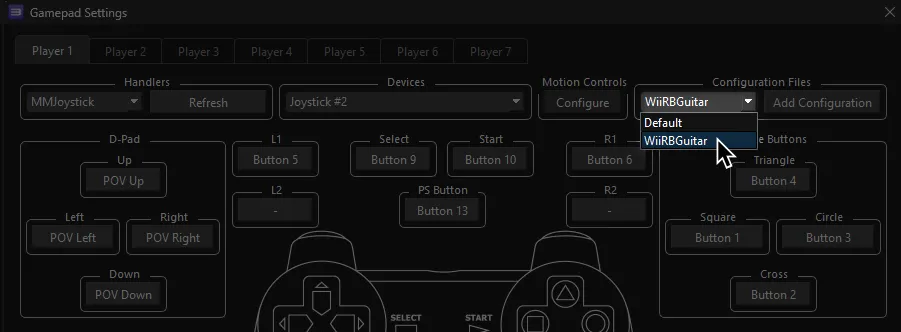
Most of the time, these controller profiles should work out of the box. If they don’t, try changing the controller listed in Devices, next to the Refresh button until it receives an input. You can edit this while the game is running.
Advanced Mapping
- To bind multiple buttons to one RPCS3 button, hold Shift then click on the RPCS3 button you want to assign multiple buttons to.
| RPCS3 | Rock Band Drums |
|---|---|
| Cross |  |
| Circle |  |
| Square |  |
| Triangle |  |
| R3 | Cymbal Modifier |
| D-Pad: Up | Yellow Cymbal Modifier |
| D-Pad: Down | Blue Cymbal Modifier |
| L3 | Pad Modifier |
| L1 |  |
| R1 | |
| Cross |  |
| Circle |  |
| Square |  |
| Triangle |  |
| D-Pad |  |
| PS Button |  |
Mapped by [gonakil1ya] and [Jnack]