Finding duplicate songs
Over time, you may end up with a few songs that don’t show. This will mostly occur when installing multiple packs that share the same songs.

Rock Band 3 showing a song library that has 5 songs missing.
You can use Nautilus to help solve this problem.
-
Open Nautilus and select
File Indexer.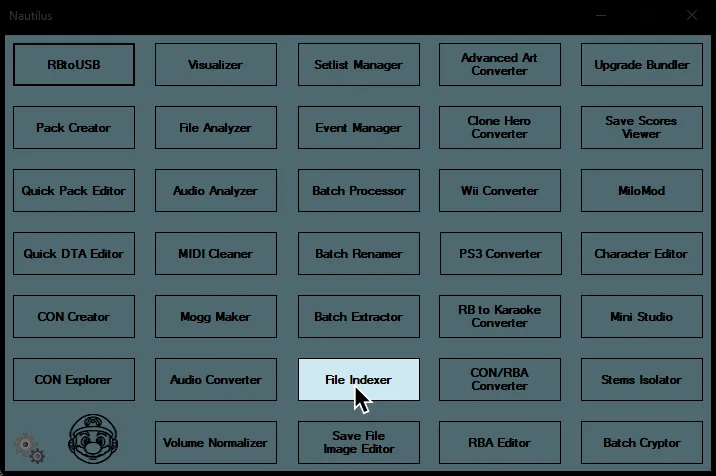
-
Click on
Add New Folder.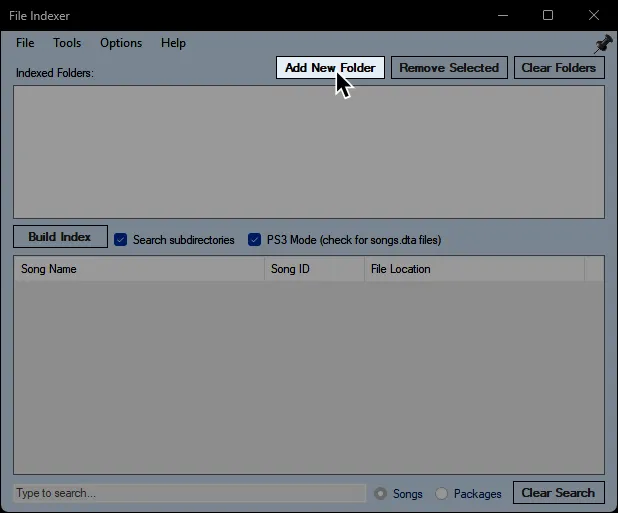
-
Go to where your Rock Band game data folders are.
This will bedev_hdd0\game\BLUS30463\for Rock Band 3 content and usuallydev_hdd0\game\BLUS30050\for Rock Band 1/2 content.
-
Enable
PS3 Mode (check for songs.dta files)in the middle then click onBuild Index.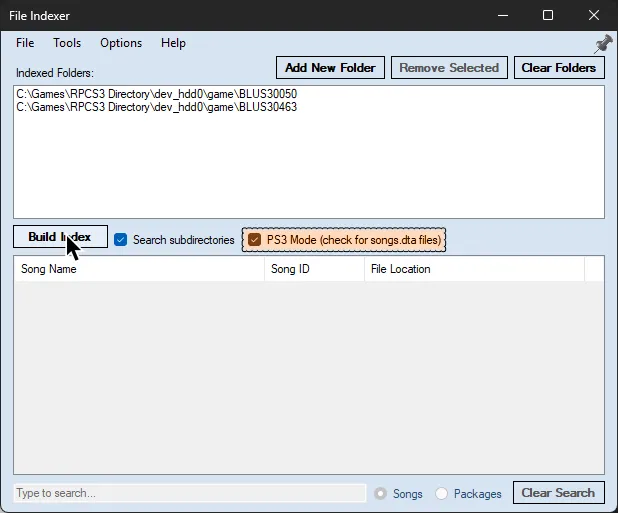
-
Click
Yeson the warning. As it says, it may take a while to scan.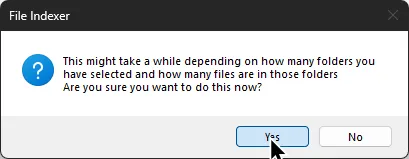
-
After it finishes scanning, click on
Toolsat the top, then enableFind songs with ID conflicts.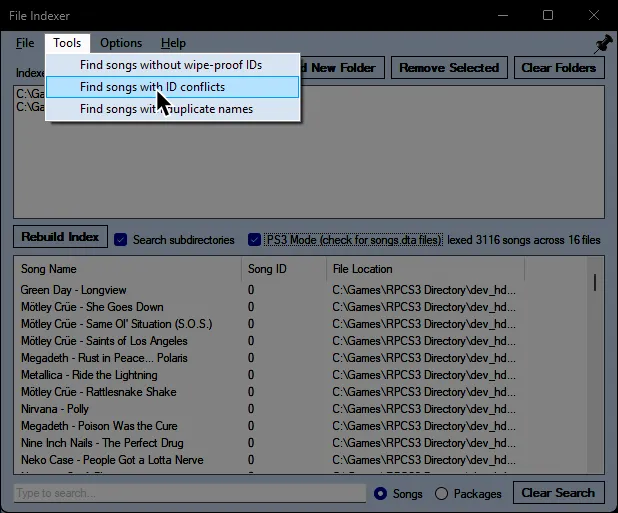
-
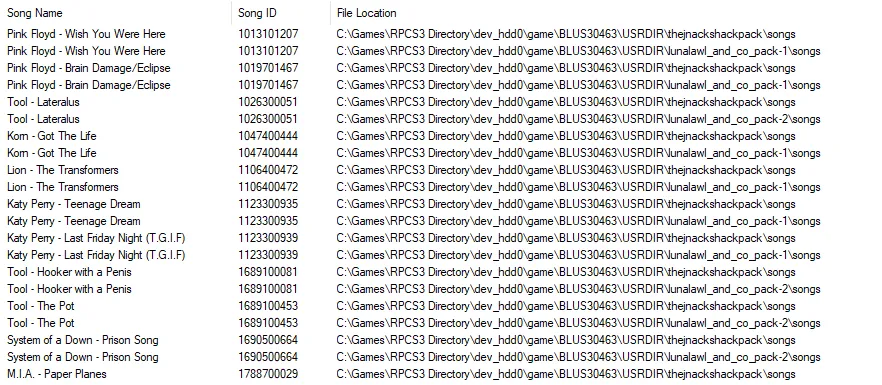
The list at the bottom will now show you songs that have conflicts, usually caused by installing the same song.
-
While leaving
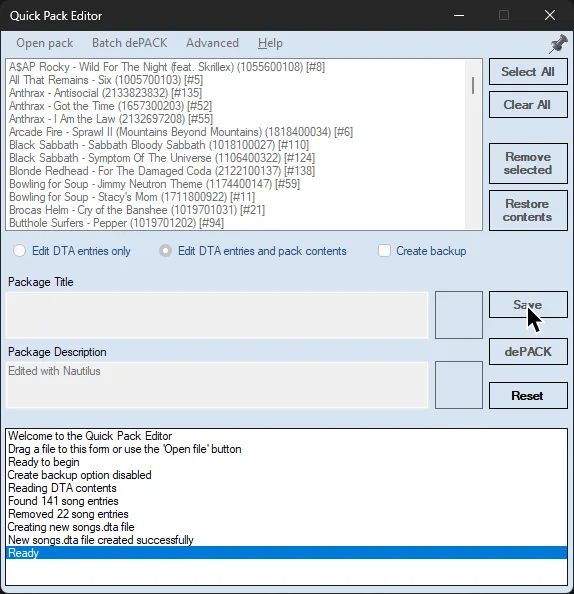
File Indexeropen, go back to the start page of Nautilus and selectQuick Pack Editor.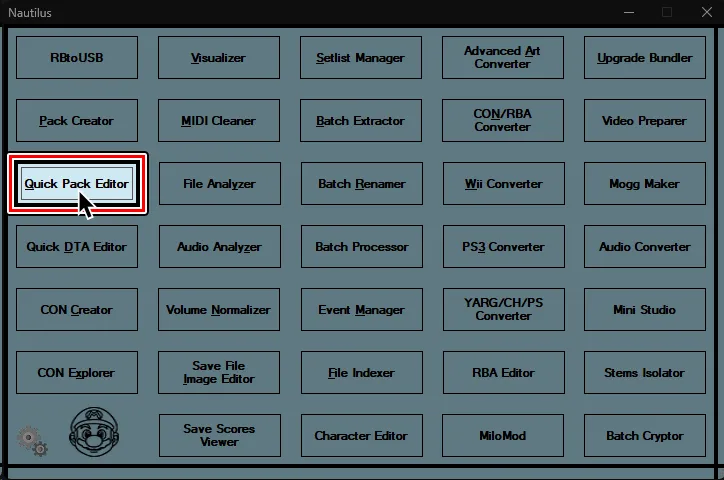
-
Open a file browser window and navigate to the pack’s folder that contains the duplicates you want to remove.
These are usually located indev_hdd0\game\BLUS30463\USRDIR\.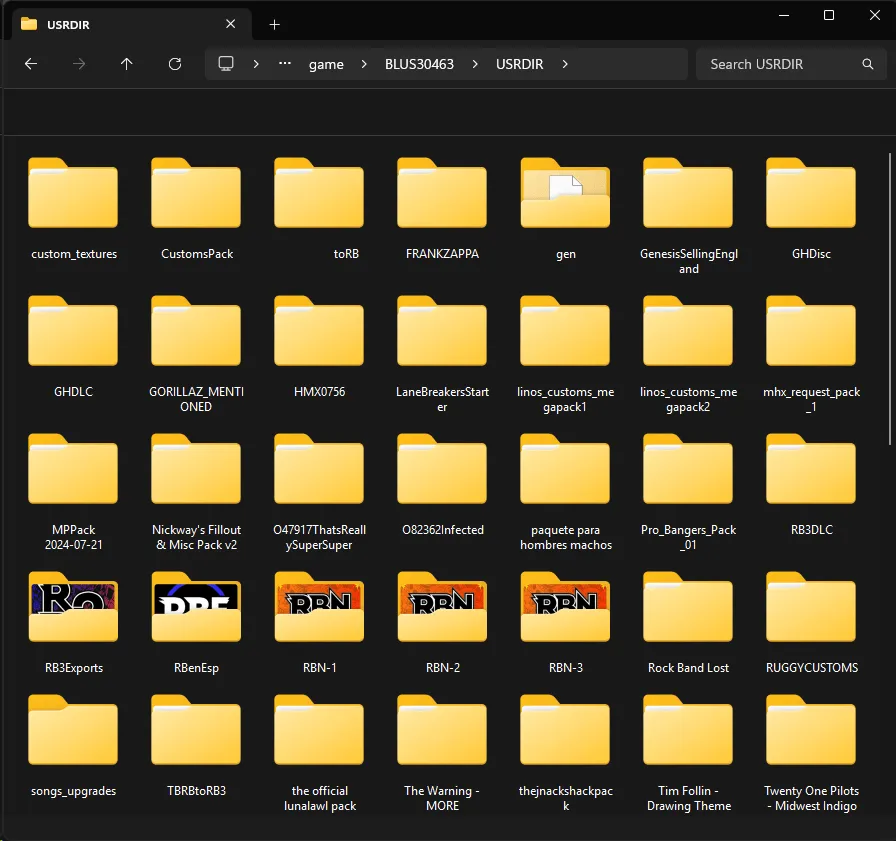
-
Look for the
songs.dtafile. It will be in thesongsfolder, likeUSRDIR\[Pack Name]\songs.
-
Drag the
songs.dtafile into theQuick Pack Editor.
-
Change
Quick Pack EditortoEdit DTA entries and pack contents.
Select the songs you want to remove then clickRemove selected.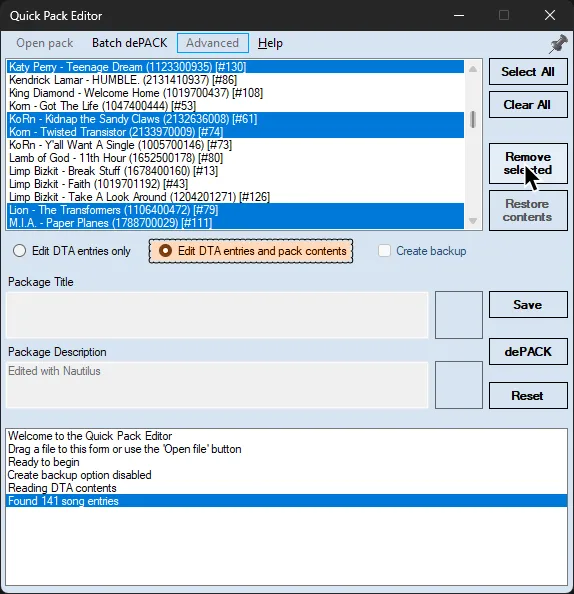
-
When you’re done, click
Saveto apply changes.