Skip to content

Deleting songs from packs

Rock Band 3 can delete a song in-game. However, if a song is part of a pack, it’ll delete that entire pack as well.

Rock Band 3 warning the user that they're about to delete many songs from the library.

The best way to remove a song from a pack is through Nautilus’ Quick Pack Editor.

  1. Open Nautilus and select Quick Pack Editor.
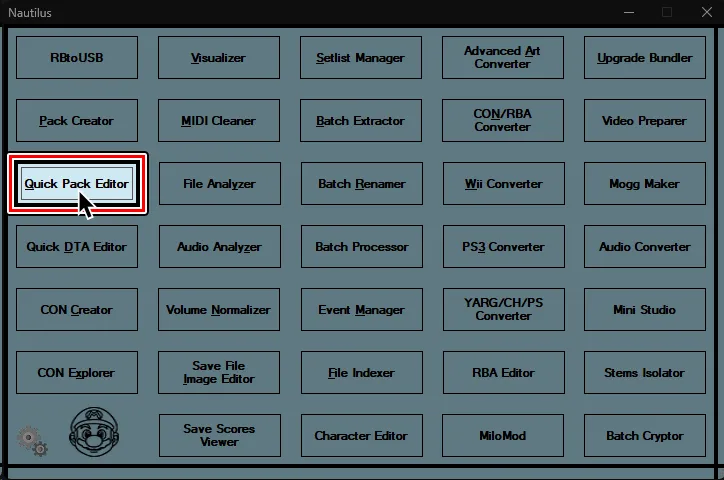
    Nautilus' main screen. A cursor hovers over 'Quick Pack Editor'.
  2. Open a file browser window and navigate to the pack’s folder that contains the song you want to remove.
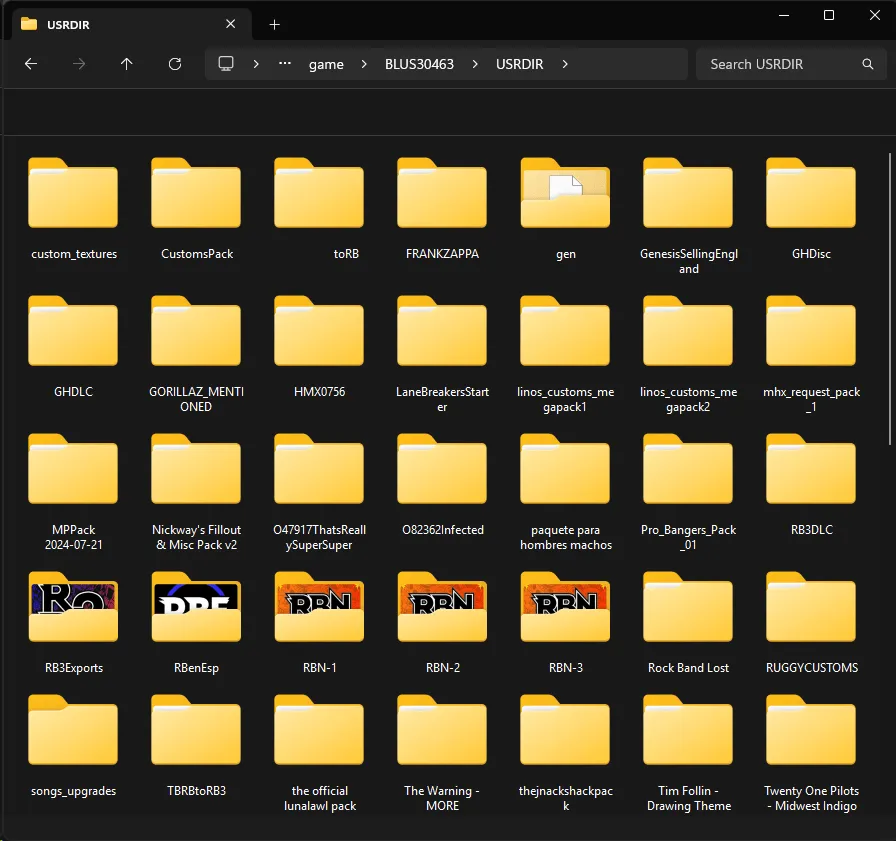
    These are usually located in dev_hdd0\game\BLUS30463\USRDIR\.

    A Windows Explorer window. It's showing the USRDIR of Rock Band 3, with various folders that are music packs.
  3. Look for the songs.dta file. It will be in the songs folder, like USRDIR\[Pack Name]\songs.


    A Windows Explorer window. It's showing a 'songs.dta' file within a pack's 'songs' folder.
  4. Drag the songs.dta file into the Quick Pack Editor.

    A `songs.dta` file being dragged into Nautilus' `Quick Pack Editor`.
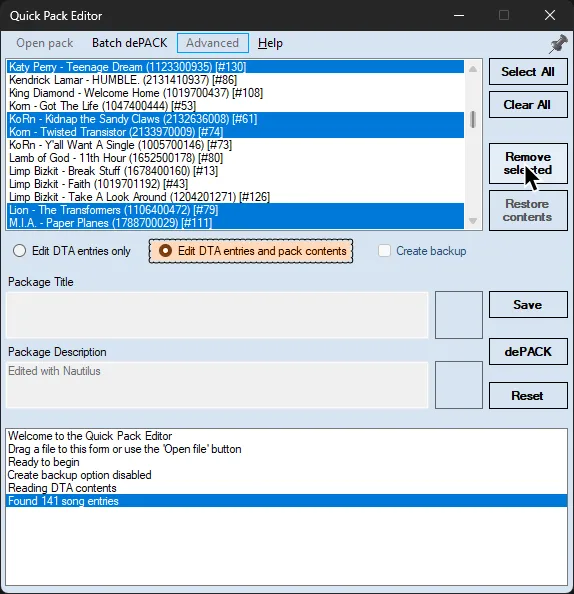
  5. Change Quick Pack Editor to Edit DTA entries and pack contents.
    Select the songs you want to remove then click Remove selected.

    'Quick Pack Editor' showing some songs selected. A highlight is over 'Edit DTA entries and pack contents' and the cursor is over 'Remove selected'.
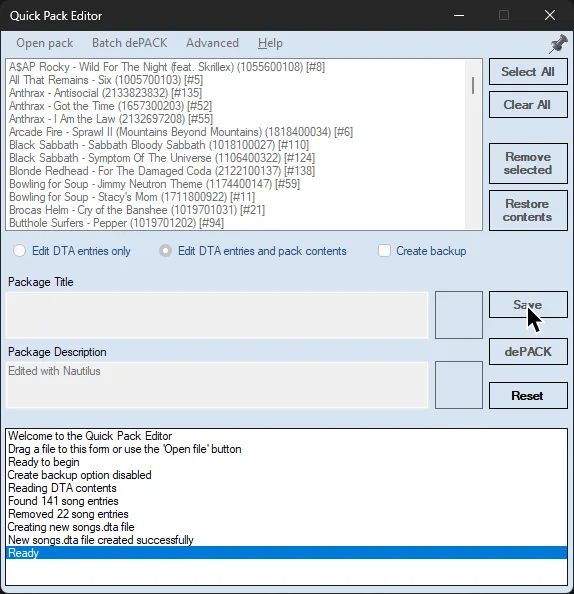
  6. When you’re done, click Save to apply changes.

    'Quick Pack Editor' with a log that says that the new `songs.dta` was created. The cursor is over `Save`.